

Use this page to manage individual user overrides on top of role-based access.Documentation Index
Fetch the complete documentation index at: https://docs.ofatoura.com/llms.txt
Use this file to discover all available pages before exploring further.
What You Control
- Select a specific staff user to manage.
- See role-based permissions vs user-specific overrides.
- Grant, Deny, or Reset to Role for each permission.
Setup Steps
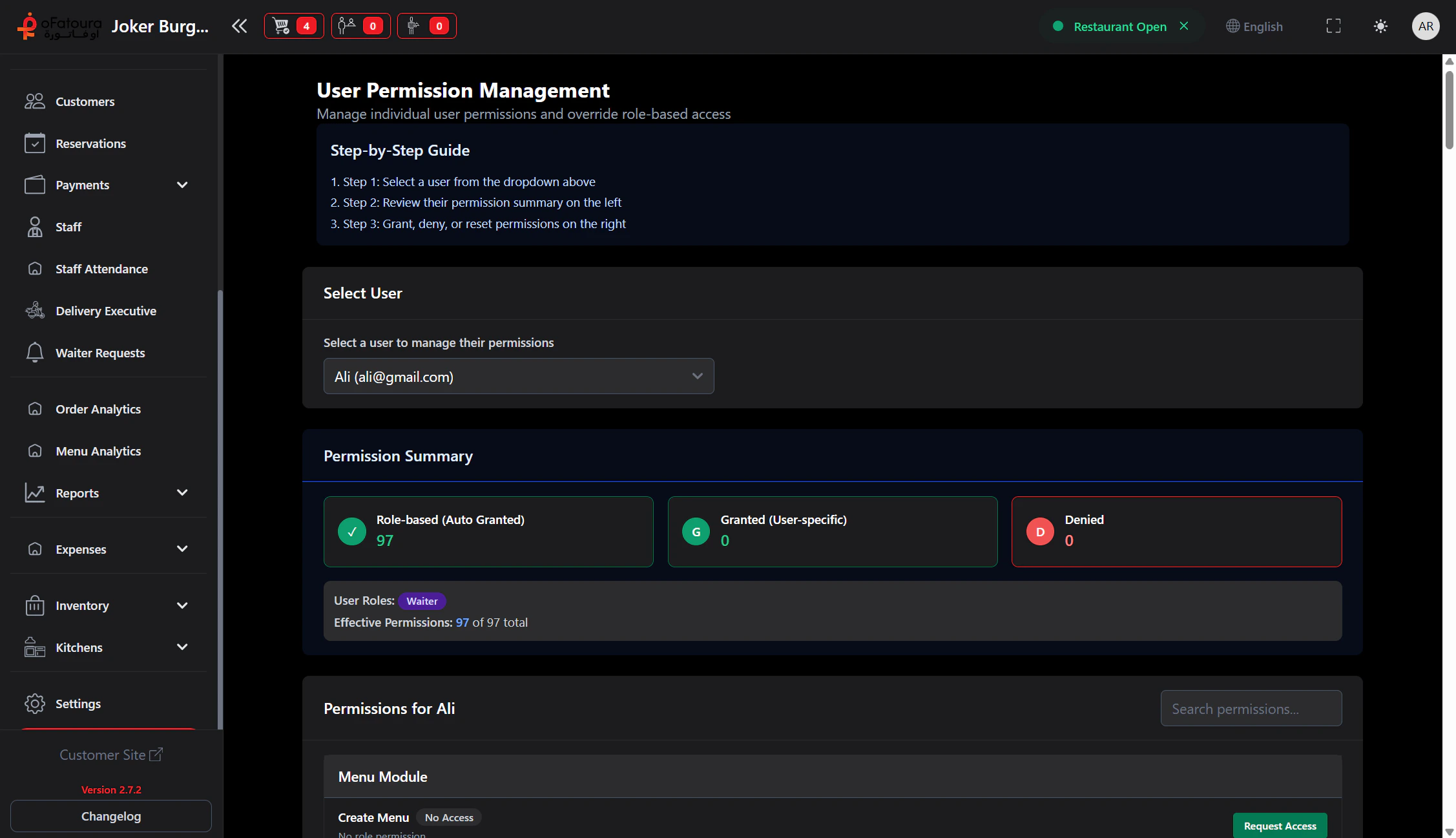
Review Permission Summary
Check the summary cards for:
- Role-Based (Auto Granted)
- User-Specific Granted
- User-Specific Denied
- Effective Permission Count
Update Permissions
- Search by permission name if needed.
- Click Grant to allow.
- Click Deny to block.
- Click Reset to Role to remove user-specific override.
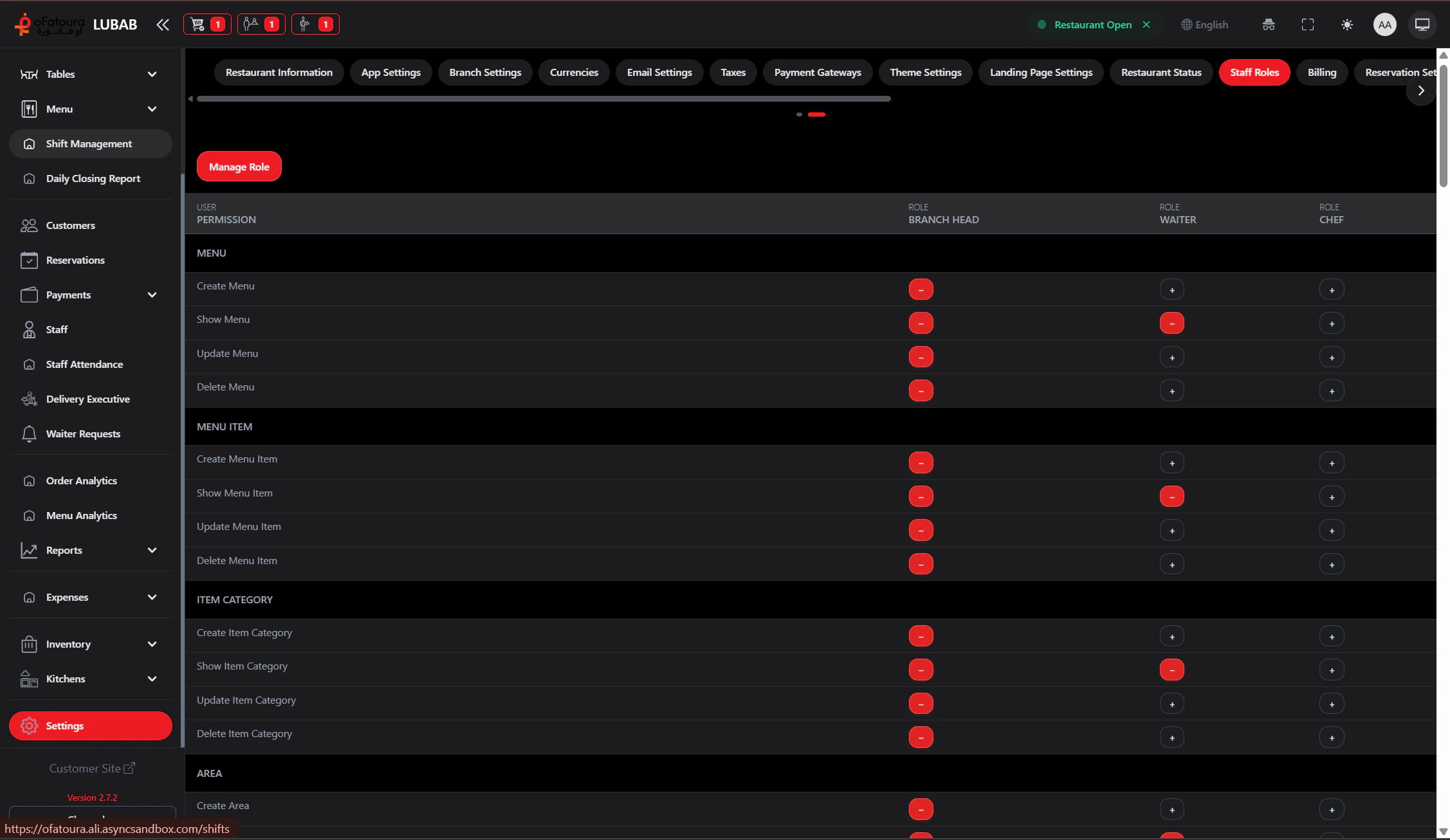
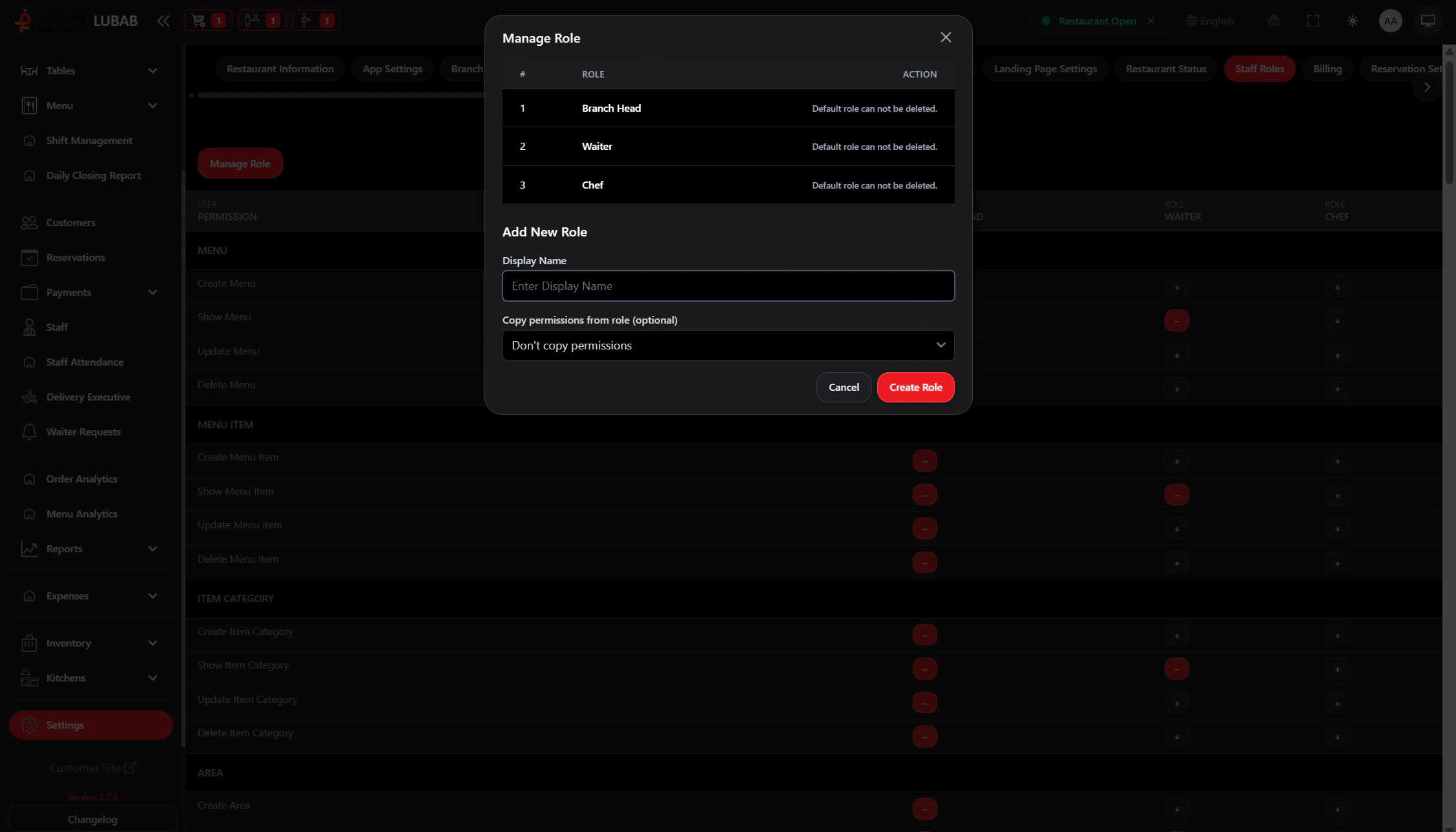
Best Practice: Follow least privilege. Start with role defaults, then use user-specific overrides only when truly needed.
Staff Profiles
Assign users to the correct roles
Settings
Open role settings templates