Overview
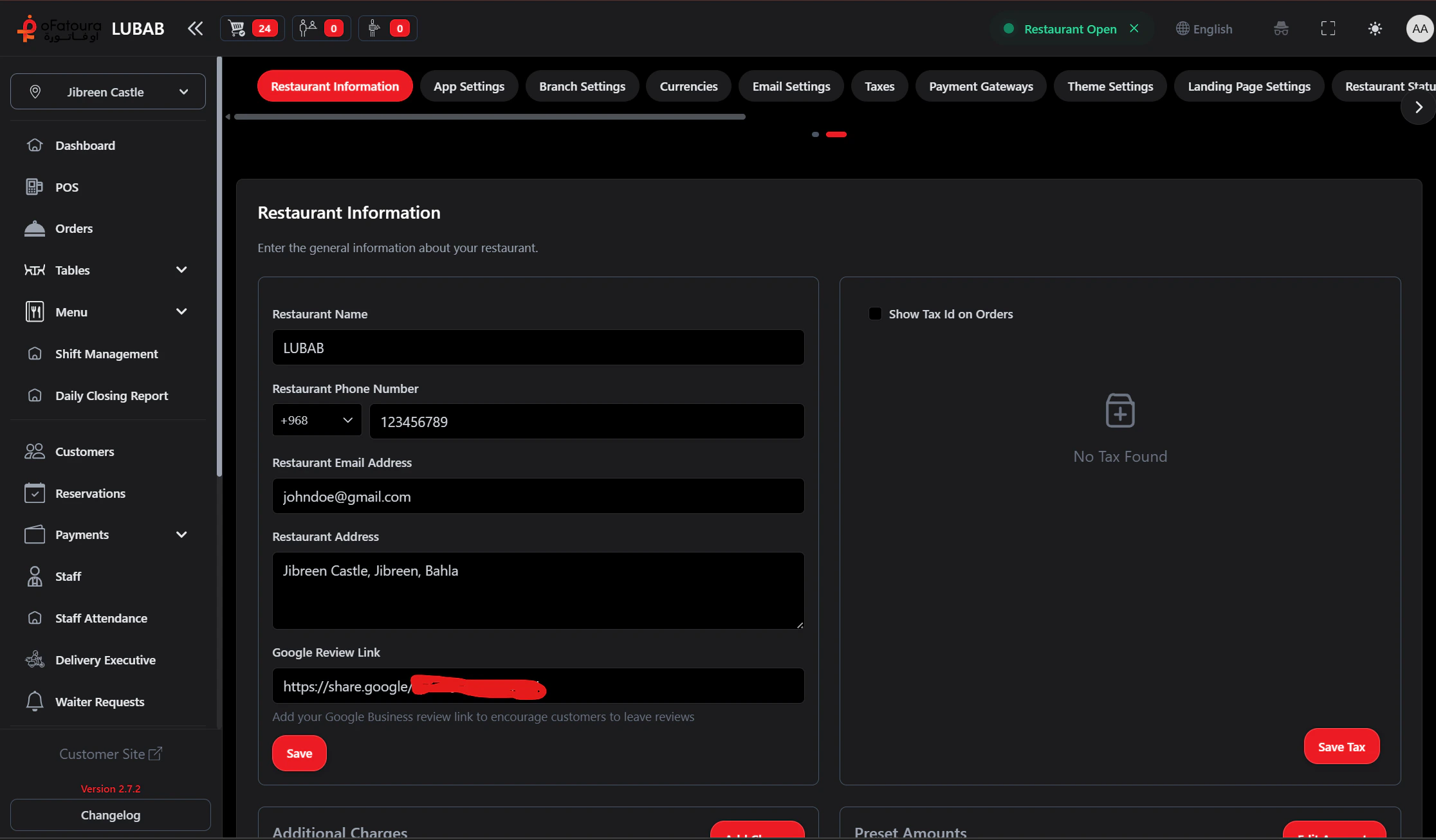
- Restaurant – Name, address, logo, contact details
- Branch – Add and manage locations
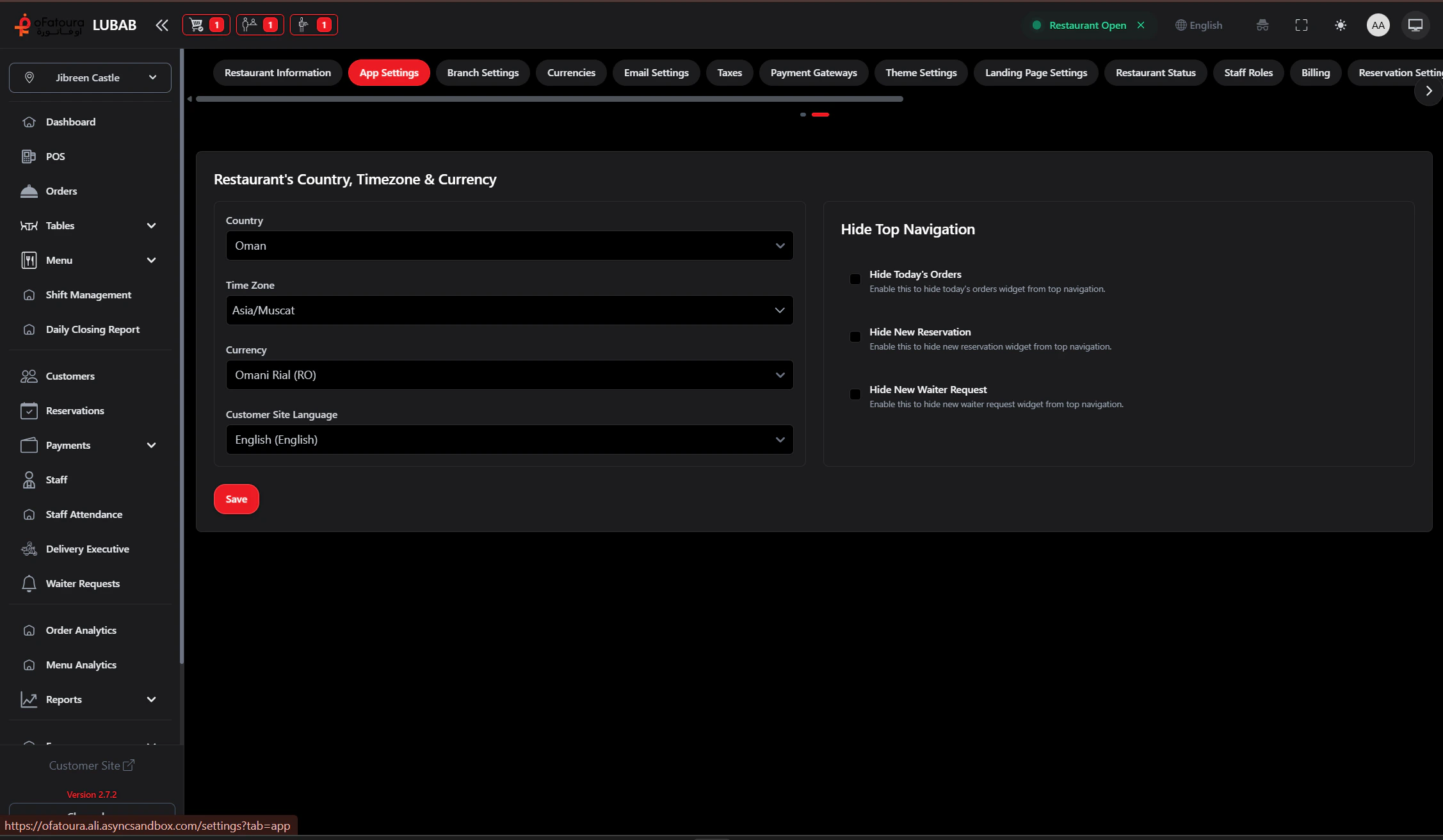
- Currency – Set your currency and format
- Tax – Tax rates and rules
- Theme – Colors and branding
- Customer Site – Online ordering page options
- Delivery – Delivery zones and fees
- Order – Order number format, POS options
Prerequisites
- You need permission to manage settings (Manage Settings).
- Some tabs are visible only to restaurant admins.
- Changes take effect after you click Save.
Restaurant Tab

- Go to Settings and open the Restaurant tab.
- Update: name, address, phone, logo, time zone, currency.
- Click Save.
- Verify the name and address appear correctly on receipts and the customer site.
Branch Tab
- Go to Settings > Branch tab.
- Click Add Branch or Add Location.
- Enter branch name and address.
- Save. Repeat for each location.
- Use the branch selector in the header to switch between branches when taking orders or viewing reports.
Currency Tab
- Go to Settings > Currency tab.
- Select your currency (e.g., USD, EUR, SAR).
- Set decimal places or format if the option exists.
- Click Save.
- All prices and reports use this currency.
Tax Tab
- Go to Settings > Tax tab.
- Add or edit tax rates (e.g., VAT 15%, Tax 0%).
- Assign default tax to items if needed.
- Save.
- Tax appears on receipts and in reports.
Theme Tab
- Go to Settings > Theme tab.
- Choose colors, logo, and branding for the customer site and app.
- Save.
- Preview the customer site to confirm appearance.
Customer Site Tab
- Go to Settings > Customer Site tab.
- Configure options for the online ordering page (menu display, checkout, delivery toggle).
- Save.
- Open the customer site link to verify.
Delivery Tab
- Go to Settings > Delivery tab.
- Add delivery zones and set fees or minimum order amounts.
- Save.
- Delivery options appear when customers order online.
Order Tab
- Go to Settings > Order tab.
- Set order number format (prefix, length) and POS options.
- Save.
- New orders use the updated format.
Common Mistakes and How to Avoid Them
| Mistake | How to avoid |
|---|---|
| Wrong currency | Set currency before adding menu items so prices display correctly. |
| Missing branch | Add all branches before assigning staff or tables. |
| Forgetting to save | Always click Save before leaving each tab. |
End Result
- Restaurant profile, branches, currency, and tax are configured.
- Theme and customer site options match your brand.
- Delivery and order settings support your workflow.