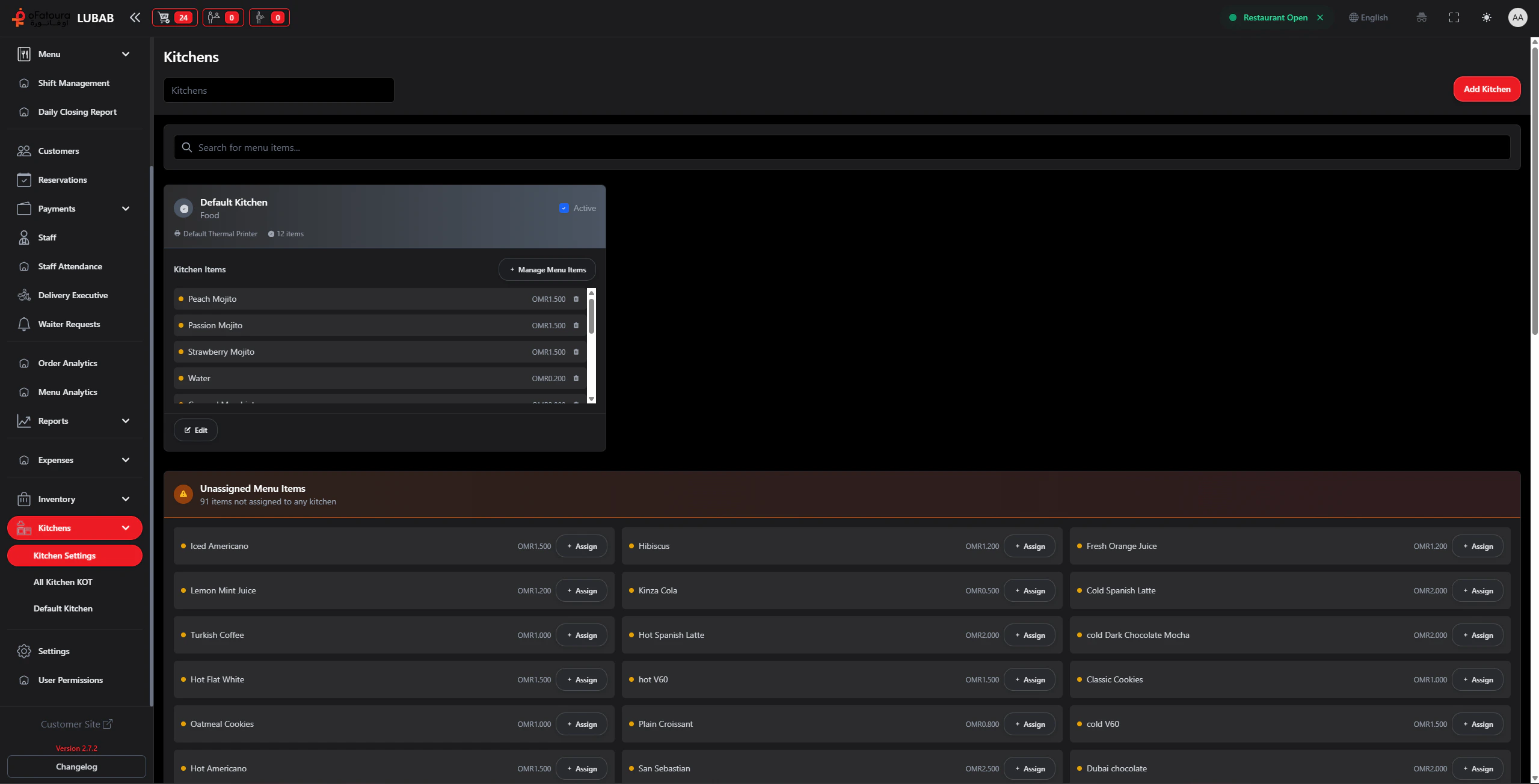
Kitchen Places are the different kitchen stations (e.g., Grill, Cold Prep, Desserts). Each kitchen receives only the items assigned to it. You assign menu items to kitchens and link a printer so KOTs print at the right station.

Overview

  • Add new kitchens (kitchen places)
  • Assign menu items to each kitchen
  • Link a printer to each kitchen (for KOT printing)
  • Activate or deactivate kitchens
  • Edit or delete kitchens

Prerequisites

  • The Kitchen module must be enabled.
  • Printers should be set up in main Settings (see Printer Settings).
  • Menu items must exist.
  • You need permission to manage Kitchen Places.

Step-by-Step Actions

1. Open Kitchen Settings

Kitchen settings
  1. In the left sidebar, expand Kitchens.
  2. Click Kitchen Settings (or Kitchens).
  3. The Kitchen Places page opens with a list of kitchens.

2. Add a new kitchen

Add kitchen
  1. Click Add Kitchen or Add.
  2. Enter the Kitchen name (e.g., Grill, Cold Prep, Desserts).
  3. Add a Description (optional).
  4. Select the Printer that will print KOTs for this kitchen.
  5. Set the kitchen as Active.
  6. Click Save or Add.

3. Assign menu items to a kitchen

  1. Find the kitchen in the list.
  2. Click Manage Items or Manage Menu Items.
  3. Select the menu items that this kitchen prepares.
  4. You may see:
    • Items already assigned to this kitchen
    • Unassigned items (not in any kitchen)
  5. Add items by selecting them and clicking Add or Assign.
  6. Remove items by clicking Remove.
  7. Save.

4. Assign items from the Menu Items page

  1. Go to Menu > Menu Items.
  2. Edit a menu item.
  3. Find Kitchen or Kitchen Type.
  4. Select the kitchen that prepares this item.
  5. Save. The item will be sent to that kitchen when ordered.
  1. Edit the kitchen.
  2. In Select Printer, choose the printer for this kitchen.
  3. Save. When a KOT is created for this kitchen, it will print there.
  4. Note: Use a different printer for each kitchen if you have multiple stations.

6. Activate or deactivate a kitchen

  1. Find the kitchen.
  2. Use the Active or Status toggle.
  3. An inactive kitchen will not appear in the KOT views and will not receive new items.

7. Edit or delete a kitchen

  1. Edit: Click Edit, change name, printer, or items, then Save.
  2. Delete: Click Delete, confirm. You may need to reassign items first.

Common Mistakes and How to Avoid Them

MistakeHow to avoid
Items not assignedAssign every menu item to at least one kitchen.
Wrong printerVerify each kitchen has the correct printer.
Duplicate assignmentsAvoid assigning the same item to multiple kitchens unless it is prepared in more than one.

End Result

  • Each kitchen station is set up.
  • Menu items are assigned to the right kitchen.
  • Printers are linked so KOTs print at the correct station.