Expense Categories help you organize expenses (e.g., Food, Utilities, Labor). Create categories first, then assign them when recording expenses.

Overview

  • View all expense categories
  • Create new categories
  • Edit category names and details
  • Delete unused categories
  • Organize expenses for reporting

Prerequisites

  • The Expense module must be enabled.
  • You need permission to manage expenses.

Step-by-Step Actions

1. Open Expense Categories

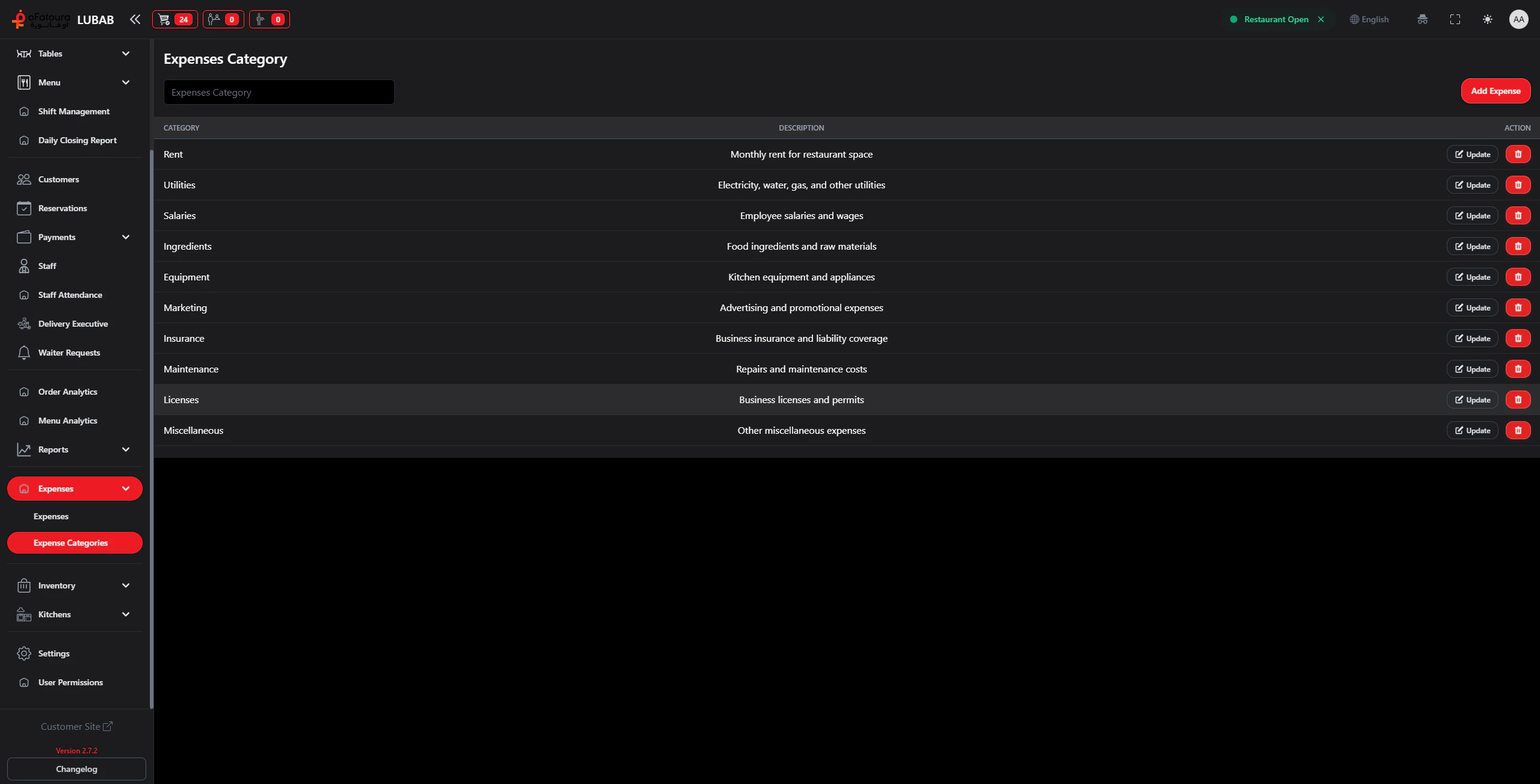
Expense categories
  1. In the left sidebar, expand Expenses.
  2. Click Expense Categories.
  3. The Expense Categories page opens.

2. Create a new category

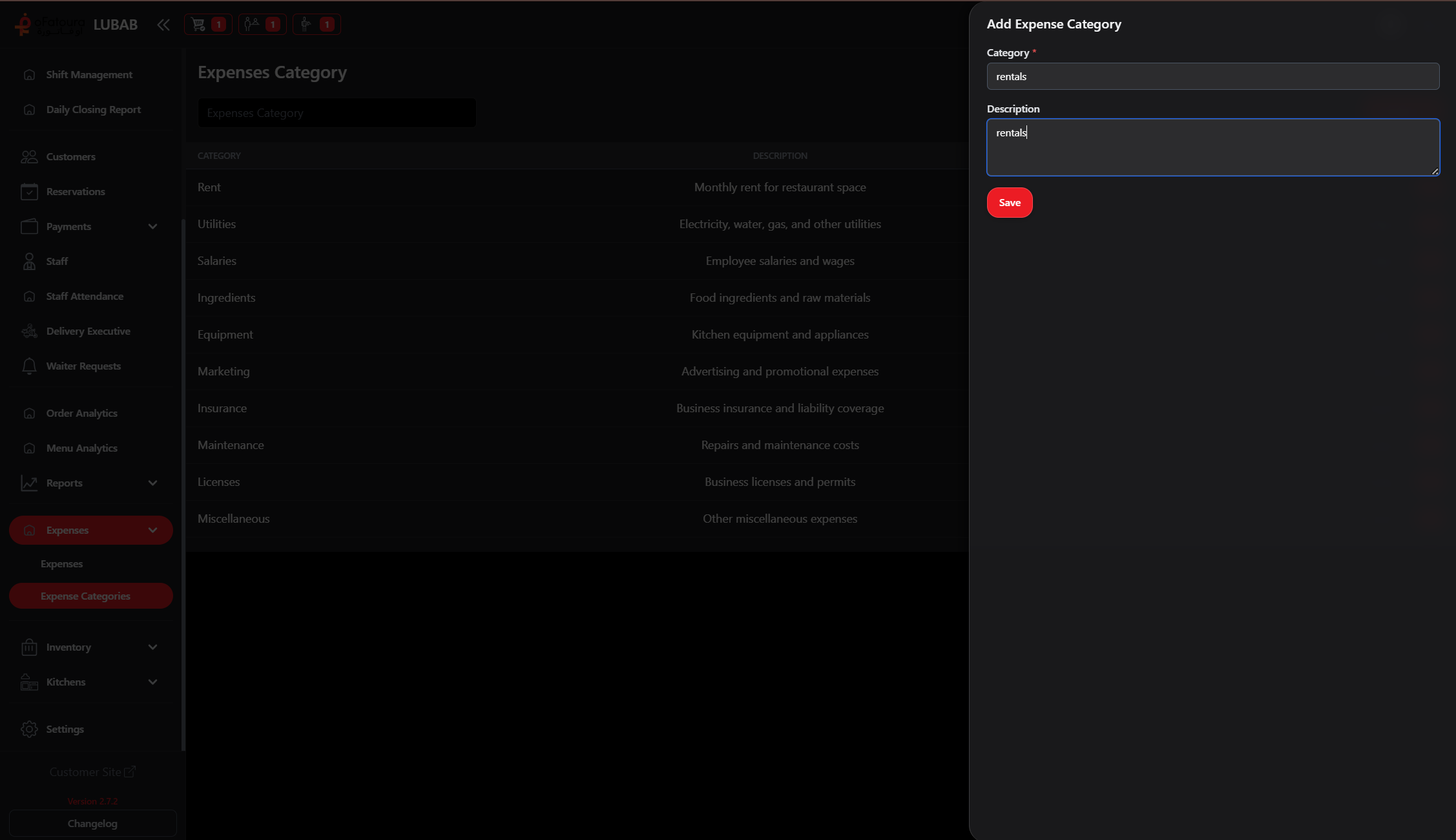
Add expense category
  1. Click Add or Create.
  2. Enter the category name (e.g., “Food & Beverage”, “Utilities”, “Rent”, “Labor”).
  3. Add a description if useful (optional).
  4. Click Save or Create.

3. Edit a category

  1. Find the category in the list.
  2. Click Edit.
  3. Change the name or details.
  4. Click Save.

4. Delete a category

  1. Find the category.
  2. Click Delete.
  3. Confirm when asked.
  4. Note: You may not be able to delete a category that has expenses. Reassign those expenses first or leave the category.

Common Mistakes and How to Avoid Them

MistakeHow to avoid
Too many categoriesUse 5–10 clear categories (e.g., Food, Utilities, Rent, Labor, Supplies).
Deleting category with expensesReassign or delete the expenses first.
Unclear namesUse names that are easy to understand (e.g., “Kitchen Supplies” instead of “Cat A”).

End Result

  • Expense categories are set up.
  • You can assign categories when adding expenses.
  • Expense reports are organized by category.