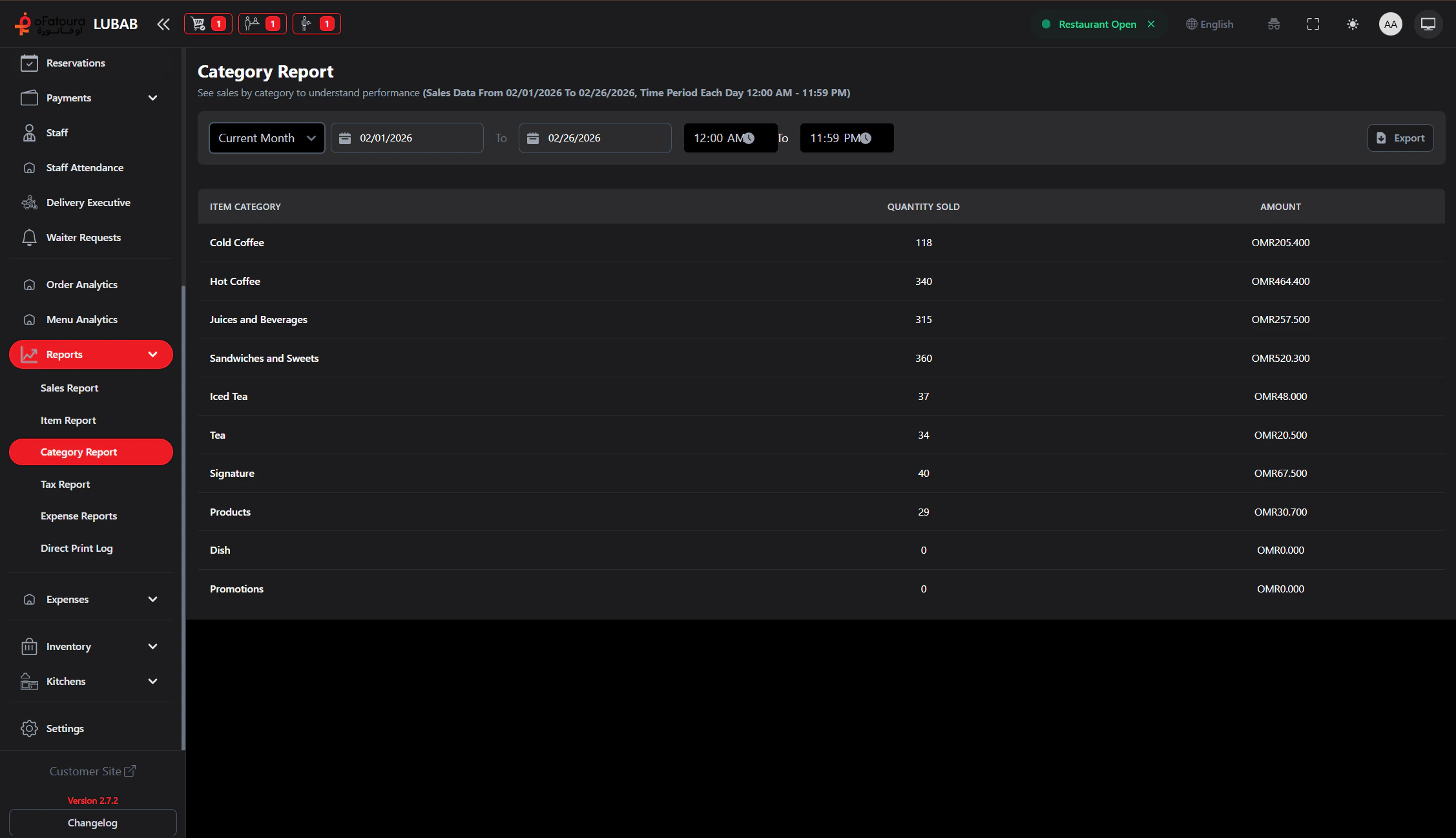
The Category Report shows sales by item category (e.g., Appetizers, Mains, Drinks). You can see which categories perform best and track trends.

Overview

  • View category sales performance
  • Filter by date range
  • Compare category revenue
  • See category trends
  • Export to PDF or Excel

Prerequisites

  • Item categories must exist.
  • The Report module must be enabled.
  • You need permission to view reports.

Step-by-Step Actions

1. Open Category Report

Category report
  1. In the left sidebar, expand Reports.
  2. Click Category Report.
  3. The Category Report page opens.

2. Set the date range

  1. Choose start and end dates.
  2. Click Generate or Apply.
  3. The report updates.

3. View category performance

  1. The report lists categories with:
    • Total sales or quantity
    • Revenue
    • Percentage of total
  2. Use this to see which categories drive revenue.

4. Compare categories

  1. View the breakdown to compare categories.
  2. Identify strong and weak categories.
  3. Use for menu planning and promotions.
  1. If a chart or trend view exists, use it to see changes over time.
  2. Spot seasonal or weekly patterns.

6. Export the report

  1. Click Export PDF or Export Excel.
  2. Save for planning and analysis.

Common Mistakes and How to Avoid Them

MistakeHow to avoid
Wrong date rangeCheck the filter before reading.
Too few categoriesEnsure categories are set up correctly in Menu setup.

End Result

  • You understand category performance.
  • You can optimize the menu and focus promotions.