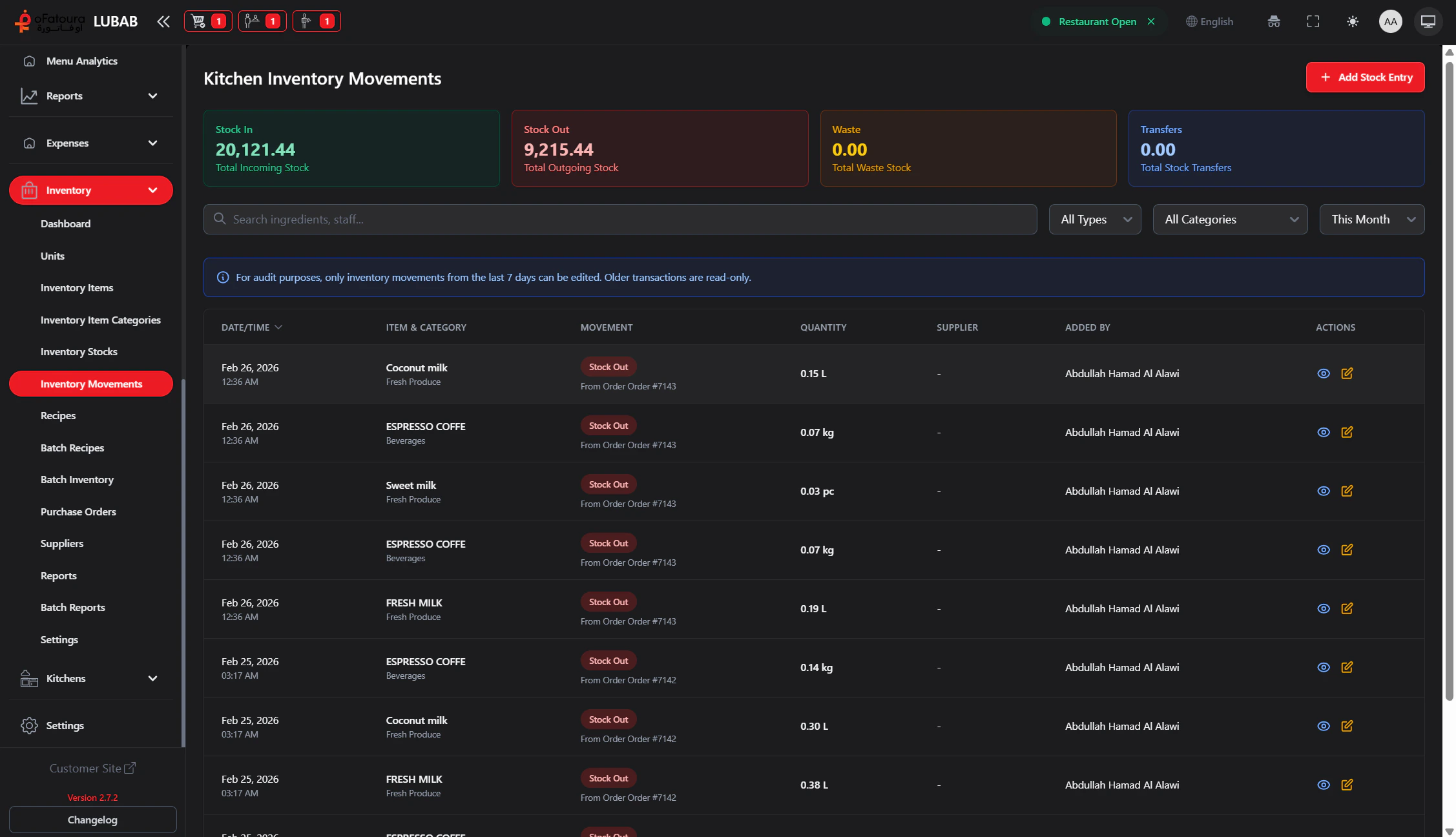
Inventory Movements record every change in stock: Stock In, Stock Out, Waste, and Transfer. Use this page to see history and add or edit movements.

Overview

  • View all stock changes (in, out, waste, transfer)
  • Add new movements (stock in, waste, etc.)
  • Filter by type, category, and date
  • Edit recent movements (usually last 7 days)
  • Export movements for reporting

Prerequisites

  • Inventory Items must exist.
  • You need permission to view and create Inventory Movements.

Step-by-Step Actions

1. Open Inventory Movements

Movements
  1. In the left sidebar, expand Inventory.
  2. Click Inventory Movements.
  3. The movements list opens with stats (Stock In, Stock Out, Waste, Transfer).

2. Add a stock entry

  1. Click Add Stock Entry.
  2. Select Transaction type:
    • Stock In – received delivery
    • Stock Out – manual deduction (e.g., given away)
    • Waste – spoilage, spillage, over-preparation
    • Transfer – moved between branches
  3. Select the item and enter quantity.
  4. For Waste: enter Waste reason.
  5. For Stock In: select Supplier and Expiry date if needed.
  6. Click Save or Add.

3. Filter movements

  1. Use Type filter: In, Out, Waste, Transfer.
  2. Use Category filter: by inventory category.
  3. Use Date filter: Today, Week, Month, Quarter.
  4. The list updates.

4. Edit a movement (if allowed)

  1. Find the movement (usually only last 7 days are editable).
  2. Click Edit.
  3. Change quantity or details.
  4. Save.

5. Export movements

  1. Click Export.
  2. The file is downloaded.
  3. Use for reconciliation or reporting.

Common Mistakes and How to Avoid Them

MistakeHow to avoid
Wrong transaction typeChoose the correct type so reports are accurate.
Wrong quantityDouble-check before saving.
Editing old movementsOnly recent movements can be edited; check the date limit.

End Result

  • All stock changes are recorded.
  • You can filter and export movement history.
  • Waste and transfers are tracked for better control.