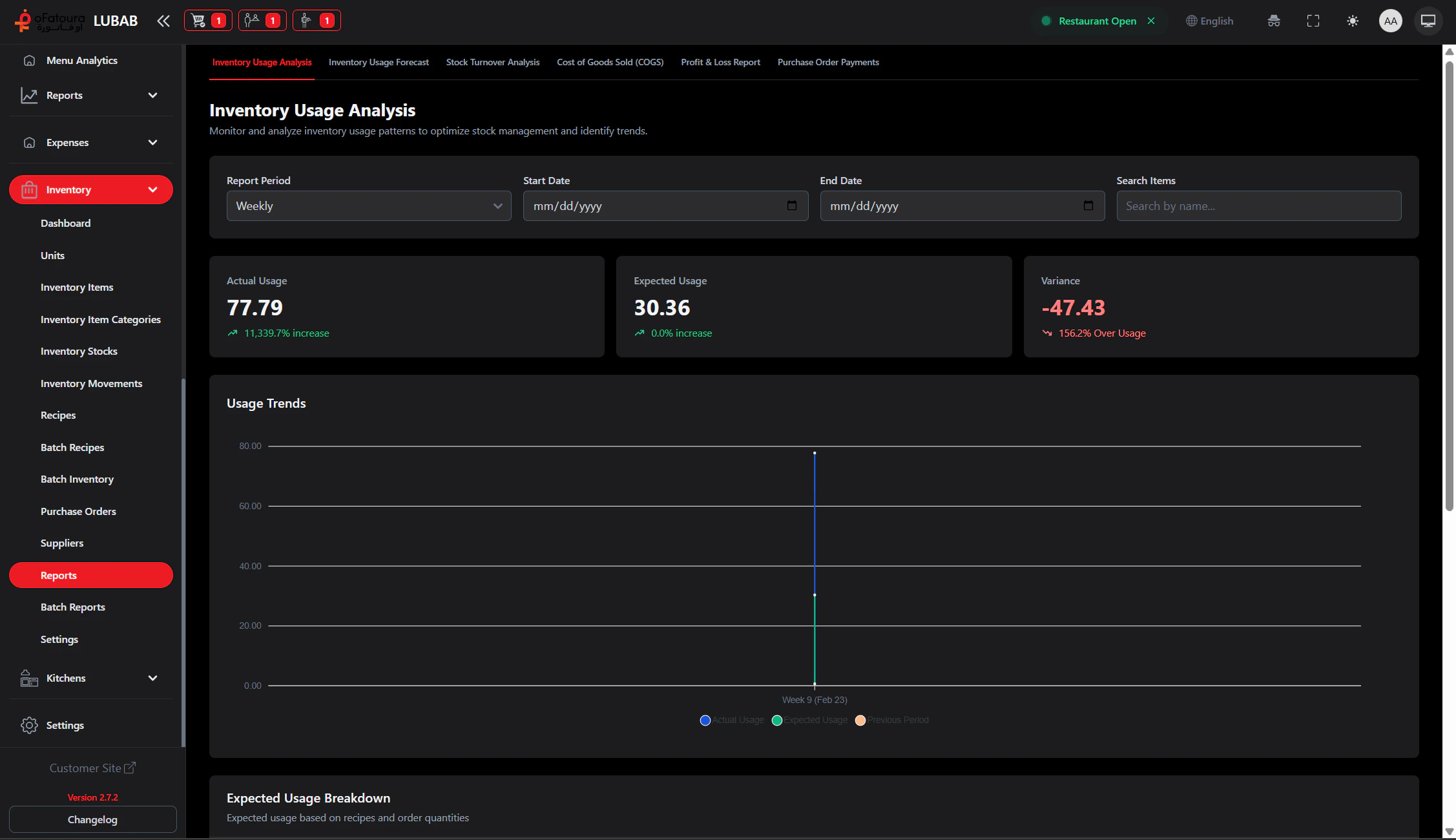
Overview
- Usage report – How much of each item was used
- Turnover report – How fast items move
- COGS report – Cost of goods sold
- Profit and loss – Revenue vs cost
- Purchase orders report – PO history
- Batch reports – Production, consumption, expected vs actual, waste, COGS
Prerequisites
- The Inventory module must be enabled.
- You need permission to view Inventory Reports (Show Inventory Report).
- Enough data (movements, orders, recipes) improves report usefulness.
Step-by-Step Actions
1. Open Inventory Reports

- In the left sidebar, expand Inventory.
- Click Reports (for standard reports) or Batch Reports (for batch-related reports).
- The report page opens.
2. Set the date range
- Choose Start date and End date.
- Click Generate or Apply.
- The report updates.
3. View and use the report
- Read the totals and breakdowns.
- Identify items with high usage, slow turnover, or high waste.
- Use this to adjust ordering and recipes.
4. Export (if available)
- Click Export or Download.
- Save for accounting or planning.
Common Mistakes and How to Avoid Them
| Mistake | How to avoid |
|---|---|
| Wrong date range | Choose a range that matches your review period; too short may show incomplete data. |
| Missing data | Ensure Recipes link menu items to inventory so usage is tracked. |
| Ignoring waste | Check batch and movement reports for waste to identify production issues. |
End Result
- You understand inventory usage and costs.
- You can make data-driven ordering and menu decisions.
- Reports support better profitability.