

Use this view when a kitchen team should see only its own KOT queue.Documentation Index
Fetch the complete documentation index at: https://docs.ofatoura.com/llms.txt
Use this file to discover all available pages before exploring further.
Station Filter
- Scoped to one kitchen place (for example Grill, Bar, Dessert).
- Same ticket actions as all-kitchen view, but only for that kitchen.
- Supports grouping by table or order type.
Setup & Usage
Assign Kitchen Type to Items
In Menu Items, set Kitchen Type for each item (Kitchen module enabled).
Open One Kitchen View
Open the required kitchen page from Kitchen navigation (for example, Grill kitchen).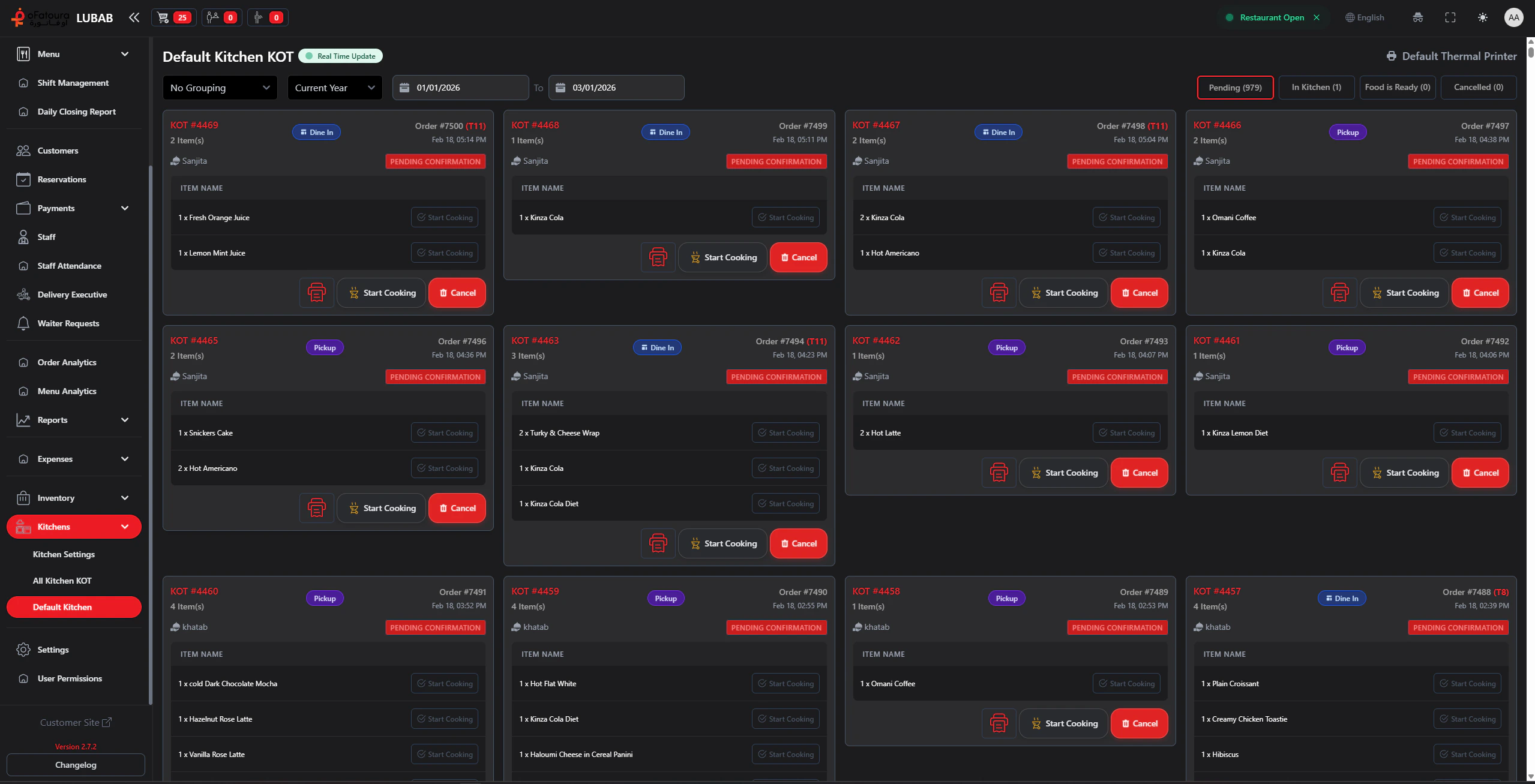
Filter and Group
Use:
- Group By: none, table, or order type
- Date range preset and custom start/end date
- Status tabs: Pending Confirmation (if enabled), In Kitchen, Food Ready, Cancelled
This view is filtered by the KOT’s kitchen place. If items are not routed to a kitchen place, they will not appear in that kitchen view.
Menu Items
Set kitchen type per item
All KOT View
Cross-kitchen expeditor board