Overview
- Add and manage delivery executives
- Assign delivery executives to orders
- View orders assigned to each executive
- Export the delivery executive list
Prerequisites
- The Delivery Executive module must be enabled.
- You need permission to manage Delivery Executives.
Step-by-Step Actions
1. Open Delivery Executive

- Click Delivery Executive in the left sidebar.
- The Delivery Executive page opens with a list of executives.
2. Add a new delivery executive
- Click Add or Create.
- Enter:
- Name
- Phone number
- Email (if needed)
- Any other required fields
- Click Save or Create.
3. Edit a delivery executive
- Find the executive in the list.
- Click Edit.
- Update the details.
- Click Save.
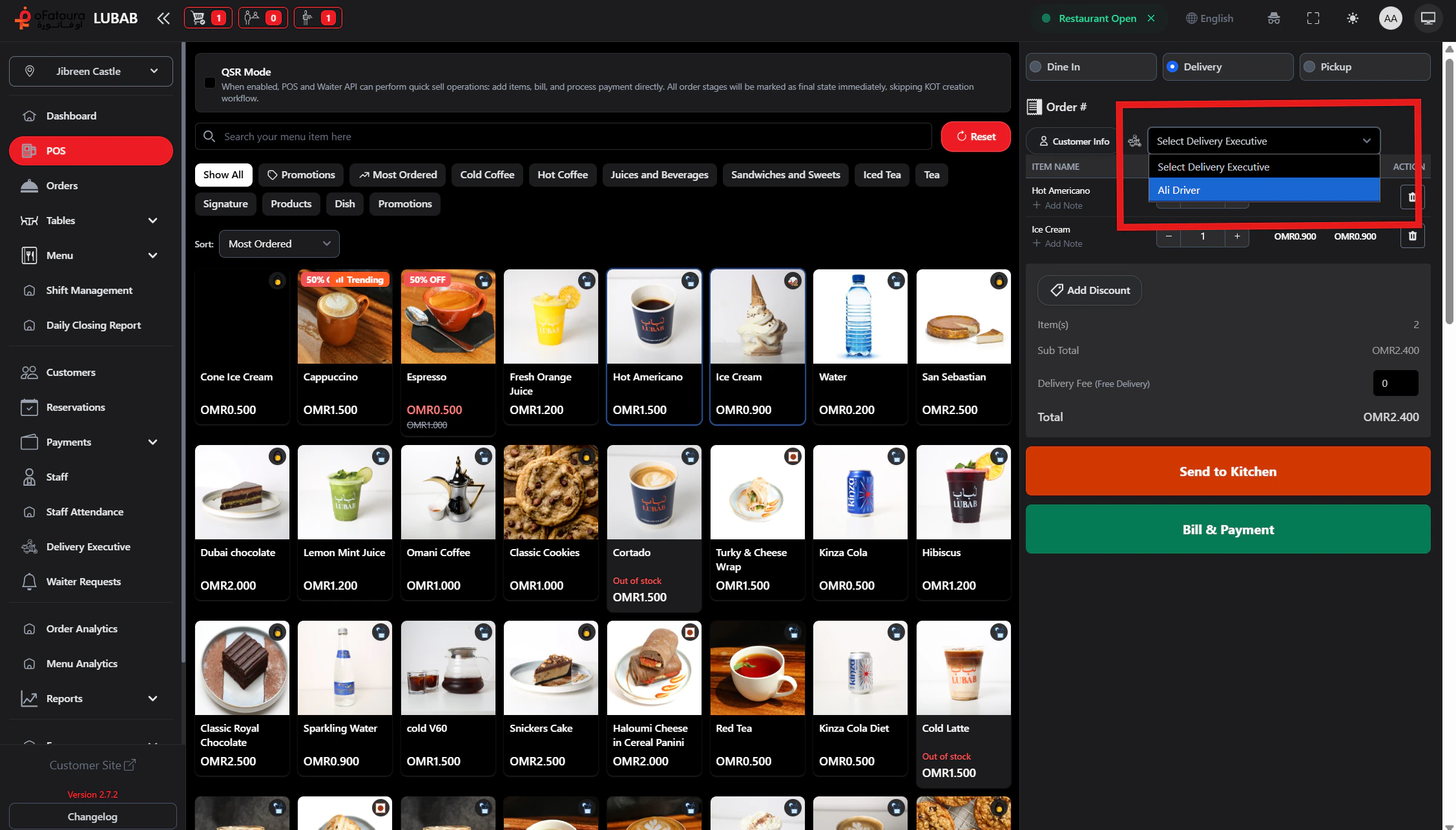
4. Assign a delivery executive to an order

- When processing a delivery order (usually from POS or Orders page):
- Look for Assign Delivery Executive or a similar option.
- Select the executive from the dropdown.
- Save.
- The executive will see or receive the delivery order.
5. View orders for a delivery executive
- On the Delivery Executive page, click an executive or View orders.
- See the list of orders assigned to that executive.
- Use this to track delivery workload and status.
6. Delete a delivery executive
- Find the executive.
- Click Delete.
- Confirm when asked.
- Do not delete if they have active deliveries.
7. Export the list
- If an Export button is available, click it.
- The list is downloaded (e.g., as Excel).
Common Mistakes and How to Avoid Them
| Mistake | How to avoid |
|---|---|
| Duplicate phone numbers | Use unique phone numbers for each executive. |
| Assigning to wrong person | Double-check the executive before assigning. |
| Deleting with active orders | Reassign active orders before removing an executive. |
End Result
- Delivery executives are set up.
- Orders can be assigned to the right delivery staff.
- You can track who is responsible for each delivery.