

Use the dashboard to see stock health before service and purchasing.Documentation Index
Fetch the complete documentation index at: https://docs.ofatoura.com/llms.txt
Use this file to discover all available pages before exploring further.
Stock Metrics
- Available: Items above threshold.
- Low Stock: Items at or below threshold.
- Out of Stock: Items with zero quantity.
- Total Value: Current stock value (when valuation is configured).
Understanding the Dashboard
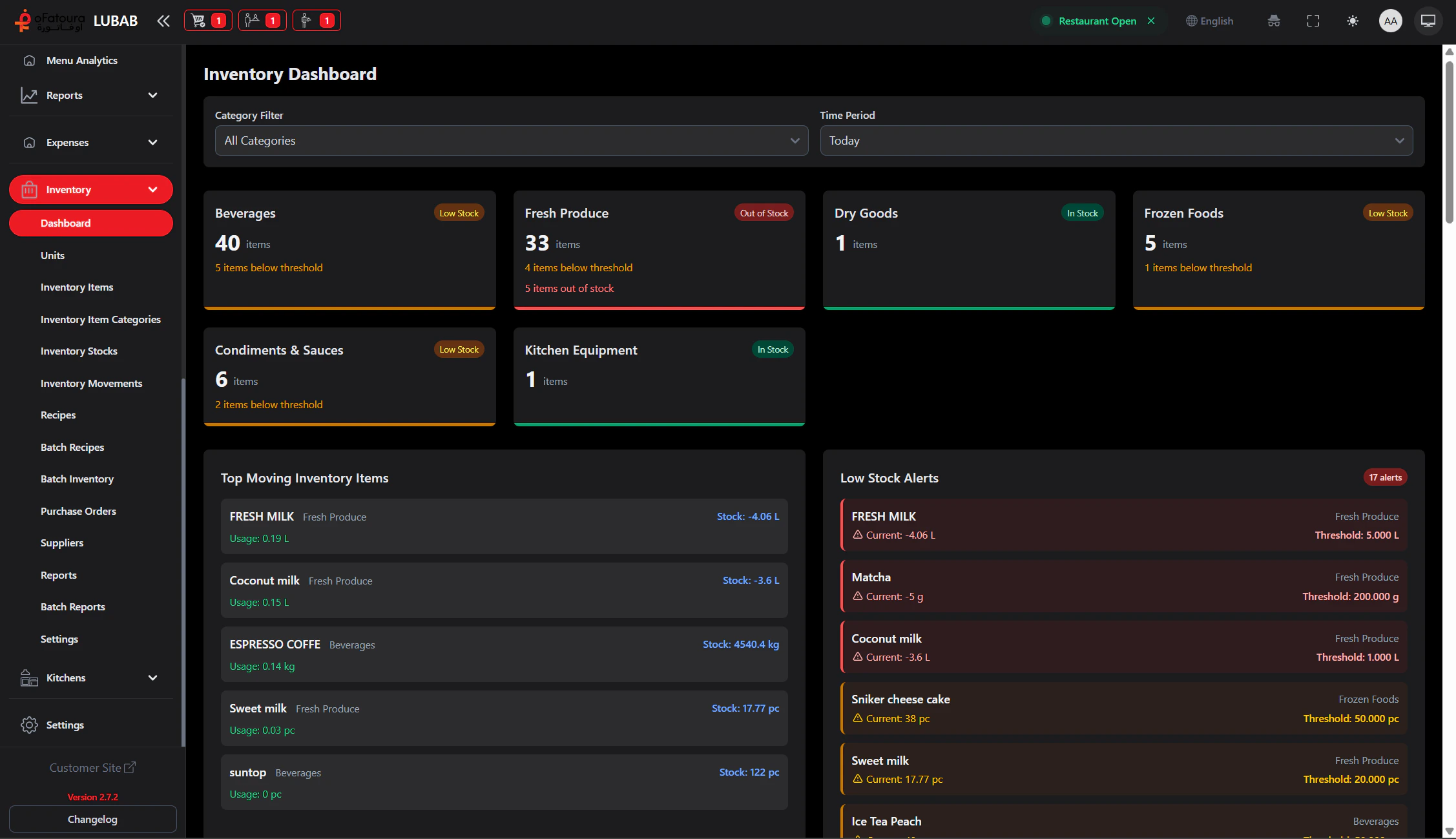
Read the Summary
Check available, low-stock, and out-of-stock counts to identify items needing action.
Take Action
Open related pages from dashboard links:
Set accurate thresholds in Inventory Items so low-stock alerts are meaningful.
Inventory Items
Set stock thresholds
Purchase Orders
Restock low items