Overview
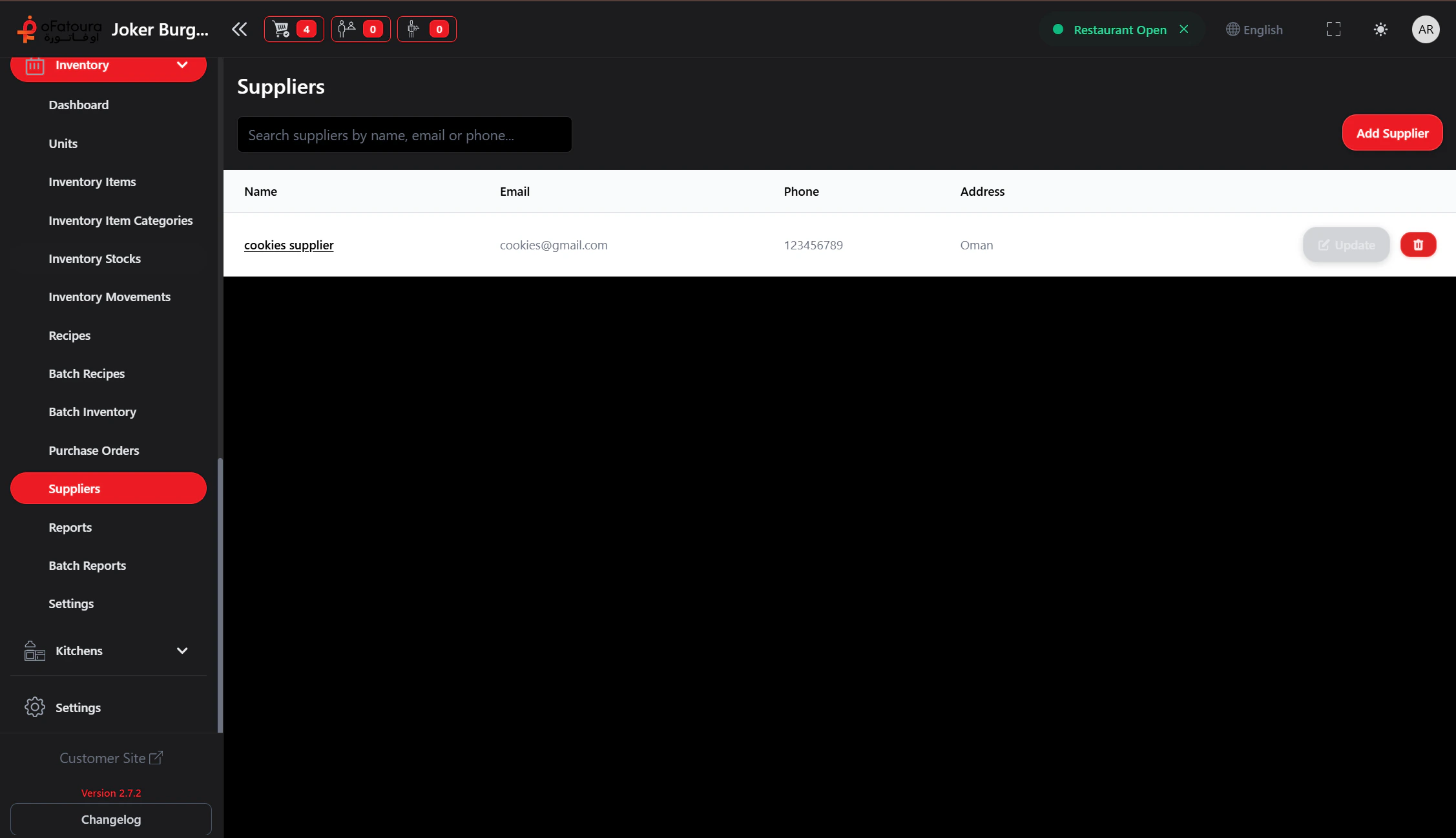
- Add suppliers with name, phone, email, and address
- Edit or delete suppliers
- Search suppliers
- Assign a preferred supplier to inventory items
Prerequisites
- The Inventory module must be enabled.
- You need permission to manage Suppliers (Show Supplier).
Step-by-Step Actions
1. Open Suppliers

- In the left sidebar, expand Inventory.
- Click Suppliers.
- The Suppliers page opens.
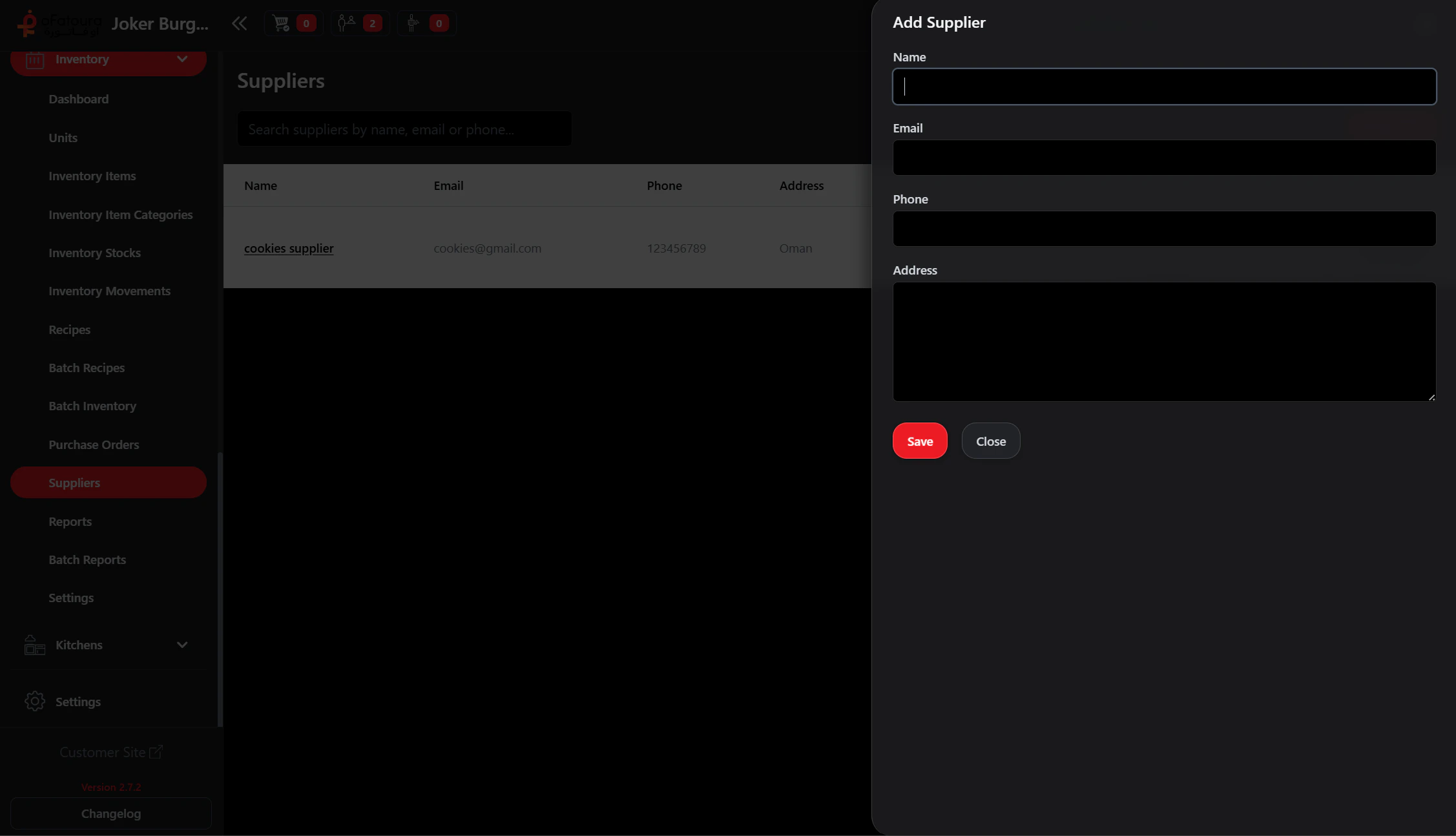
2. Add a new supplier
- Click Add Supplier or Add.
- Enter:
- Name
- Phone
- Email (optional)
- Address (optional)
- Click Save or Add.
3. Edit a supplier
- Find the supplier in the list.
- Click Edit.
- Update the details.
- Click Save.
4. Delete a supplier
- Find the supplier.
- Click Delete.
- Confirm.
- Note: You may not delete a supplier with purchase orders. Handle those POs first.
5. Assign preferred supplier to inventory items
- Go to Inventory Items.
- Edit an item.
- In Preferred Supplier, select the supplier.
- Save. When you create a purchase order, this supplier can be suggested.
Common Mistakes and How to Avoid Them
| Mistake | How to avoid |
|---|---|
| Missing contact details | Add phone and email so you can reach suppliers when reordering. |
| Deleting supplier with POs | Complete or reassign purchase orders before deleting a supplier. |
| Duplicate suppliers | Use the search to avoid adding the same supplier twice. |
End Result
- Suppliers are set up with contact details.
- You can create purchase orders and assign suppliers.
- Inventory items can have a preferred supplier for faster ordering.