Overview
- View expense summary by period
- Filter by category and date
- Track expense trends
- Compare expense periods
- Export to PDF or Excel
Prerequisites
- The Expense and Report modules must be enabled.
- Expenses should be recorded (see Expenses).
- You need permission to view reports.
Step-by-Step Actions
1. Open Expense Report

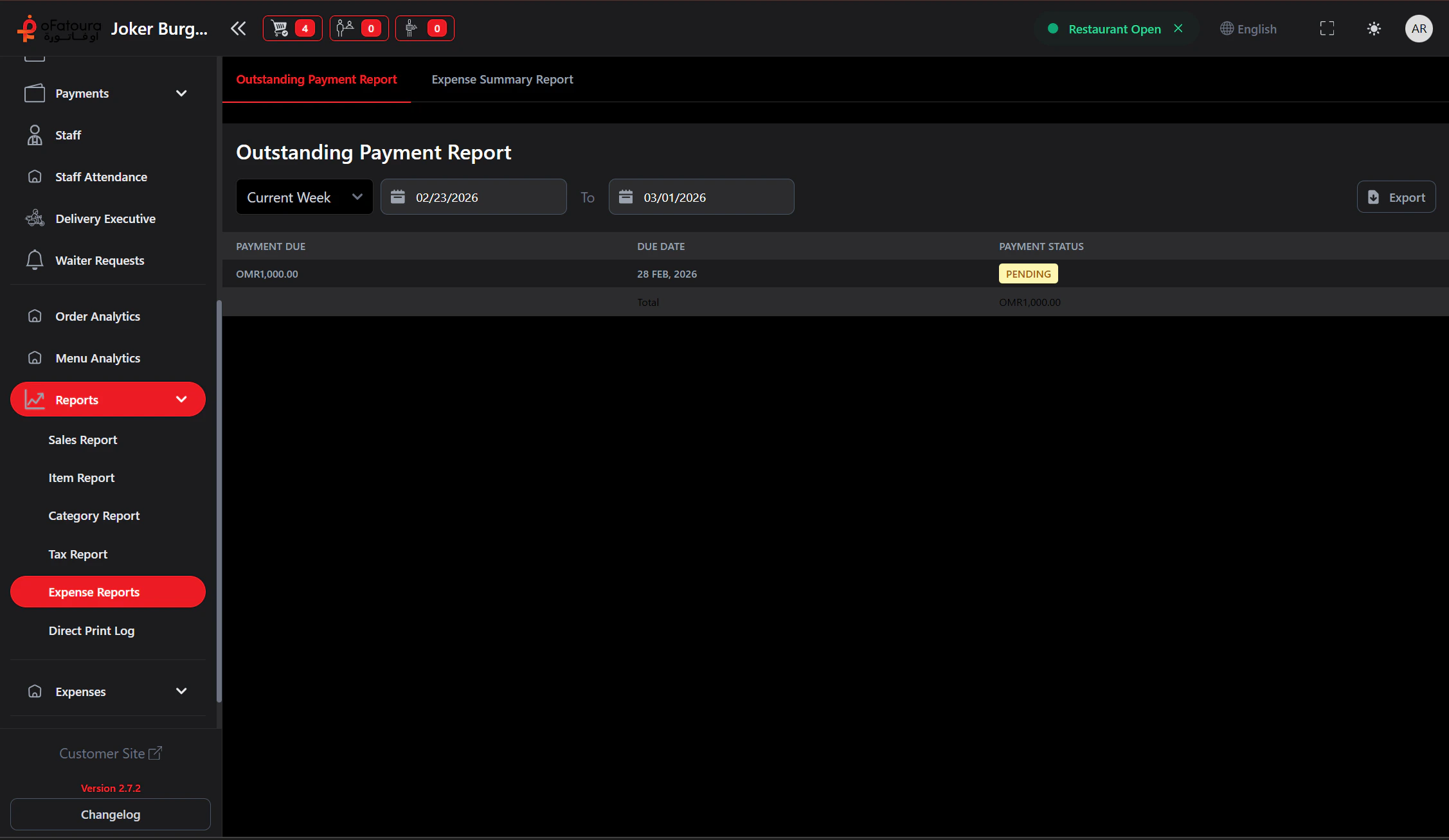
- In the left sidebar, expand Reports.
- Click Expense Reports.
- The Expense Report page opens.
2. Set the date range
- Choose start and end dates.
- Click Generate or Apply.
- The report updates.
3. View expense summary
- See total expenses for the period.
- View breakdown by category.
- Check for unexpected spikes.
4. Filter by category
- Select one or more expense categories.
- The report shows only those.
- Use for focused analysis.
5. View trends (if available)
- If a chart or trend view exists, use it.
- See how expenses change over time.
- Use for budgeting.
6. Compare periods
- If comparison is available, select another period.
- See if expenses are up or down.
7. Export the report
- Click Export PDF or Export Excel.
- Save for accounting or budgeting.
Common Mistakes and How to Avoid Them
| Mistake | How to avoid |
|---|---|
| Wrong categories | Ensure expenses are in the right categories. |
| Incomplete data | Record all expenses for accurate reports. |
End Result
- You have a clear expense summary.
- You can track and control costs.