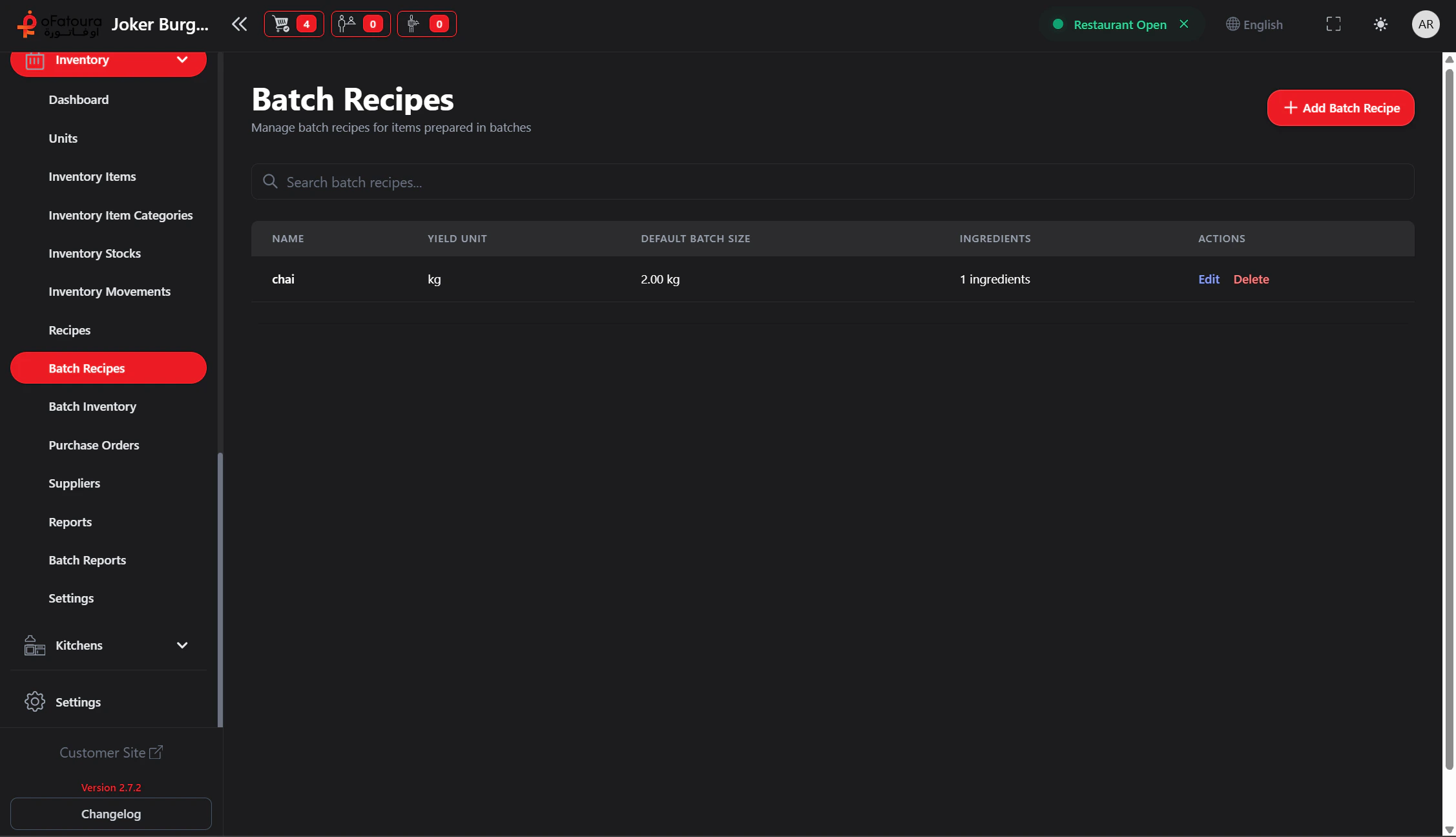
Batch Recipes are used when you prepare items in batches (e.g., sauce, dough) rather than per order. You define the batch recipe, produce it, and the output is tracked as batch inventory.

Overview

  • Create batch recipes (ingredients in, outputs out)
  • Produce batches and record output
  • View batch recipes and their status
  • Track batch expiry (if applicable)

Prerequisites

  • Inventory Items must exist.
  • You need permission to manage Batch Recipes (Show Batch Recipe).

Step-by-Step Actions

1. Open Batch Recipes

Batch recipes
  1. In the left sidebar, expand Inventory.
  2. Click Batch Recipes.
  3. The Batch Recipes page opens.

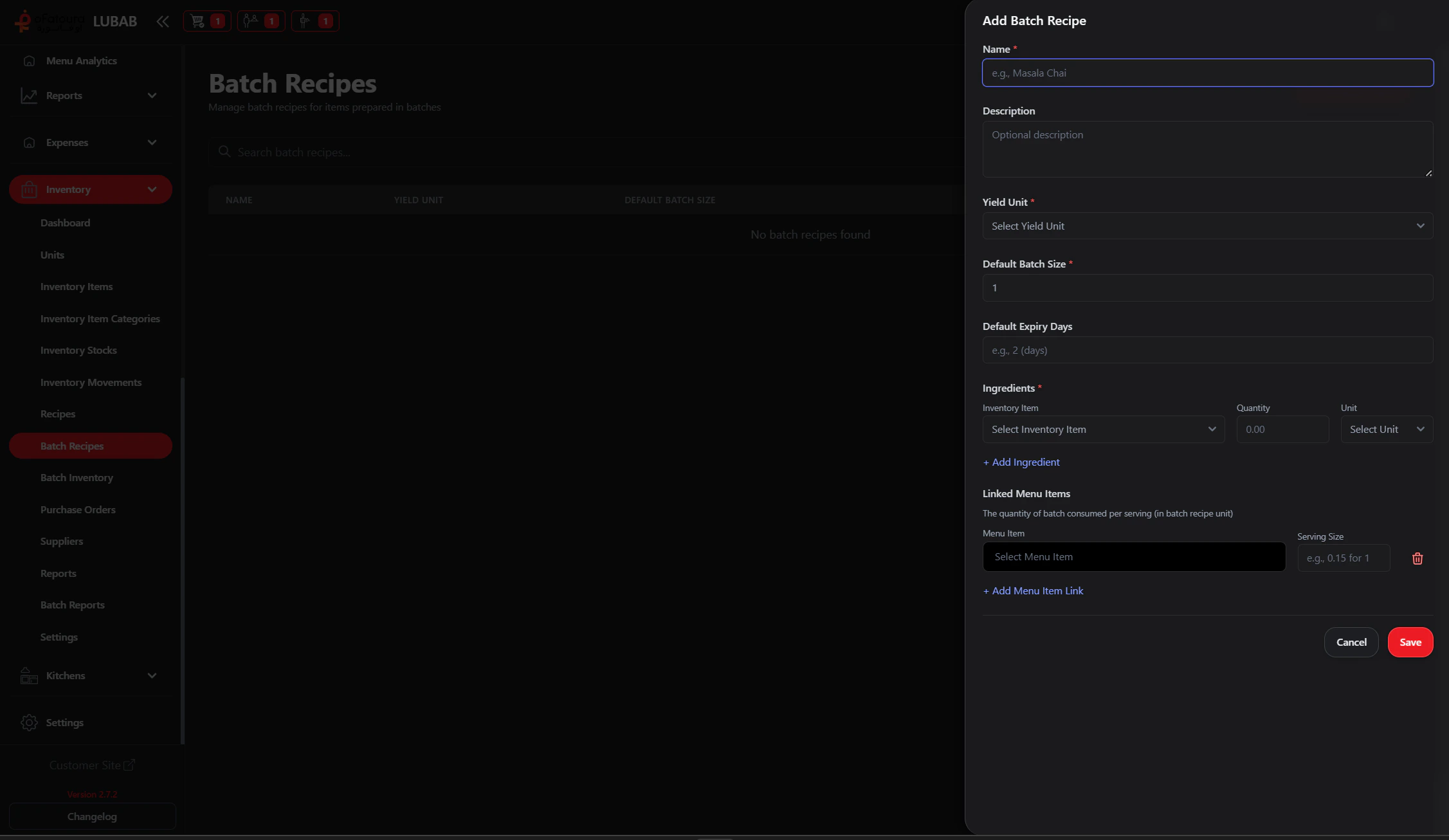
2. Create a batch recipe

  1. Click Add or Create Batch Recipe.
  2. Enter the recipe name (e.g., Tomato Sauce, Pizza Dough).
  3. Add inputs – inventory items and quantities used per batch.
  4. Add outputs – what the batch produces (quantity and unit).
  5. Set expiry or shelf life if applicable.
  6. Click Save or Create.

3. Produce a batch

  1. Find the batch recipe.
  2. Click Produce or Produce Batch.
  3. Enter the quantity of batches produced.
  4. Confirm. Stock is deducted for inputs and added for outputs.
  5. The batch is recorded in Batch Inventory.

4. View batch status

  1. Each batch may show: Active, Expired, or Finished.
  2. Use filters to see active vs expired batches.
  3. Use this to plan production and avoid waste.

Common Mistakes and How to Avoid Them

MistakeHow to avoid
Wrong input quantitiesMatch recipe quantities to actual usage; wrong amounts cause stock discrepancies.
Forgetting expirySet expiry for perishable outputs so Batch inventory tracks what must be used first.
Producing before stock checkEnsure enough input stock exists before producing—otherwise the system may block or show an error.

End Result

  • Batch recipes are defined and produced.
  • Batch inventory is tracked.
  • You can see active and expired batches.