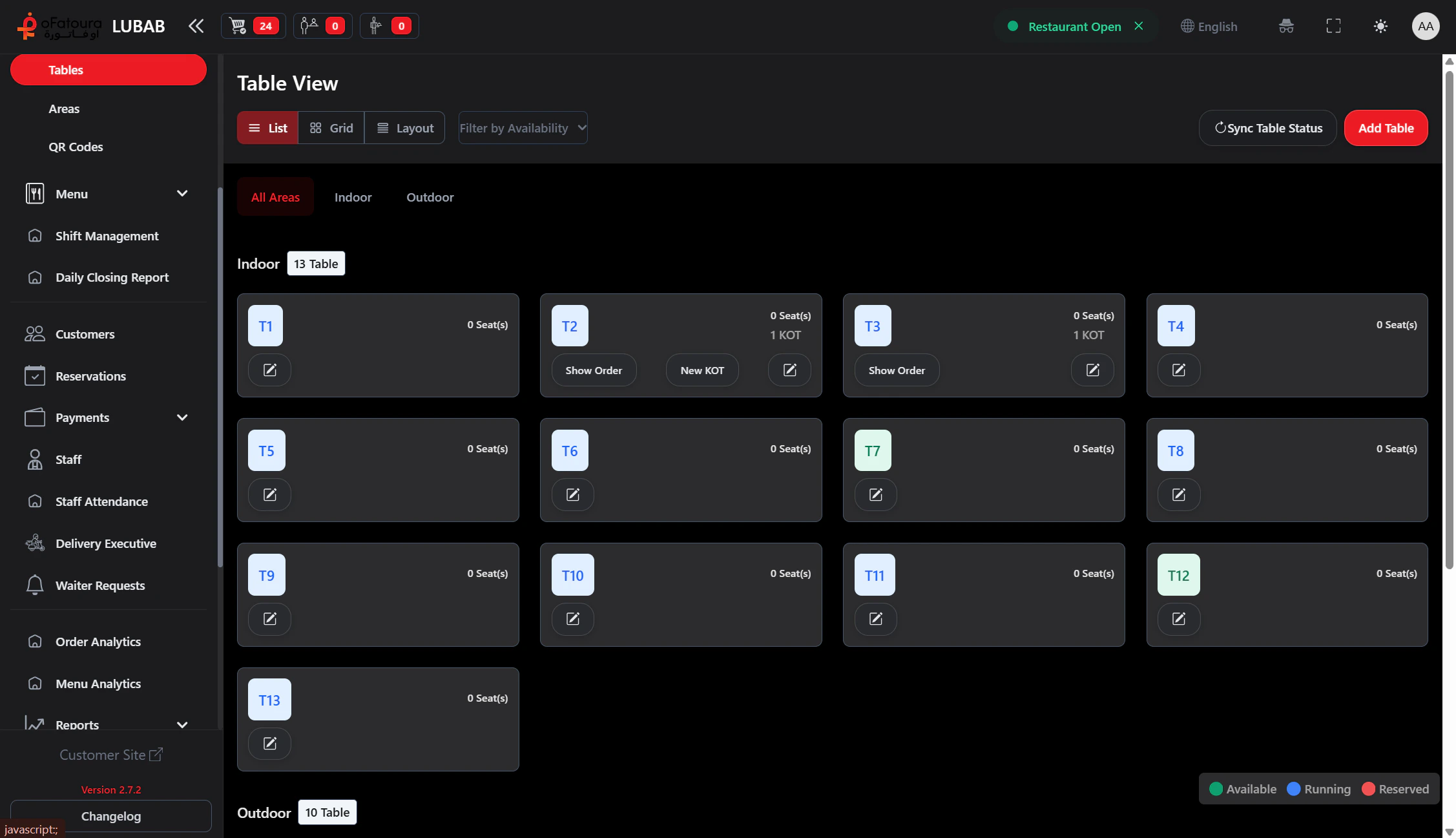
Tables represent the physical tables where customers sit. Each table belongs to an area and has a code or number. Table status (available, occupied, reserved) helps staff manage the floor.

Overview

  • Create and manage tables
  • Assign tables to areas
  • Set seating capacity
  • View and update table status (available, occupied, reserved)
  • View orders linked to each table

Prerequisites

  • Areas should be created first (see Areas).
  • You need permission to manage Tables.

Step-by-Step Actions

1. Open Tables

Tables
  1. In the left sidebar, click Tables to expand it.
  2. Click Tables.
  3. The Tables page opens showing all tables (often as cards or a grid).

2. Create a new table

Add tables
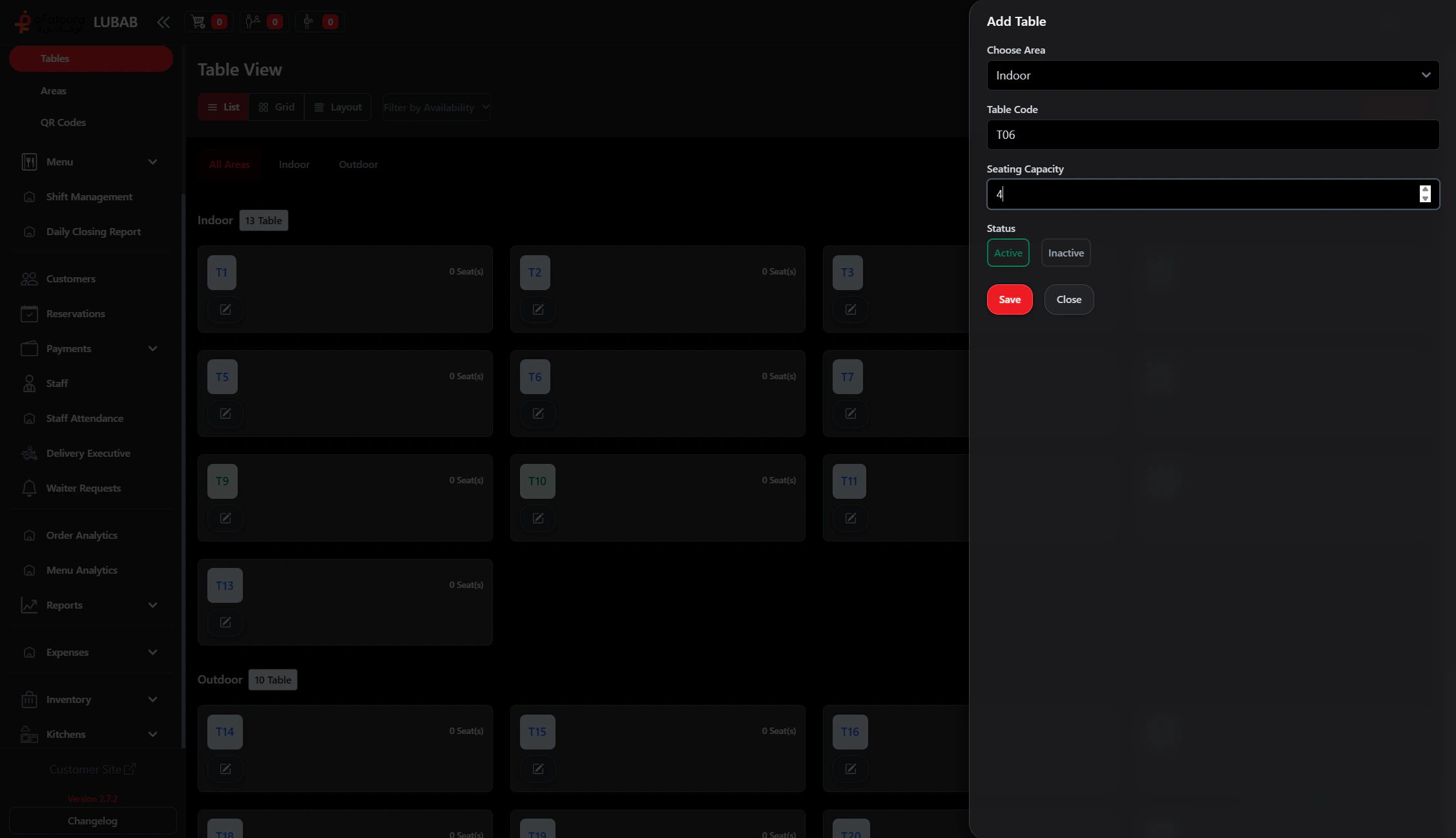
  1. Click Add Table or Create.
  2. Enter:
    • Table code or Table number (e.g., T1, T2, 101)
    • Area – select from your areas
    • Seating capacity – how many people can sit
  3. Click Save or Create.

3. Edit a table

  1. Find the table in the list or grid.
  2. Click Edit (or the pencil icon).
  3. Change the code, area, or capacity.
  4. Click Save.

4. Check table status

  1. Each table shows a status:
    • Available – no current order
    • Occupied – has an active order
    • Reserved – booked for a reservation
  2. Status usually updates automatically when orders or reservations are created.

5. Sync or refresh table status

  1. If you see a Sync or Refresh button, use it to update status from recent orders.
  2. This helps if tables were used on another device or branch.

6. View orders for a table

  1. Click on a table card or row.
  2. If available, open View orders or similar to see orders for that table.
  3. From there you can go to the order details or POS.

7. Delete a table

  1. Find the table.
  2. Click Delete.
  3. Confirm. You usually cannot delete a table with active orders.

Common Mistakes and How to Avoid Them

MistakeHow to avoid
Duplicate table codesUse unique codes (T1, T2, T3) to avoid confusion.
Wrong areaAssign each table to the correct area.
Forgetting capacitySet capacity so you can plan seating.

End Result

  • All physical tables are in the system.
  • Each table has a code, area, and capacity.
  • Table status is visible so staff can manage the floor.
  • Tables are ready for use in POS and reservations.