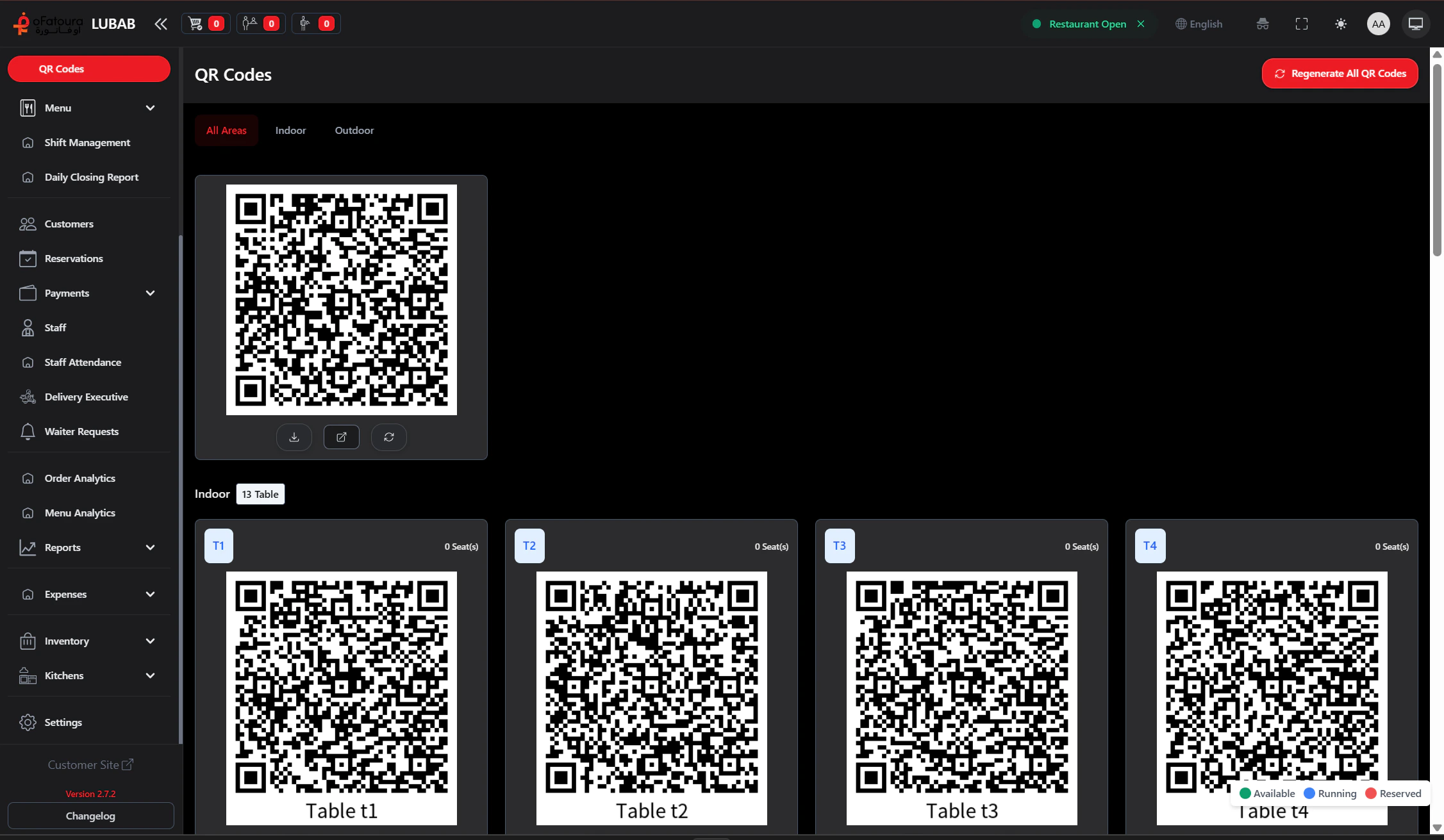
Overview
- Generate QR codes for tables
- Download or print QR codes to place on tables
- Link each QR code to the correct table so orders go to the right place
Prerequisites
- Tables must be created (see Tables).
- You need permission to manage Tables (QR Codes is under the Tables section).
- A printer or way to print the codes (or display them on a screen).
Step-by-Step Actions
1. Open QR Codes

- In the left sidebar, click Tables to expand it.
- Click QR Codes.
- The QR Codes page opens.
2. Generate QR codes
- Select the tables you want QR codes for (or choose “All tables”).
- Click Generate or Create QR Codes.
- The system creates a QR code for each selected table.
3. Download or print
- You may see options to:
- Download – save as image or PDF
- Print – send to a printer
- View – see the QR code on screen
- Choose the option you need.
- For printing, select the format (e.g., one per page, multiple per page).
- Print and cut the codes to place on each table.
4. Place QR codes on tables
- Laminate the printed codes if possible.
- Place each code on the matching table.
- Add a short instruction for customers (e.g., “Scan to order”).
5. Regenerate if needed
- If you change table codes or the customer site URL, you may need to regenerate.
- Go back to QR Codes, select the tables, and generate again.
- Replace the old printed codes with new ones.
Common Mistakes and How to Avoid Them
| Mistake | How to avoid |
|---|---|
| Wrong table link | Each QR code is tied to a table; double-check before printing. |
| Blurry print | Use a clear image and good printer; ensure sufficient size for scanning. |
| Customers confused | Add simple text like “Scan to order” next to the code. |
End Result
- QR codes are generated for your tables.
- Codes are printed and placed on the right tables.
- Customers can scan to order, and orders are assigned to the correct table.