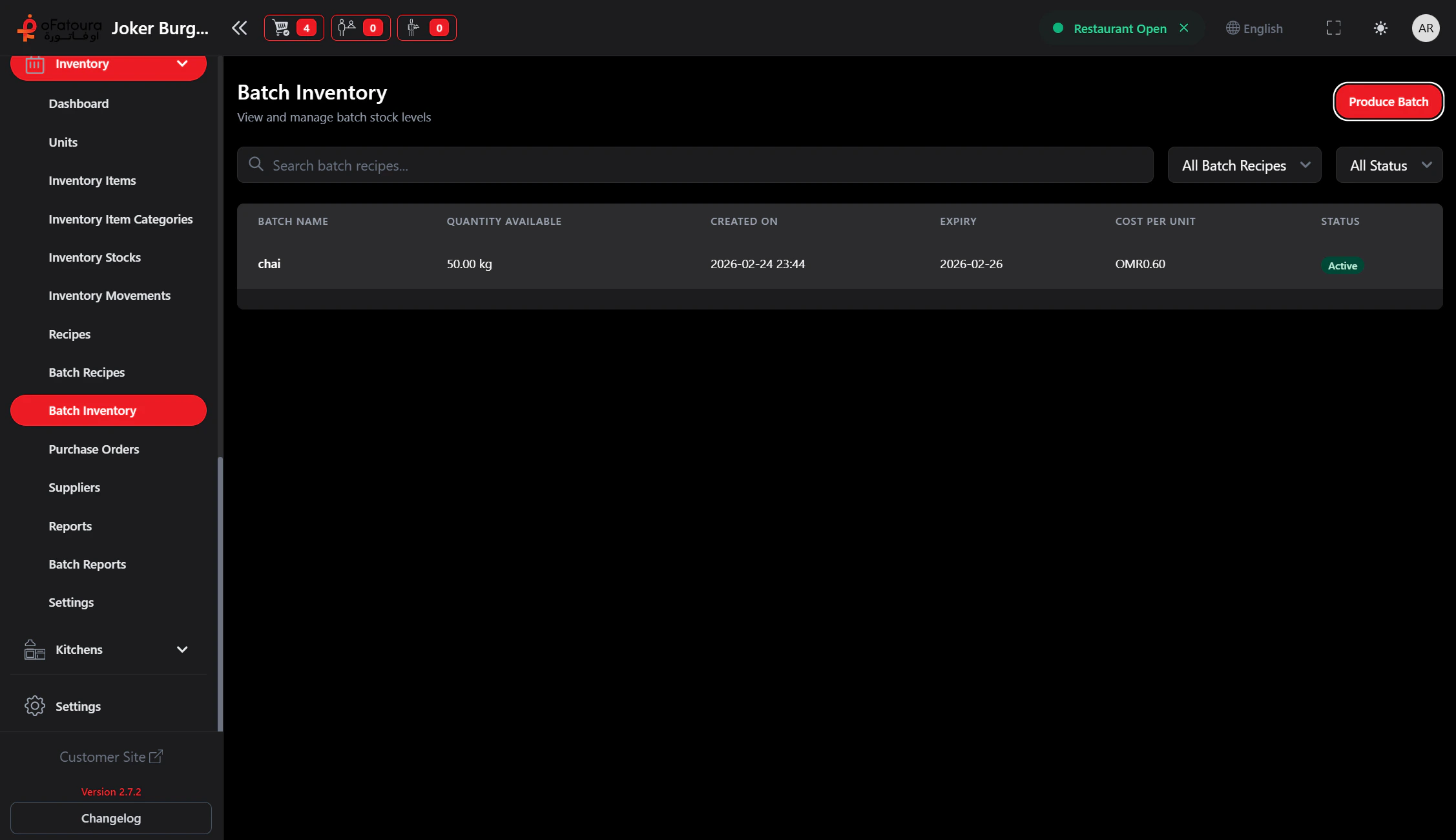
Batch Inventory shows stock created from batch production. You can see active batches, expired batches, and finished batches. Use it to track batch items and their expiry.

Overview

  • View batch stock (active, expired, finished)
  • See quantity, expiry date, and unit cost per batch
  • Filter by batch status
  • Plan usage before expiry

Prerequisites

  • Batch recipes must exist and batches must be produced.
  • You need permission to view Batch Inventory (Show Batch Inventory).

Step-by-Step Actions

1. Open Batch Inventory

Batch inventory
  1. In the left sidebar, expand Inventory.
  2. Click Batch Inventory.
  3. The Batch Inventory page opens.

2. View batch list

  1. Each batch shows:
    • Batch name or ID
    • Quantity
    • Expiry date
    • Status (Active, Expired, Finished)
  2. Use this to see what you have and what is expiring soon.

3. Filter by status

  1. Use filters for Active, Expired, or Finished.
  2. Focus on batches that need attention.
  3. Use expired batches info for waste reporting.

4. Use batch data for decisions

  1. Plan production based on active stock.
  2. Use expiry dates to reduce waste.
  3. Link batch output to menu items if your setup supports it.

Common Mistakes and How to Avoid Them

MistakeHow to avoid
Using expired batchesFilter by Active status before planning; expired batches should be marked and reported as waste.
Ignoring expiry datesUse batches with earliest expiry first to minimize waste.
Not reviewing finished batchesCheck Finished status to reconcile production vs consumption.

End Result

  • You can see all batch stock.
  • You know what is active, expired, or finished.
  • You can reduce waste by using batches before expiry.