

Comprehensive view of your financial transactions. The source of truth for revenue.Documentation Index
Fetch the complete documentation index at: https://docs.ofatoura.com/llms.txt
Use this file to discover all available pages before exploring further.
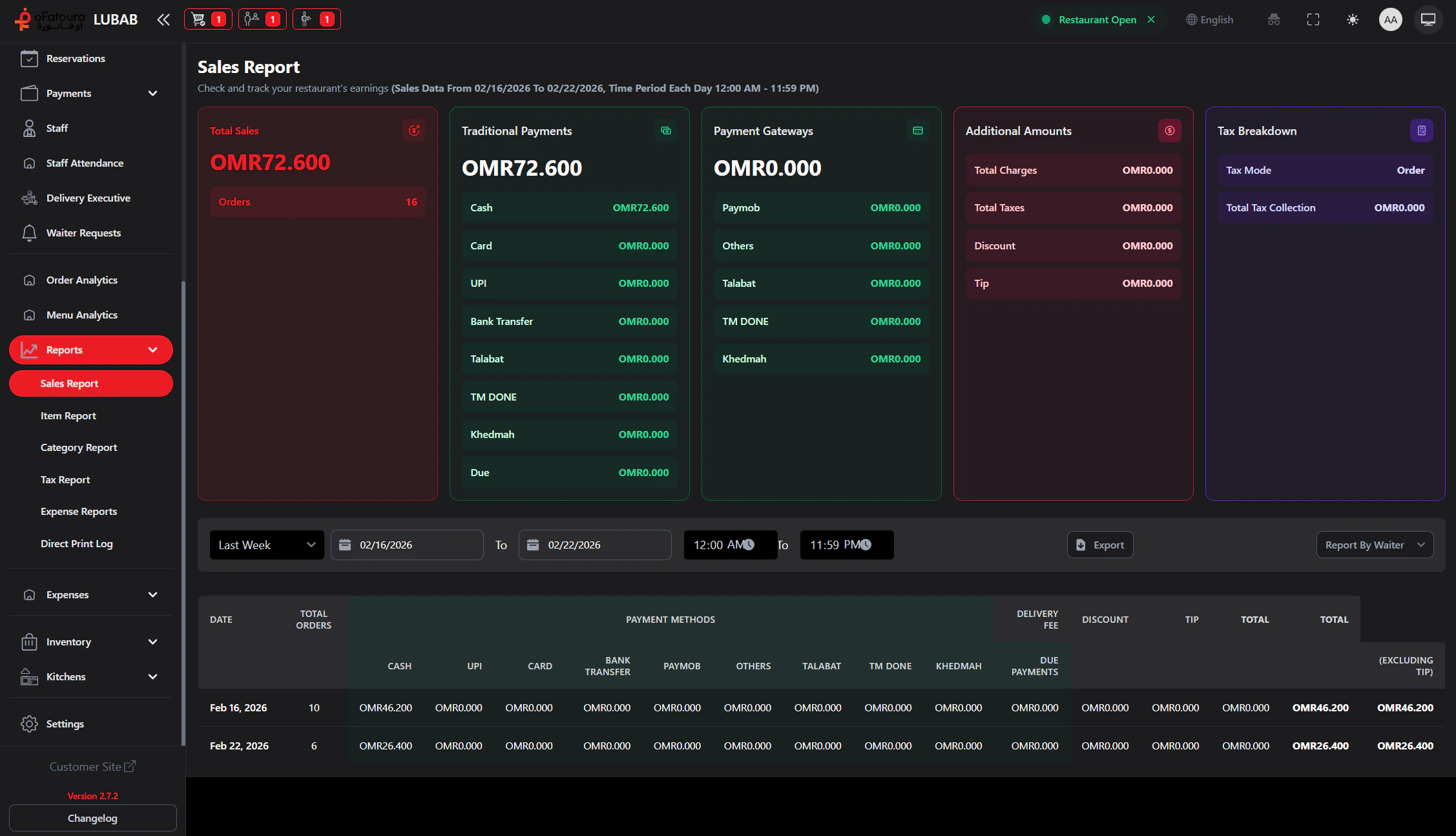
Report Components
- Sales Totals: Total sales amount and total order count.
- Payment Breakdown: Amount by payment method (cash, card, UPI, bank transfer, and enabled gateways).
- Adjustments: Discounts, tips, and delivery fees.
- Tax and Charges: Tax breakdown and extra charge totals.
- Due Amounts: Outstanding due values included in report tables.
Generating Reports
Important: This report is available when the Report module is enabled for your restaurant.
Order Analytics
Transaction trends
Tax Report
Tax filing data