Inventory Settings control how purchase orders and stock alerts work. Configure them so the system fits your workflow.

Overview

  • Purchase Order settings – Defaults and options for POs
  • Stock Alerts – Low-stock email notifications and thresholds

Prerequisites

  • The Inventory module must be enabled.
  • You need permission to update Inventory Settings (Update Inventory Settings).

Step-by-Step Actions

1. Open Inventory Settings

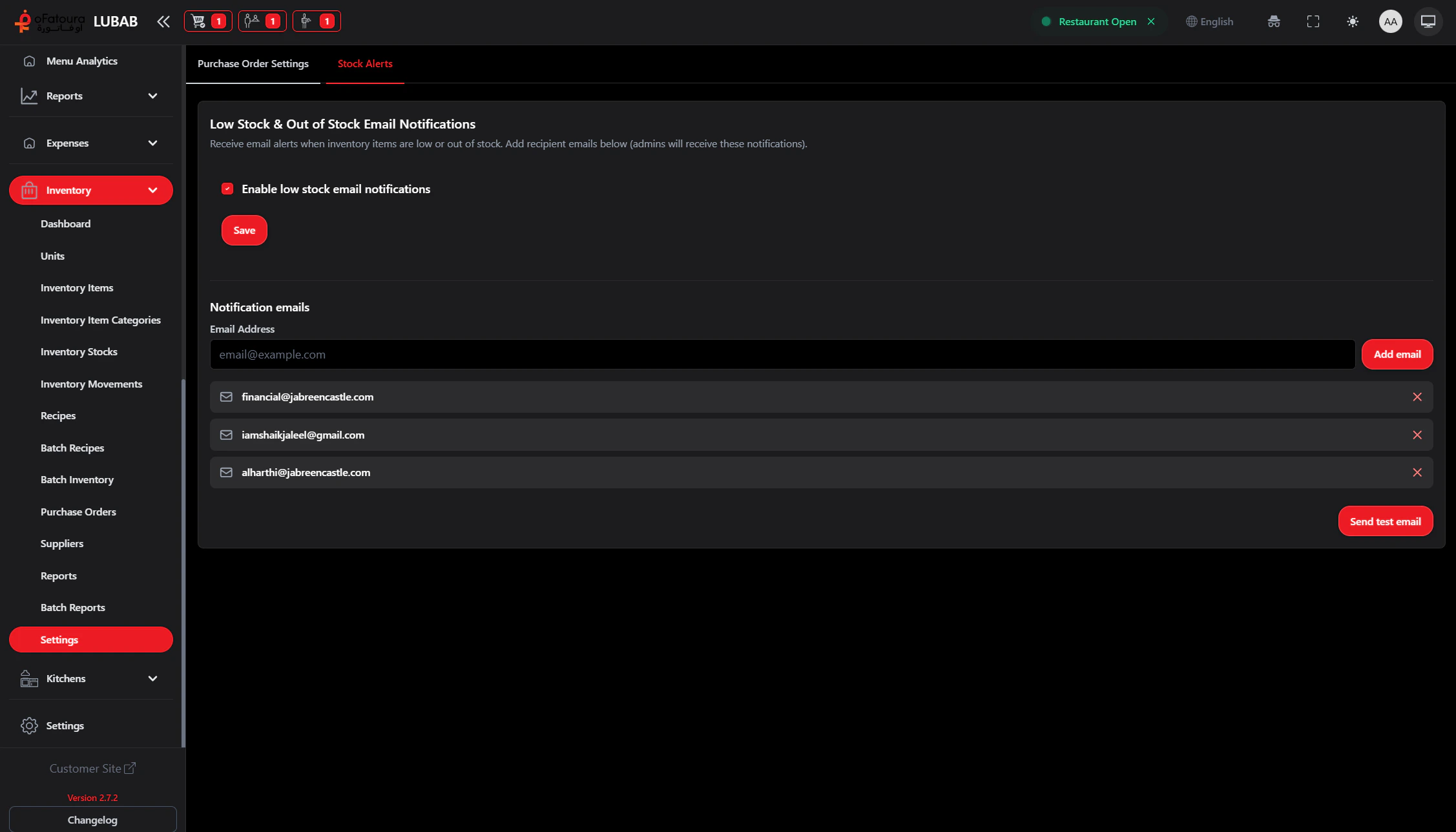
Inventory settings - Stock alerts
  1. In the left sidebar, expand Inventory.
  2. Click Settings.
  3. The Inventory Settings page opens with tabs.

2. Purchase Order settings

  1. Open the Purchase Order Settings tab.
  2. Set any defaults (e.g., default supplier, payment terms).
  3. Configure auto reorder rules if available (e.g., create PO when stock below threshold).
  4. Click Save.

3. Stock Alerts (low-stock notifications)

  1. Open the Stock Alerts tab.
  2. Turn on Email notifications for low stock.
  3. Enter email addresses to receive alerts.
  4. Set threshold rules (e.g., alert when below X or when out of stock).
  5. Click Save.
  6. When stock falls below your thresholds, configured emails will receive alerts.

Common Mistakes and How to Avoid Them

MistakeHow to avoid
Wrong email addressesVerify alert emails are correct so staff receive low-stock notifications.
Thresholds too highAvoid alert fatigue; set thresholds so you reorder in time without constant alerts.
Forgetting to saveAlways click Save after changing PO defaults or alert settings.

End Result

  • Purchase order defaults are set.
  • Low-stock alerts are configured so you know when to reorder.