

Designed for expeditor/head-chef use. It shows KOTs from all kitchens in one board.Documentation Index
Fetch the complete documentation index at: https://docs.ofatoura.com/llms.txt
Use this file to discover all available pages before exploring further.
Dashboard Features
- Status Tabs: Pending Confirmation, In Kitchen, Food Ready, Cancelled.
- Grouping: None, Table, Order Type, and Kitchen.
- Filters: Date presets + custom start/end date + optional kitchen filter.
- Actions: Print KOT, status updates, and cancel with reason.
Using the Dashboard
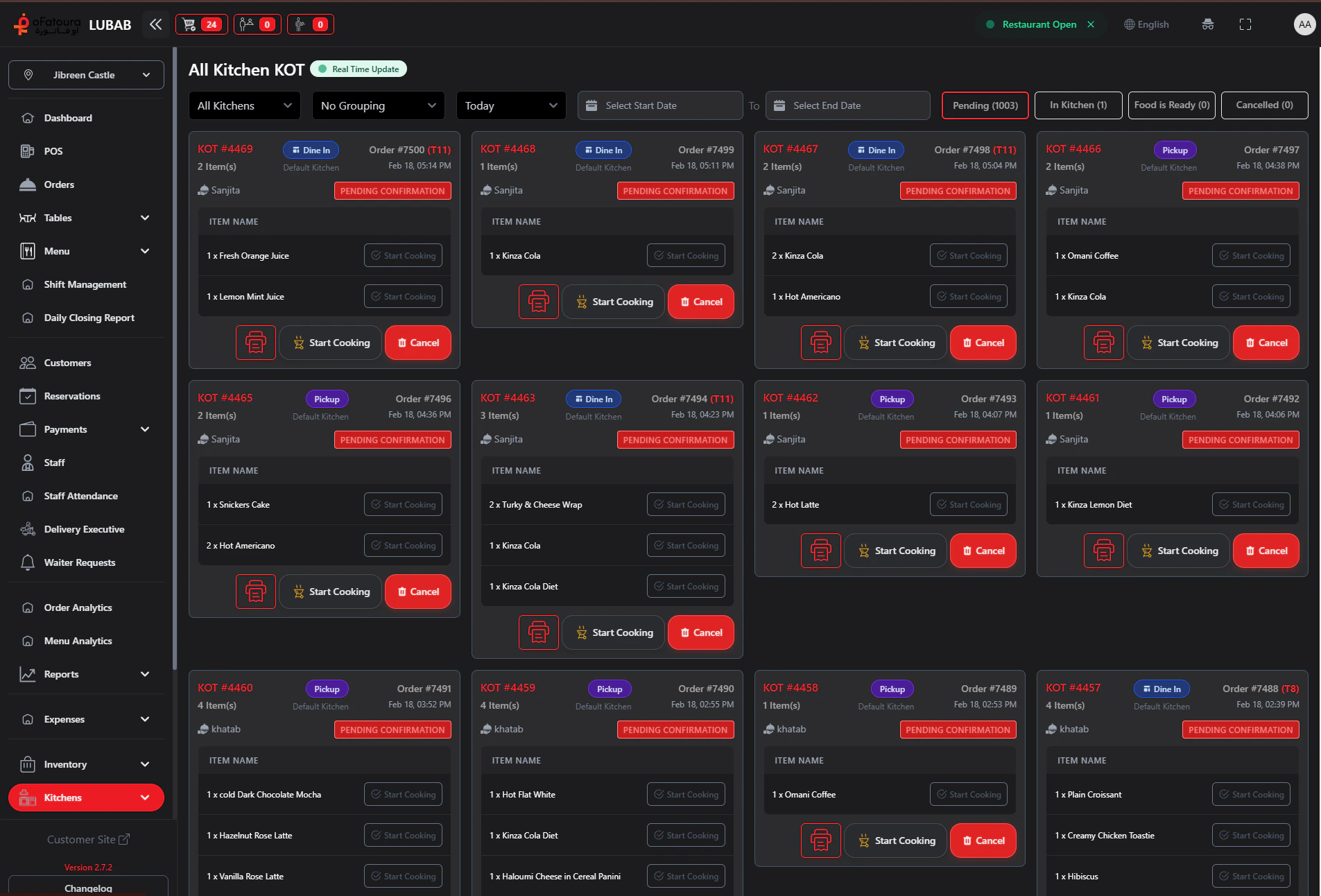
Set Filters and Grouping
Use:
- Kitchen filter (all kitchens or one kitchen)
- Group By: none, table, order type, kitchen
- Date range preset and custom start/end date
Update KOT Status
On each card, use the available action for current status:
- Start Cooking (
pending_confirmation->in_kitchen) - Food Ready (
in_kitchen->food_ready) - Served (
food_ready->served)
pending, the Pending Confirmation tab is shown.Use Item-Level Status (Optional)
If Enable Item Level Status is ON in KOT Settings, each item row can be updated:
- Start Cooking (
pending->cooking) - Mark As Ready (
cooking->ready)
If the default KOT status is set to Cooking,
pending_confirmation tickets are included under the In Kitchen flow.Kitchen Settings
Configure routing and behavior
Waiter Requests
Respond to table calls