

Monitor printer activity for troubleshooting and security.Documentation Index
Fetch the complete documentation index at: https://docs.ofatoura.com/llms.txt
Use this file to discover all available pages before exploring further.
Log Details
- Job ID: Unique reference for the print task.
- Printer Name: Which device received the job (e.g., KITCHEN_1).
- Status: Success, Failed, or Pending.
- Time: Timestamp of the request.
- Content: What was printed (Order #123).
Accessing Logs
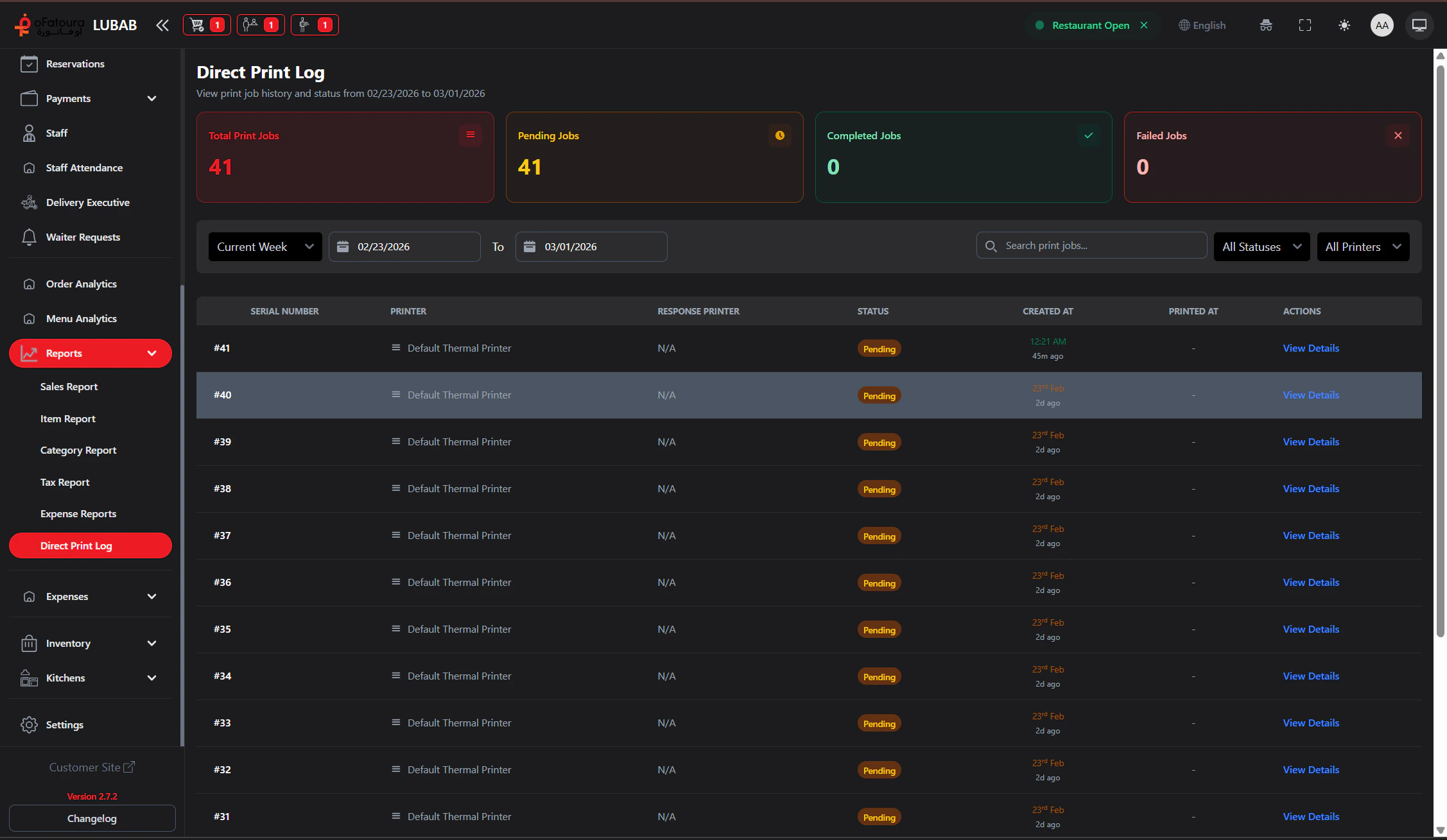
Filter and Search
- Date Range: Preset range or custom start/end.
- Search: Search by printer/status/job id.
- Status: Pending, Printing, Done/Completed, Failed.
- Printer: Filter by response printer.
Pro Tip: Use this log to verify if an order was sent to the kitchen,
even if the chef says they did not receive it.
Printer Settings
Configure devices
Kitchen Display
Digital alternative (if Kitchen is enabled)