

Categories are the backbone of your menu structure. They group similar items together, making it easier for customers to navigate your menu and for staff to place orders.Documentation Index
Fetch the complete documentation index at: https://docs.ofatoura.com/llms.txt
Use this file to discover all available pages before exploring further.
Why Categorize?
- Organization: Keep your menu tidy (e.g., Starters, Main Course, Desserts).
- Reporting: Analyze sales by category (e.g., “Beverages” vs “Food”).
- Faster POS Use: Staff can find items quickly by category.
Creating Categories
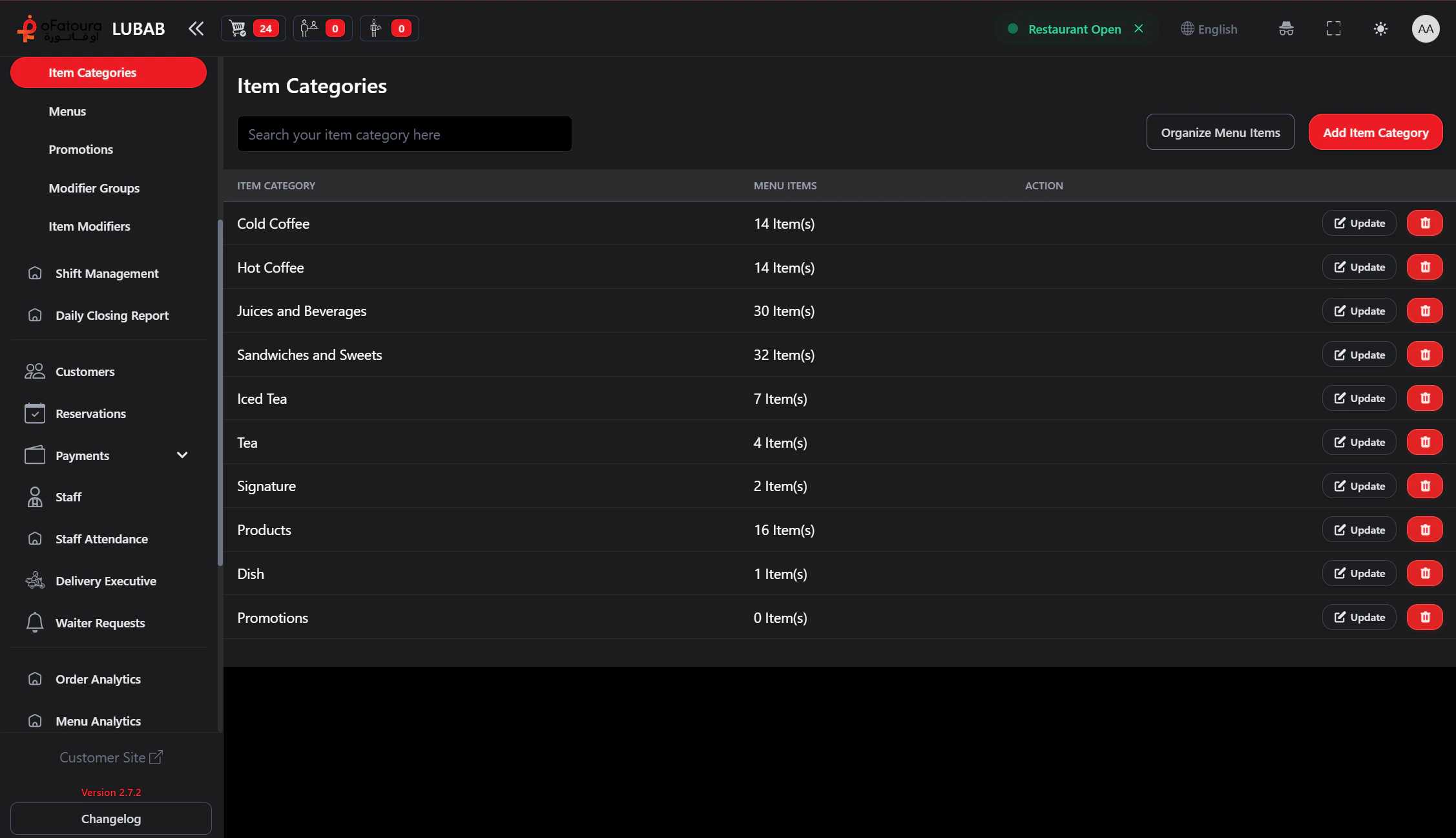
Add Details
- Category Name: Enter the name in your default language (required).
- Translations: If multiple languages are enabled, add translated names from the language selector.
Pro Tip: Use clear, concise names. “Main Courses” is better than “Our Special Heavy Meals”.
Menu Items
Add dishes to these categories
Modifiers
Add options like extra cheese