

Track orders with unpaid balances recorded using the Due payment method.Documentation Index
Fetch the complete documentation index at: https://docs.ofatoura.com/llms.txt
Use this file to discover all available pages before exploring further.
Credit Tracking
- Due entries: Payments marked as due.
- Order reference: Open the related order directly.
- Add payment action: Collect remaining balance from the due list.
Managing Outstanding Balances
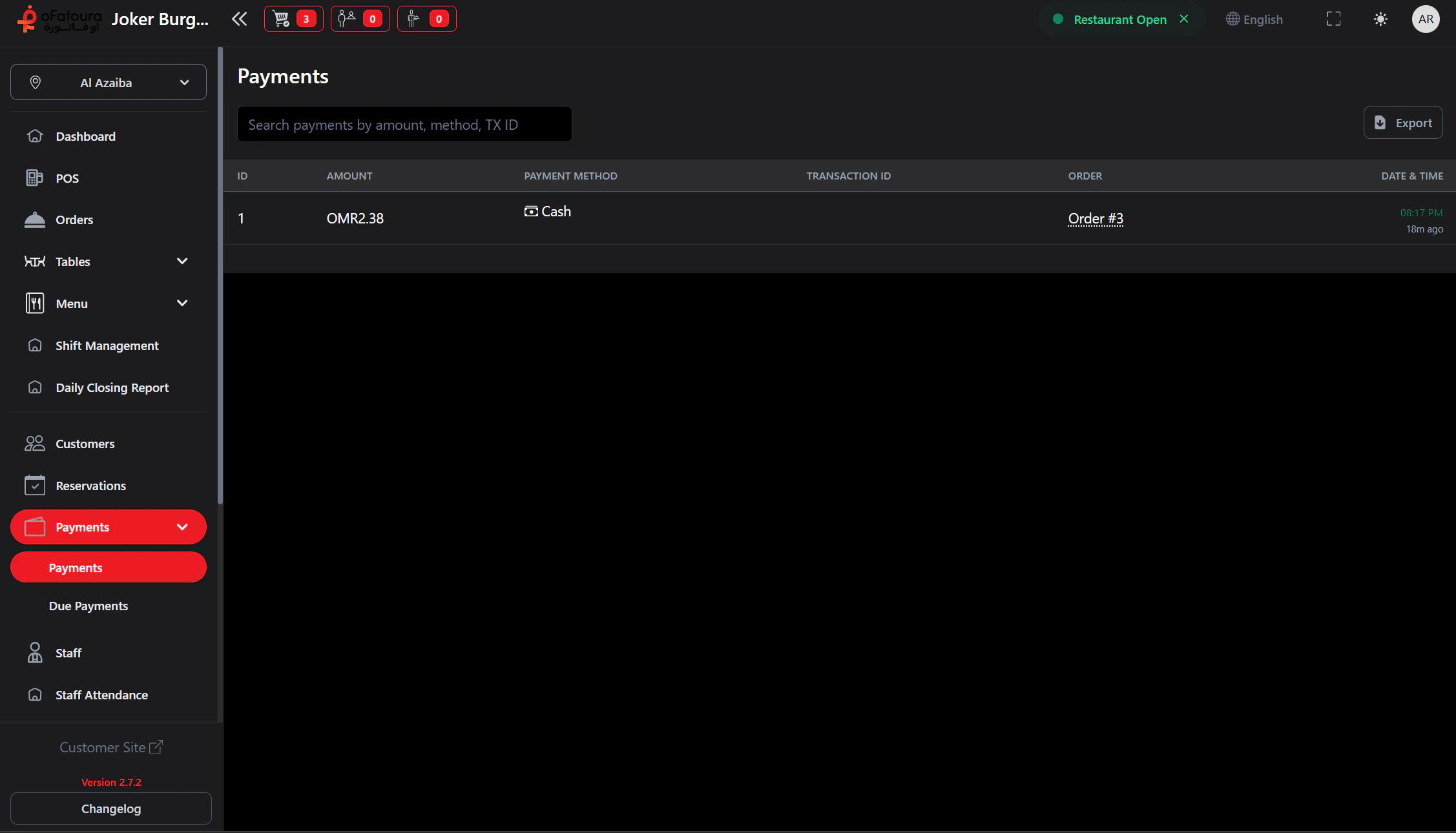
Review List
The due table shows:
- Amount
- Payment Method (Due)
- Order Number
- Date/Time
- Action (Add Payment)
Settle Payment
- Click Add Payment for a due row.
- In the payment modal, choose method (cash/card/other enabled methods).
- Enter the amount to collect (full or partial).
- Complete payment.
Due tracking is order-based. Customer assignment is optional but recommended for credit workflows.
Customers
Check credit limits
Sales Report
Revenue recognition