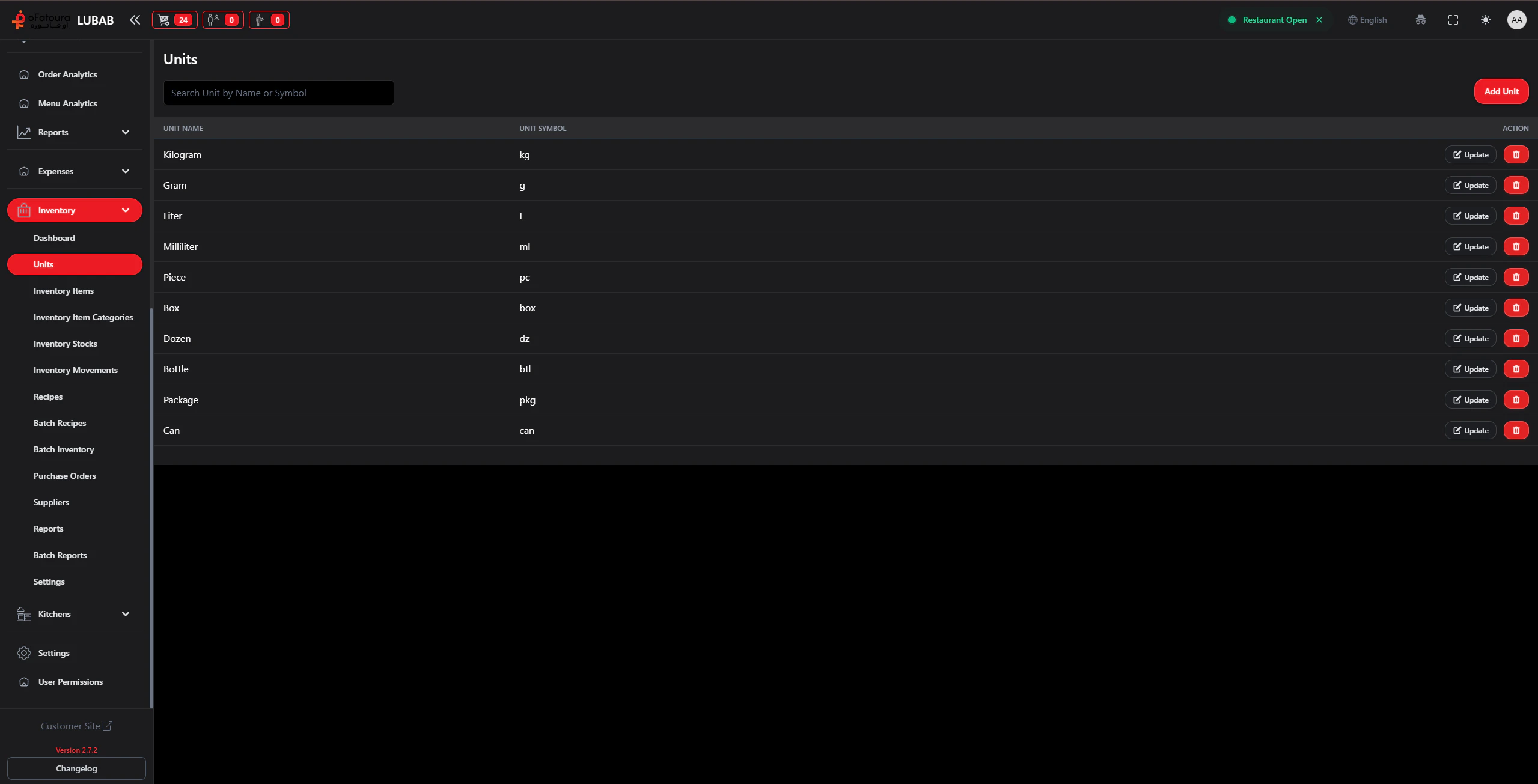
Units are how you measure inventory items (e.g., kg, liters, pieces, boxes). Create units before adding inventory items.

Overview

  • Add measurement units (kg, g, liters, ml, pieces, etc.)
  • Edit or delete units
  • Use units when adding inventory items and recipes

Prerequisites

  • The Inventory module must be enabled.
  • You need permission to manage Units (Show Unit).

Step-by-Step Actions

1. Open Units

Units
  1. In the left sidebar, expand Inventory.
  2. Click Units.
  3. The Units page opens.

2. Add a new unit

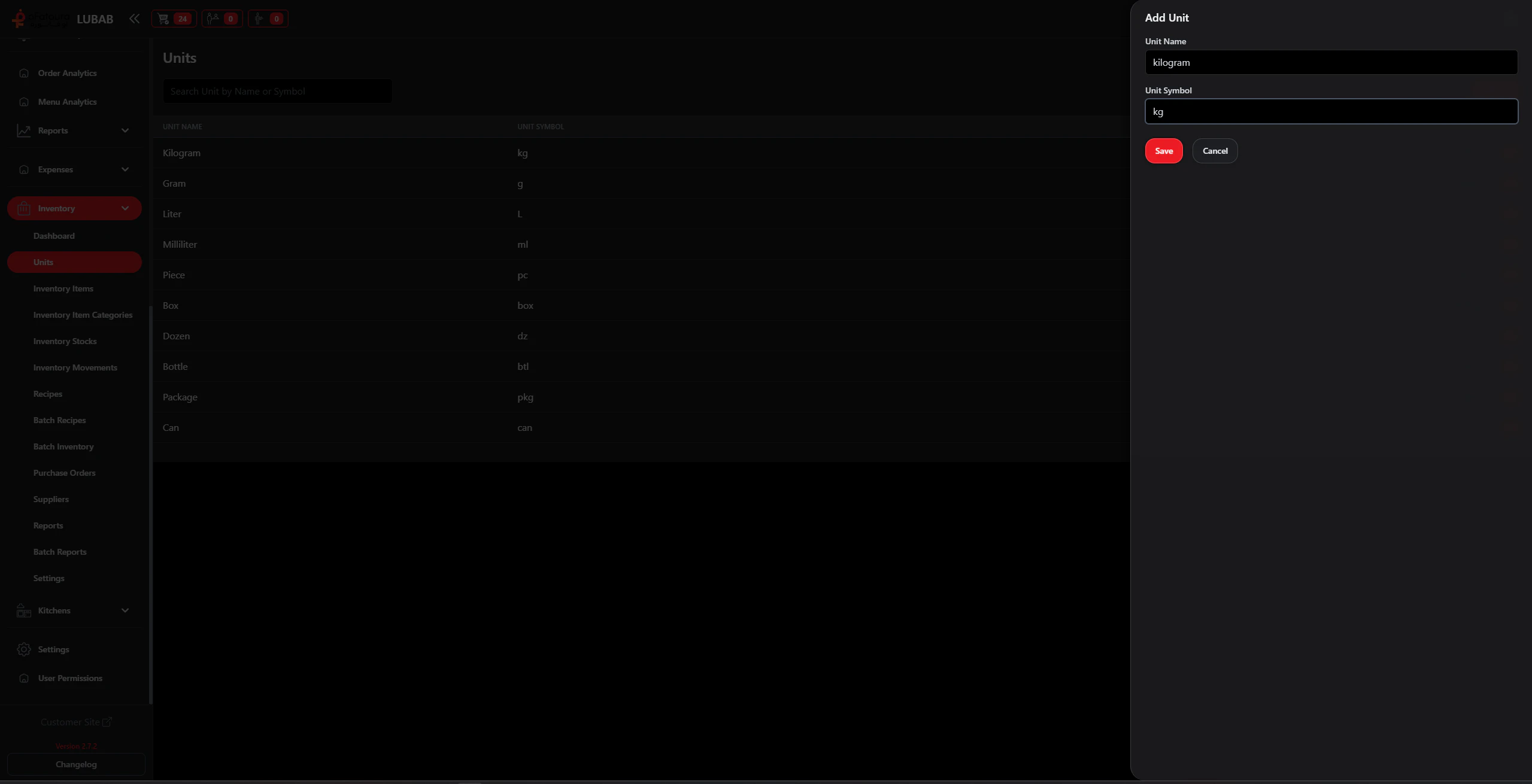
  1. Click Add Unit.
  2. Enter the Unit name (e.g., Kilogram, Liter, Piece).
  3. Enter the Unit symbol (e.g., kg, L, pcs).
  4. Click Save or Add.

3. Edit a unit

  1. Find the unit in the list.
  2. Click Edit.
  3. Change the name or symbol.
  4. Click Save.

4. Delete a unit

  1. Find the unit.
  2. Click Delete.
  3. Confirm.
  4. Note: You usually cannot delete a unit that is used by inventory items. Change those items first.

Common Mistakes and How to Avoid Them

MistakeHow to avoid
Duplicate unitsCheck existing units before adding (e.g., “kg” vs “Kg”).
Deleting a used unitReassign inventory items to another unit before deleting.

End Result

  • You have units for all your ingredients (kg, liters, pieces, etc.).
  • You can assign these units when adding inventory items.