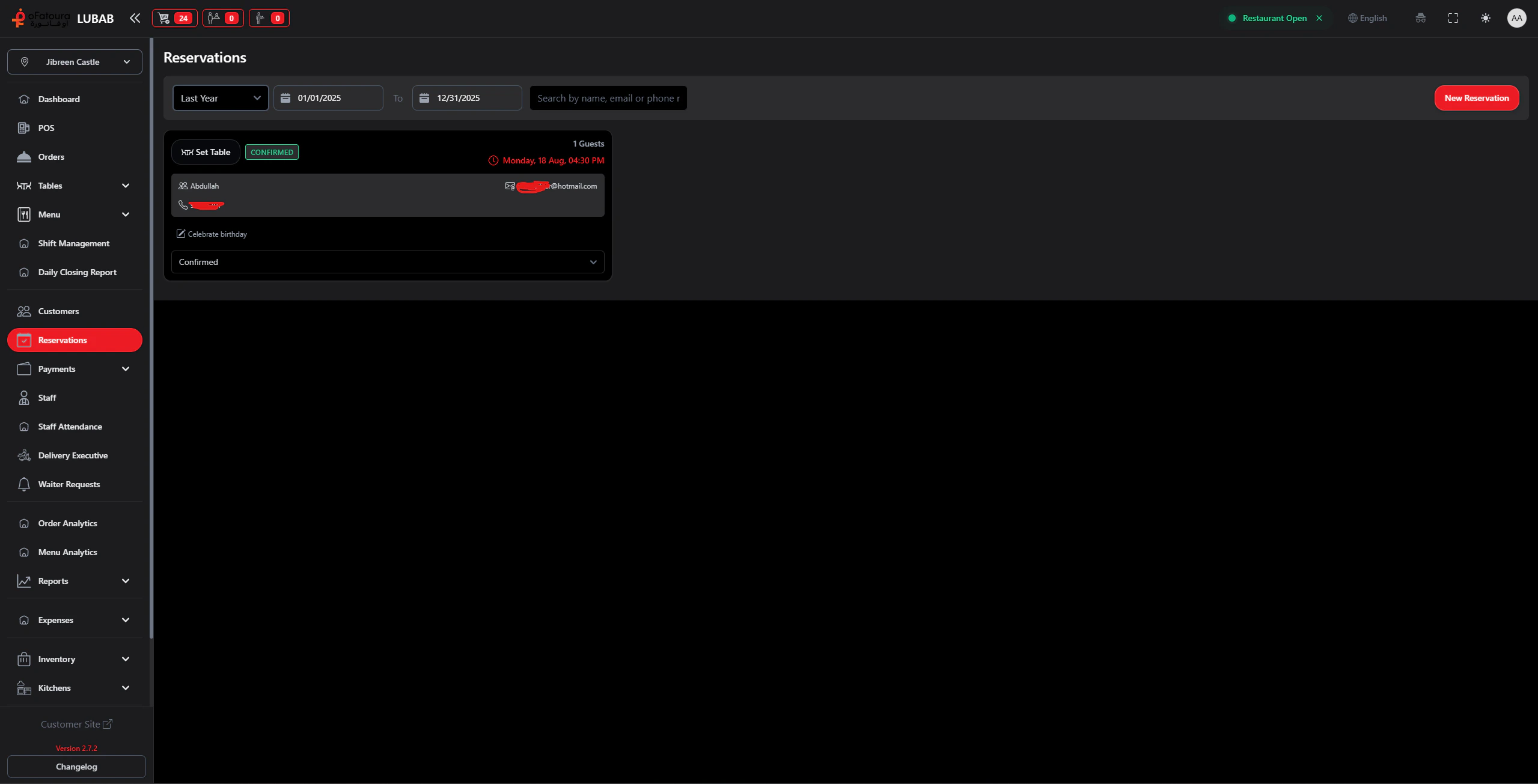
The Reservations page lets you manage table bookings. You can create reservations, update status, assign tables, and view them by date.

Overview

  • View reservations in a calendar or card layout
  • Create new reservations
  • Update reservation status (Pending, Confirmed, Canceled)
  • Assign a table to a reservation
  • Filter reservations by date (today, week, month)
  • Manage walk-ins and no-shows

Prerequisites

  • Tables must be set up (see Tables).
  • The Reservation module must be enabled.
  • You need permission to manage reservations.

Step-by-Step Actions

1. Open Reservations

Reservations
  1. Click Reservations in the left sidebar.
  2. The Reservations page opens (calendar or card view).

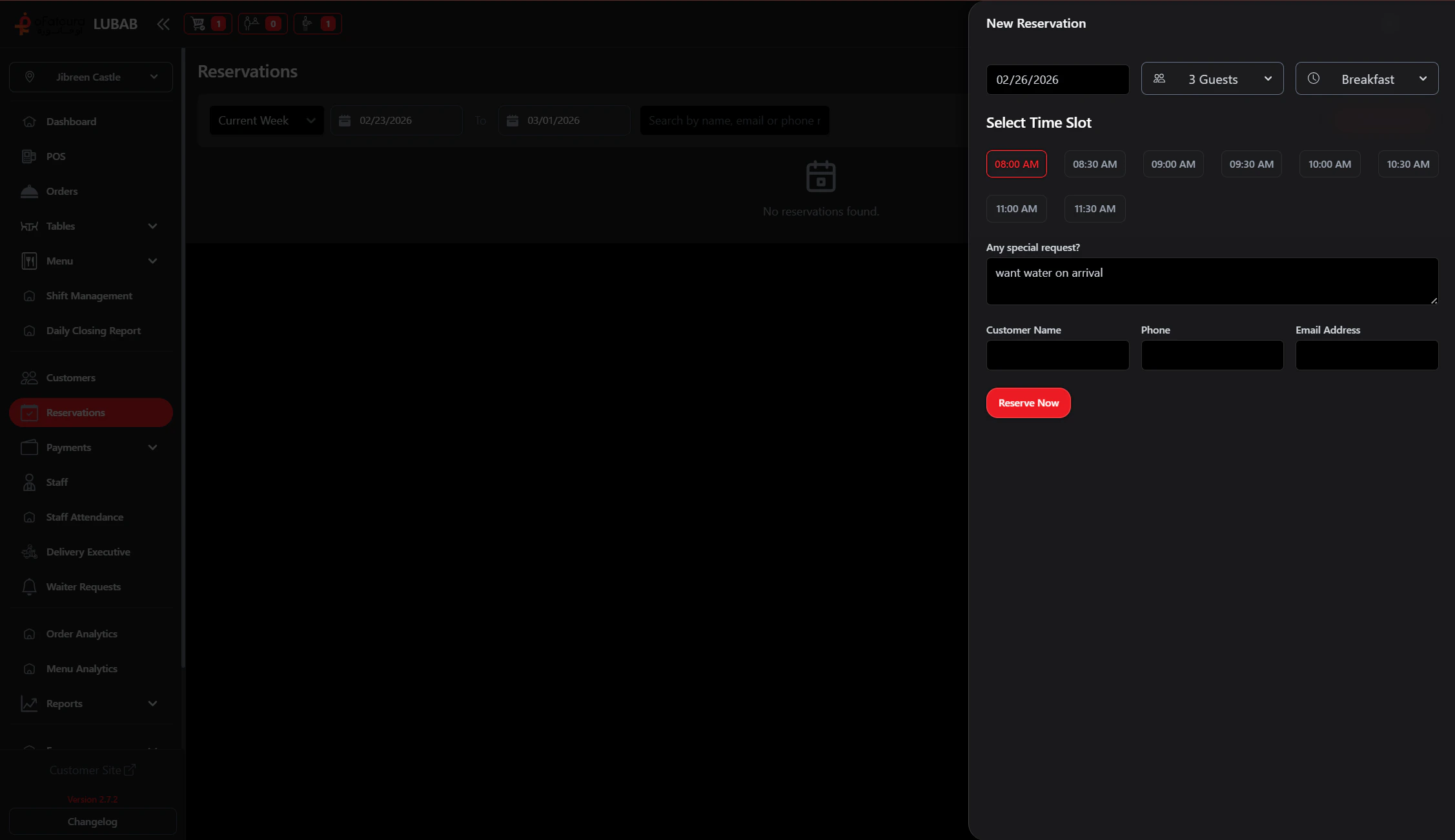
2. Create a new reservation

Add reservation form
  1. Click Add or New Reservation or Book Table.
  2. Enter:
    • Date
    • Time
    • Number of guests
    • Customer name and phone (or select existing customer)
    • Special requests (optional)
  3. If you can assign a table now, select it.
  4. Click Save or Create.

3. Change reservation status

  1. Find the reservation.
  2. Use the status dropdown or buttons:
    • Pending – not yet confirmed
    • Confirmed – customer confirmed
    • Canceled – booking canceled
    • No-show – customer did not arrive (if available)
  3. Select the new status.
  4. The reservation updates.

4. Assign a table

  1. Open the reservation.
  2. Find Assign Table or the table selector.
  3. Choose an available table.
  4. Save. The table is marked as reserved for that time.

5. Filter by date

  1. Use the date filter (Today, This week, This month, or custom range).
  2. The view updates to show only reservations in that period.

6. Edit a reservation

  1. Click the reservation to open it.
  2. Change date, time, guests, or table.
  3. Click Save.

7. Cancel a reservation

  1. Open the reservation.
  2. Change status to Canceled or click Cancel.
  3. Confirm. The table becomes available again.

Common Mistakes and How to Avoid Them

MistakeHow to avoid
Double bookingCheck that the table is free before assigning.
Wrong date or timeDouble-check date and time when creating.
Forgetting to confirmConfirm reservations so customers and staff know they are booked.

End Result

  • Reservations are created and managed in one place.
  • Status and table assignment are clear.
  • Staff can see who is coming and when.