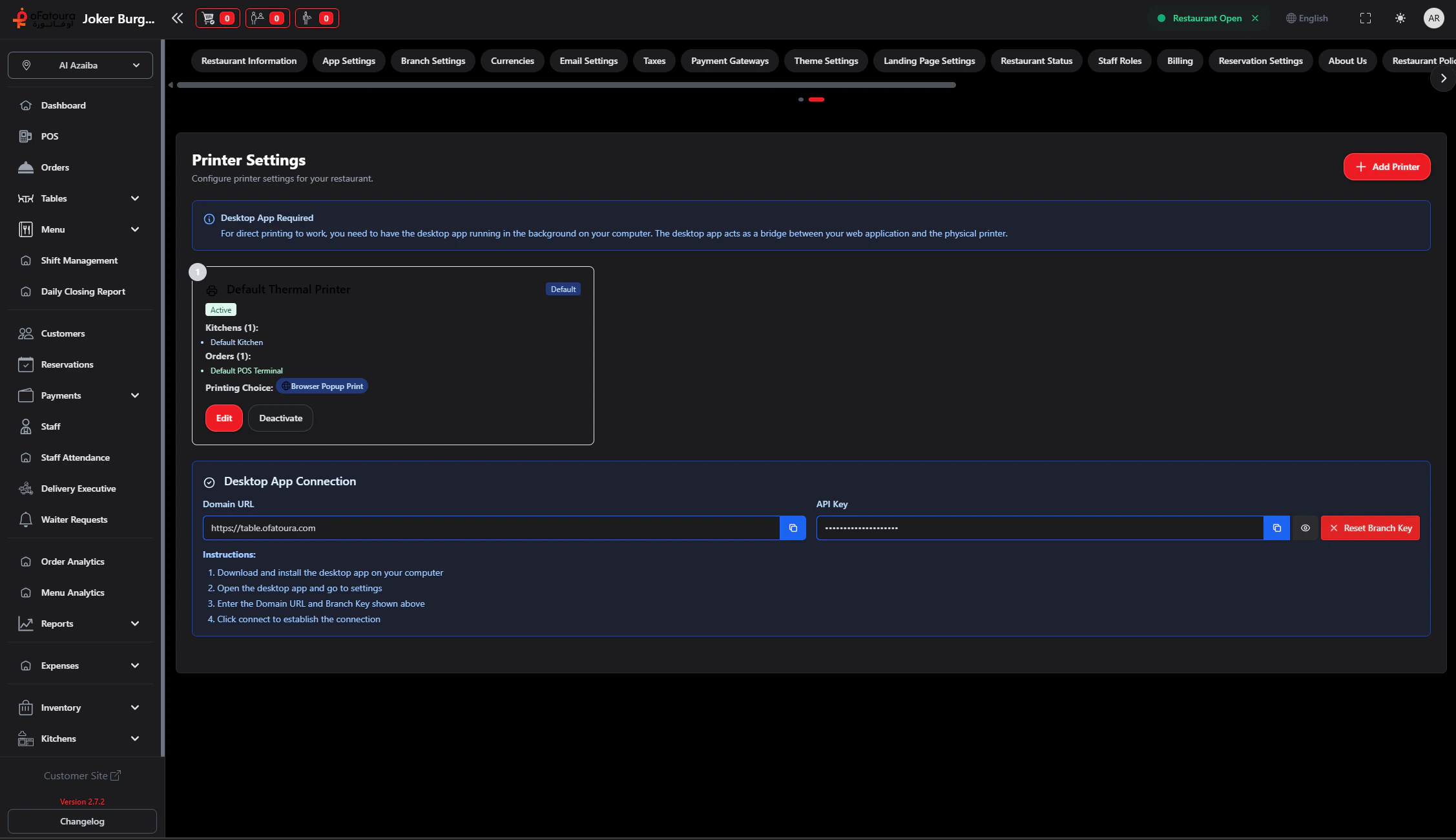
Printer Settings let you add printers, assign them to receipts or KOTs, and set a default printer. Each printer needs a name and IP address (for network printers).

Overview

  • Add receipt printers and KOT (kitchen) printers
  • Assign each printer to print Receipts, KOTs, or both
  • If using the Kitchen module: assign printers to specific kitchens
  • Set print format (thermal 56mm, 80mm, or non-thermal)
  • Set a default printer for receipts
  • Test that printers work

Prerequisites

  • You need the printer’s IP address (usually found in printer settings or network config).
  • Printer must be on the same network as your computer/tablet.
  • You need permission to manage settings.

Step-by-Step: Add a Receipt Printer

Printer settings
  1. Go to Settings and open the Printer tab.
  2. Click Add Printer or the add button.
  3. Enter:
    • Printer name – e.g., “Counter Receipt”
    • IP address – the printer’s IP (e.g., 192.168.1.100)
    • Port – usually 9100 (default for most network printers)
  4. Choose Print type or Printing choice:
    • Receipt – for customer receipts
    • KOT – for kitchen tickets
    • Both – if one printer does both (small setups)
  5. Choose Print format – Thermal 56mm, Thermal 80mm, or Non-thermal.
  6. If this is your main receipt printer, check Set as default.
  7. Click Save or Add.
  8. Test: place an order and complete payment to see if the receipt prints.

Step-by-Step: Add a KOT Printer

  1. Go to Settings > Printer tab.
  2. Click Add Printer.
  3. Enter name and IP address (e.g., “Kitchen Grill”).
  4. Choose Print type: KOT (or Both if it also prints receipts).
  5. If you use the Kitchen module: you may assign this printer to a kitchen here or in Kitchens > Kitchen Settings.
  6. Choose print format (usually Thermal 80mm for KOT).
  7. Click Save.
  8. Test: add items in POS, send to kitchen, and check that the KOT prints.

Step-by-Step: Assign Printer to Kitchen (Kitchen Module)

  1. If you use multiple kitchens, go to Kitchens > Kitchen Settings.
  2. Edit a kitchen.
  3. In Select Printer, choose the printer for that kitchen.
  4. Save. KOTs for that kitchen will print there.

Common Issues

IssueWhat to do
No printCheck IP address, port (9100), and that the printer is on.
Wrong printerEdit the printer and ensure correct Receipt/KOT assignment.
Default printer errorOnly one printer can be default; uncheck another first.
KOT conflictEach kitchen can have only one printer; don’t assign the same KOT to two printers.
Network troubleshooting: If the printer doesn’t respond, ping the IP address from your device—if ping fails, check network connectivity and printer power. Printer IP changes require updating settings; receipts will fail until updated. For multi-branch setups, printers are branch-specific—each branch needs its own printer configuration.

End Result

  • Receipt and KOT printers are configured and tested.
  • Default receipt printer is set.
  • Kitchen printers (if used) are assigned to the correct kitchens or KOT type.