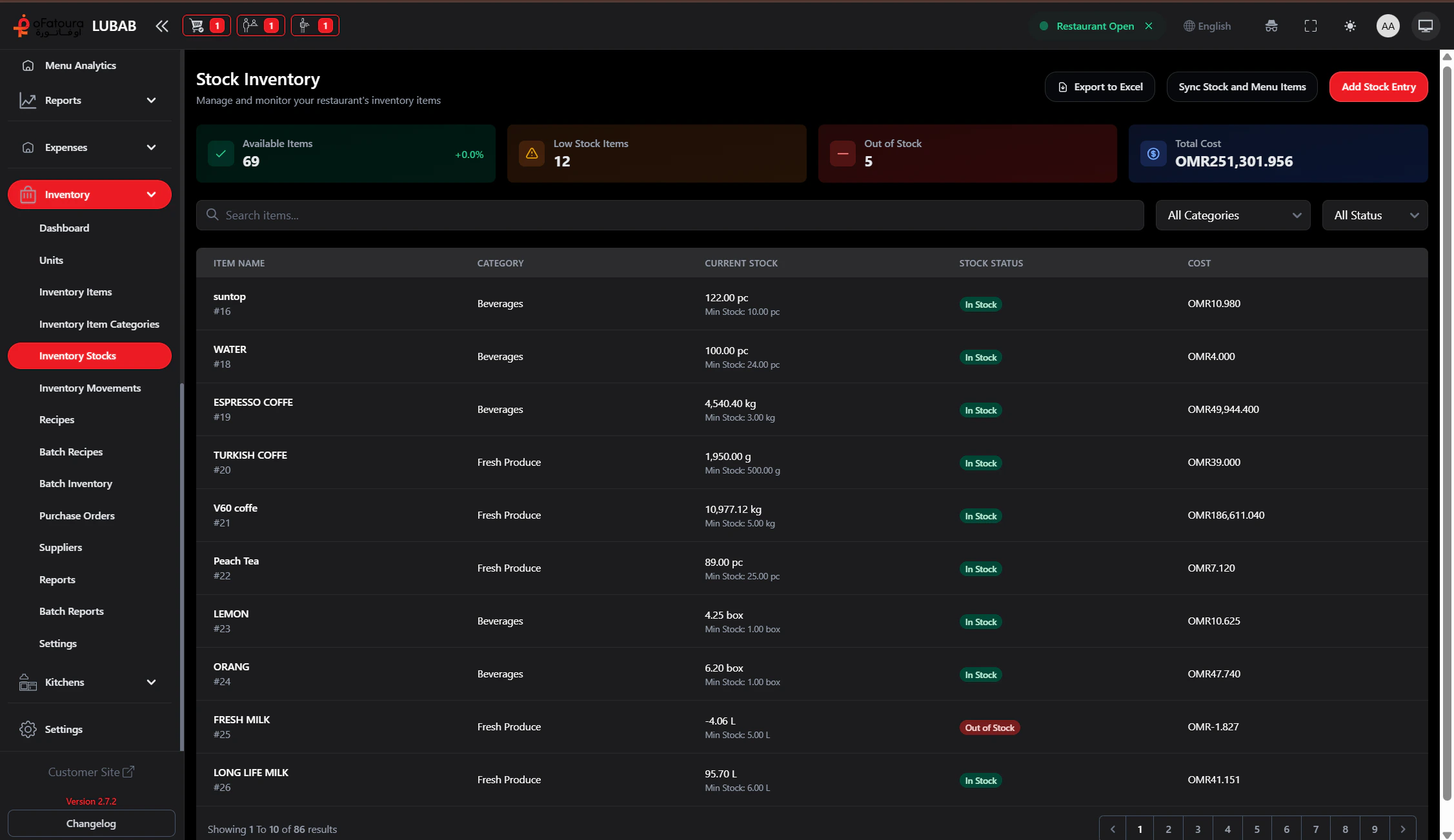
Inventory Stocks shows the current quantity for each item. You can add stock entries, sync stock with menu items, and export the list.

Overview

  • View current stock levels for all items
  • Add stock (Stock In) when you receive deliveries
  • Sync stock with menu items (links menu items to inventory)
  • See low-stock and out-of-stock items
  • Export stock list to Excel

Prerequisites

  • Inventory Items must exist.
  • You need permission to view Inventory Stock.
  • To add stock, you need permission to Create Inventory Movement.

Step-by-Step Actions

1. Open Inventory Stocks

Stocks
  1. In the left sidebar, expand Inventory.
  2. Click Inventory Stocks.
  3. The stock list opens with quantities per item.

2. Add a stock entry (Stock In)

  1. Click Add Stock Entry.
  2. Select the item.
  3. Enter the quantity you are adding.
  4. Select Supplier (if applicable).
  5. Enter Expiry date if the item expires (optional).
  6. Click Save or Add.
  7. The stock level for that item increases.

3. Sync stock with menu items

  1. Click Sync Stock and Menu Items.
  2. Confirm when asked.
  3. The system links menu items to inventory based on recipes.
  4. Stock will decrease when orders are placed (if recipes are set up).

4. View low-stock and out-of-stock items

  1. The page may show cards or filters for:
    • Available items
    • Low stock (at or below threshold)
    • Out of stock (zero quantity)
  2. Use these to decide what to reorder.

5. Export the stock list

  1. Click Export or Export to Excel.
  2. The file is downloaded.
  3. Use it for counting or reporting.

Common Mistakes and How to Avoid Them

MistakeHow to avoid
Wrong quantityDouble-check the quantity and unit when adding stock.
Skipping syncRun sync after adding recipes so sales affect stock.
Forgetting expiryAdd expiry dates for perishable items.

End Result

  • You see current stock for all items.
  • You can add stock and sync with menu items.
  • You know which items need restocking.