Shift Management tracks when shifts open and close. Each shift has a starting cash amount, and when you close it you enter the ending cash. This helps reconcile cash at the end of the day.

Overview

  • Open a new shift with starting cash
  • Close the current shift with ending cash and notes
  • View shift history (open and closed shifts)
  • Filter by date and status
  • View shift summary (total sales, expenses, cash difference)
  • View cash in/out during the shift

Prerequisites

  • You need permission to view shifts (View Shifts).
  • Opening and closing shifts may require manager or admin permission.

Step-by-Step Actions

1. Open Shift Management

Shift management
  1. Click Shift Management in the left sidebar.
  2. The Shift Management page opens.

2. Open a new shift

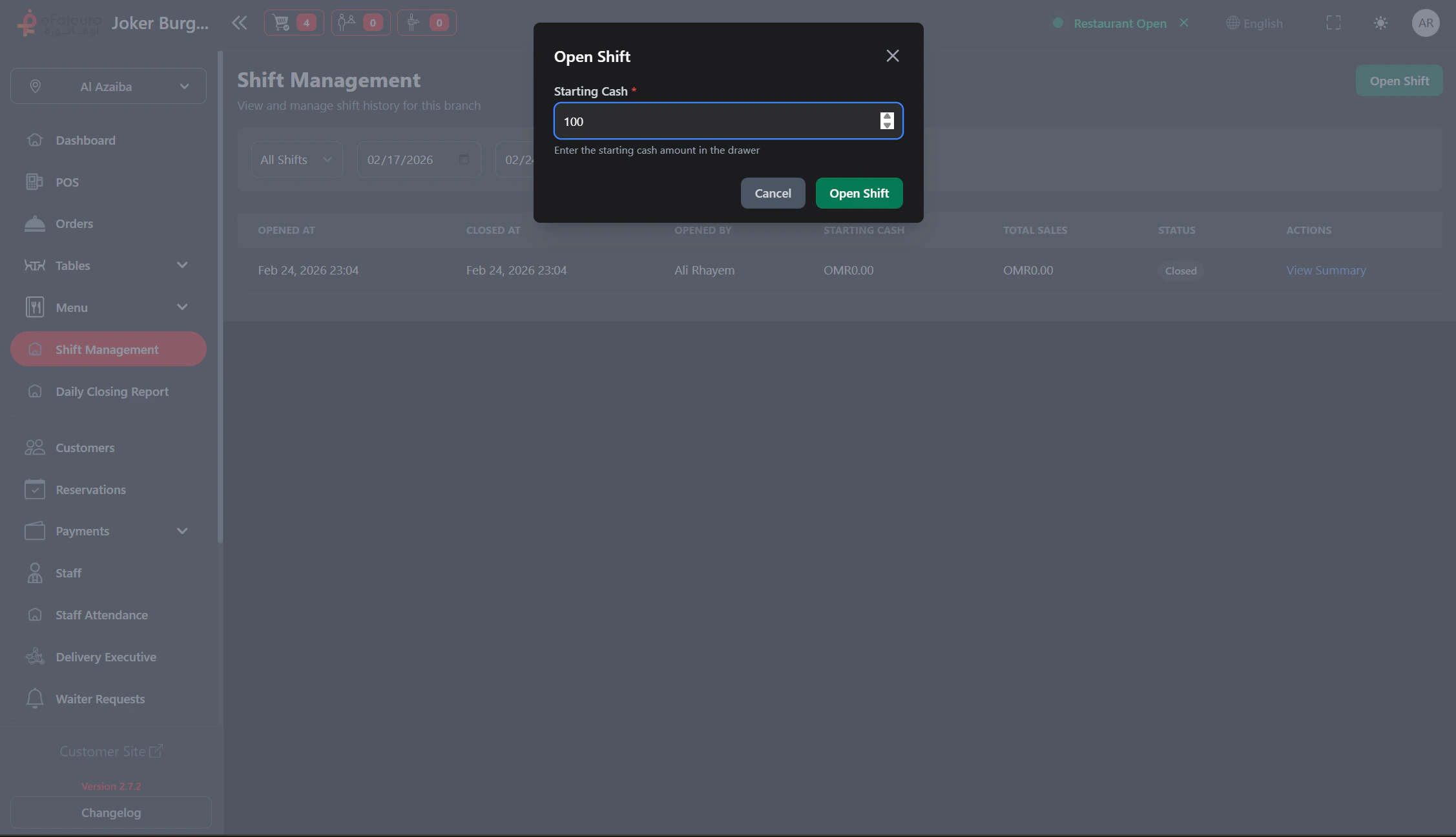
Open shift
  1. If no shift is open, click Open Shift or Start Shift.
  2. Enter the Starting cash amount (how much is in the drawer at the start).
  3. Add a note if needed (optional).
  4. Click Open or Start.
  5. The shift is now active. Orders and payments are recorded in this shift.

3. Close the current shift

Close shift
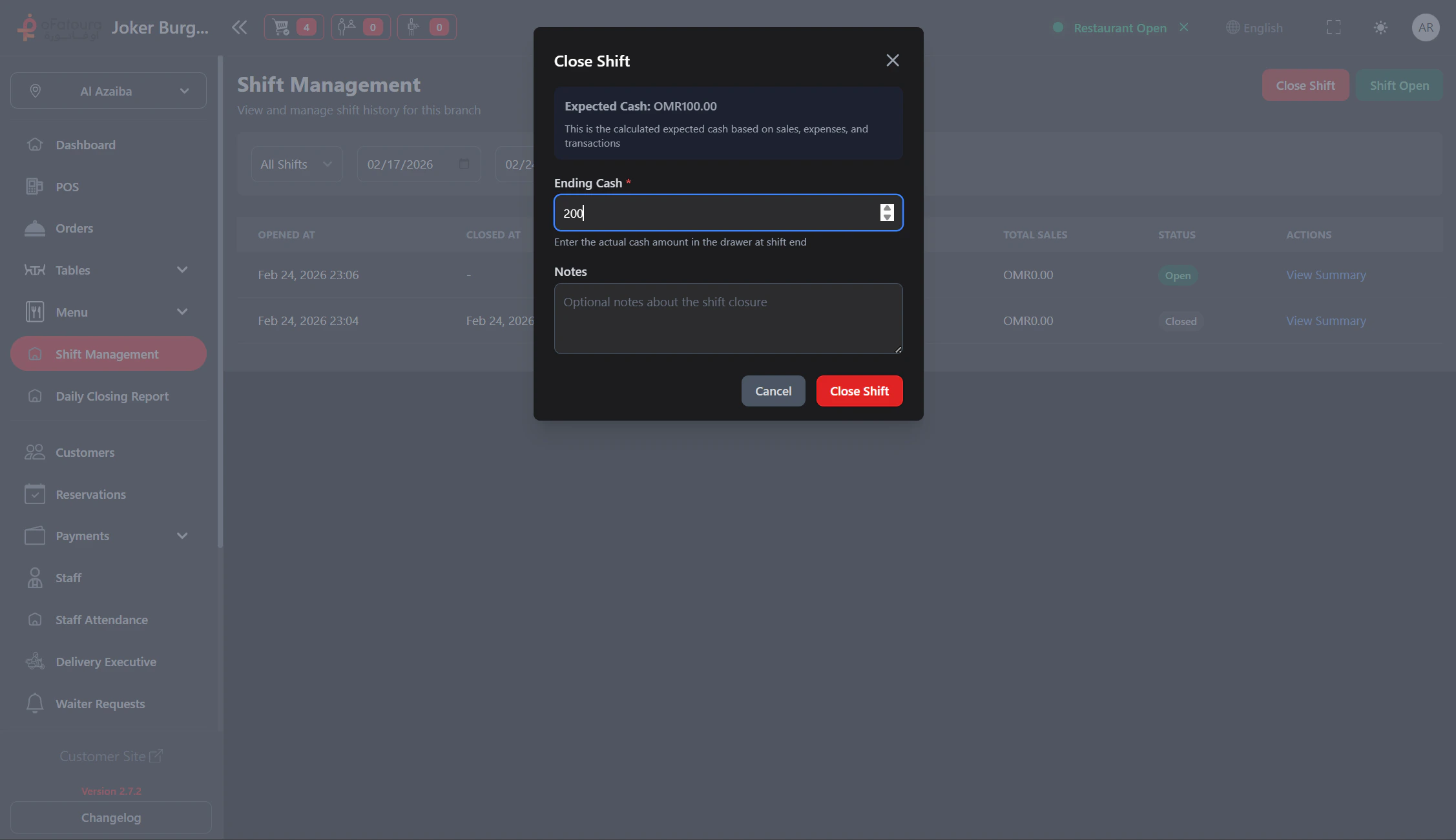
  1. At the end of the shift, click Close Shift or End Shift.
  2. Enter the Ending cash amount (how much is in the drawer now).
  3. Add notes (e.g., any discrepancies or issues).
  4. Click Close or End.
  5. The system may show the expected vs actual cash. Review and confirm.
  6. The shift is closed and saved.

4. View shift history

  1. On the Shift Management page, you see a list of shifts.
  2. Use filters:
    • Status – Open or Closed
    • Date – Today, Yesterday, or custom range
  3. The list shows shifts in that period.

5. View shift details

  1. Click a shift row or View.
  2. See:
    • Start and end time
    • Starting and ending cash
    • Total sales
    • Cash in/out
    • Expenses
    • Cash difference (expected vs actual)
  3. Use this for reconciliation.

6. View cash transactions

  1. In the shift details, look for Cash transactions or Cash in/out.
  2. See any manual cash adjustments during the shift.
  3. Use this to understand discrepancies.

7. Handle cash discrepancies

  1. When closing, the system shows expected cash vs actual cash (ending cash entered).
  2. If the difference is large, review cash transactions and payment records before closing.
  3. Add notes in the closing form explaining the reason (e.g., “Overpayment refunded”, “Short change”).
  4. Some setups may require manager approval to close with a large discrepancy.
  5. Verify all orders are completed or paid before closing. Unpaid orders remain in the system but cannot be modified after the shift is closed.
One shift per branch: Only one shift can be open per branch at a time. Closing a shift prevents new orders until a new shift is opened.

Common Mistakes and How to Avoid Them

MistakeHow to avoid
Wrong starting cashCount the drawer carefully before opening.
Forgetting to closeClose the shift at the end of service so data is complete.
Wrong ending cashCount the drawer and enter the actual amount.

End Result

  • Shifts are opened with correct starting cash.
  • Shifts are closed with ending cash and notes.
  • Shift history is available for reconciliation and reporting.