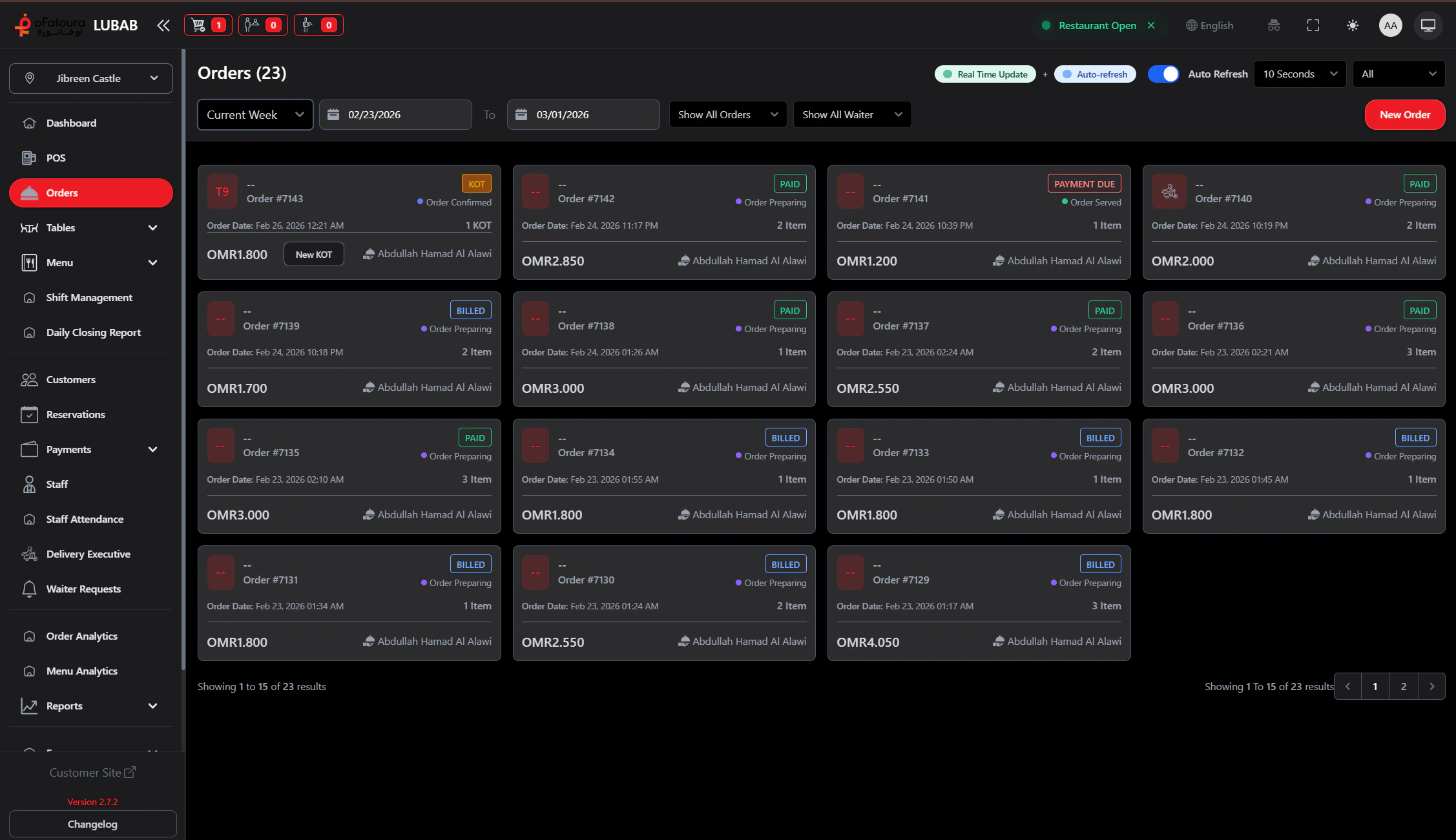
The Orders page shows all orders. You can filter, view details, change status, add payment, print receipts, and manage orders from here.

Overview

  • View all orders in one place
  • Filter by date, status, order type, or waiter
  • Open order details
  • Add payment to an order
  • Print receipts or export as PDF
  • Cancel or delete orders (when allowed)
  • Update order status

Prerequisites

  • You need permission to view orders.
  • Orders are created from POS or the customer site.

Step-by-Step Actions

1. Open the Orders page

Orders page
  1. In the left sidebar, click Orders (or expand Orders/KOT and click Orders).
  2. The Orders page opens with a list of orders.

2. Filter orders by date

  1. Use the date filter (e.g., Today, Yesterday, Custom range).
  2. Select the date range you want.
  3. The list updates to show only orders in that period.

3. Filter by status

  1. Use the status filter dropdown.
  2. Choose a status (e.g., Draft, KOT, Billed, Paid, Canceled).
  3. The list shows only orders with that status.

4. Filter by order type

  1. If available, use the order type filter.
  2. Choose Dine-in, Delivery, Pickup, or similar.
  3. The list updates.

5. Filter by waiter

  1. If the filter is available, select a waiter.
  2. The list shows only orders assigned to that waiter.

6. View order details

  1. Click an order row or the View button.
  2. The order detail screen opens.
  3. You can see items, totals, payment status, and notes.
  4. From here you can add payment, print, or change status.

7. Add payment to an order

  1. Open the order details.
  2. Click Add Payment or Pay.
  3. Select the payment method and enter the amount.
  4. Confirm. The order status updates (e.g., to Paid).

8. Print a receipt

  1. Open the order details.
  2. Click Print or Print Receipt.
  3. The receipt prints on the configured printer (or a print dialog opens).

9. Export order as PDF

  1. Open the order details.
  2. Click Export PDF or Download PDF.
  3. The PDF is downloaded.

10. Cancel an order

  1. Open the order details.
  2. Click Cancel (if available for that status).
  3. Select a cancel reason if asked.
  4. Confirm. The order is marked as canceled.

11. Update order status

  1. Open the order details.
  2. Use the status dropdown or buttons (e.g., Ready, Out for delivery, Delivered).
  3. Select the new status.
  4. The order status updates.
Status rules: Orders typically move forward (Draft → KOT → Billed → Paid). Canceling a Billed order may require manager permission and can reverse inventory deductions if Recipes exist. Cancellation does not automatically refund payments—process refunds separately. For multi-branch setups, ensure the correct branch is selected before viewing or modifying orders.

Common Mistakes and How to Avoid Them

MistakeHow to avoid
Wrong date filterCheck the date range before assuming all orders are shown.
Printing wrong orderConfirm you have the correct order open before printing.
Canceling by mistakeUse Cancel only when needed; some cancellations may not be reversible.

End Result

  • You can find and manage any order.
  • You can filter, view details, add payment, and print receipts.
  • Order status reflects the real state of each order.