Overview
- Enable Cash payment
- Enable Card payment
- Enable QR payment (if supported)
- Enable online payment (Stripe, Razorpay, PayPal, etc.) and enter credentials
- Configure offline payment method for “pay later” orders
Prerequisites
- You need permission to manage settings (admin).
- For online payment: have your provider account and API keys ready.
- Open Settings and the Payment Gateway tab.
Step-by-Step: Enable Cash Payment

- Go to Settings > Payment Gateway tab.
- Find Cash or Enable Cash.
- Turn it On.
- Click Save.
- Cash will appear as an option when processing payment in POS.
Step-by-Step: Enable Card Payment
- In Payment Gateway tab, find Card or Enable Card.
- Turn it On.
- If you use a card terminal, you may need to connect it (varies by setup).
- Click Save.
Step-by-Step: Enable Online Payment (e.g., Stripe, Razorpay)
- In Payment Gateway tab, find your provider (Stripe, Razorpay, PayPal, Flutterwave, Paystack, etc.).
- Turn the provider On.
- Enter the API keys or credentials (from your provider dashboard):
- Usually: Publishable key, Secret key, or Client ID and Secret.
- Follow the labels in the form.
- Enter Webhook URL if the provider requires it (often shown in the form).
- Click Save.
- Test with a small order to ensure payment works.
- API keys are for the correct environment (test vs live). Test keys will not process real payments; live keys are required for production.
- Webhook URL is accessible. Providers need it to confirm payments. Verify it in your payment provider dashboard.
- If the webhook fails, payments may complete on the provider side but order status may not update automatically. Check the Orders page and update payment status manually if needed.
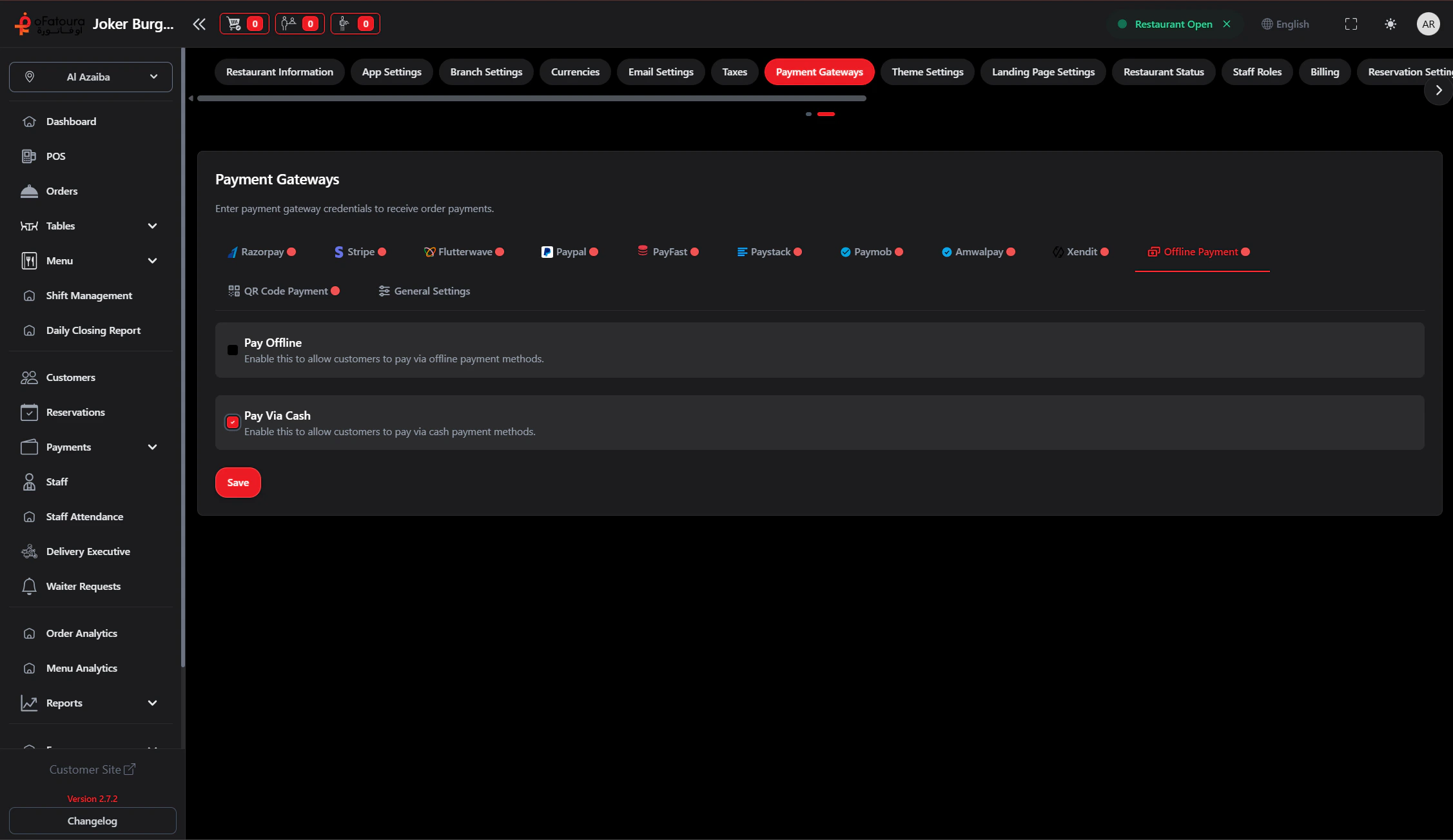
Step-by-Step: Offline / Due Payment
- If you offer “pay later” or “due” orders:
- Enable Due or Offline payment (or similar).
- Orders can be billed without immediate payment.
- Follow up via Due Payments page.
Common Mistakes and How to Avoid Them
| Mistake | How to avoid |
|---|---|
| Wrong API keys | Copy keys exactly from the provider dashboard; check live vs test mode. |
| Forgetting to save | Always click Save after entering credentials. |
| Wrong webhook URL | Use the URL shown in Settings; providers need it for confirming payments. |
End Result
- Cash, card, and online payment methods are enabled.
- Online gateway credentials are saved and verified with a test payment.
- Due/offline payment is configured if you allow pay-later orders.