

Essential data for your financial filings and tax compliance.Documentation Index
Fetch the complete documentation index at: https://docs.ofatoura.com/llms.txt
Use this file to discover all available pages before exploring further.
Tax Summary
- Summary Cards: Total tax collection and order count.
- Order-Level Data: Order number, date, order type, payment method, total, and tax amount.
- Actions: Open the related order from the report table.
Generating the Report
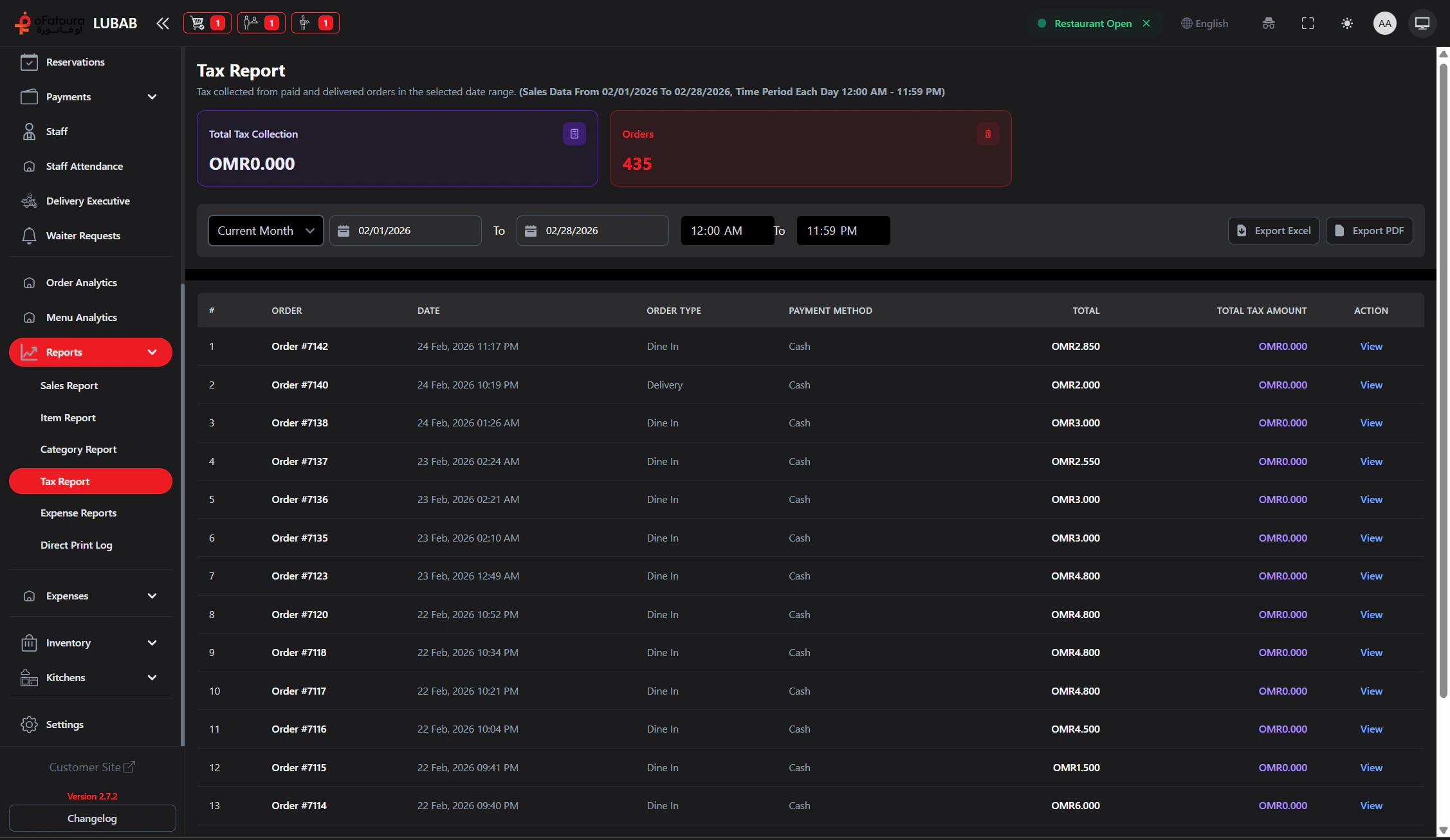
Filter
- Date Range: Use presets (including Yesterday) or set a custom start/end date.
- Time Range: Set start and end time.
Important: Configure tax behavior from Other Essential Settings and item/category tax assignments.
Other Essential Settings
Configure tax mode and related controls
Sales Report
Verify total revenue