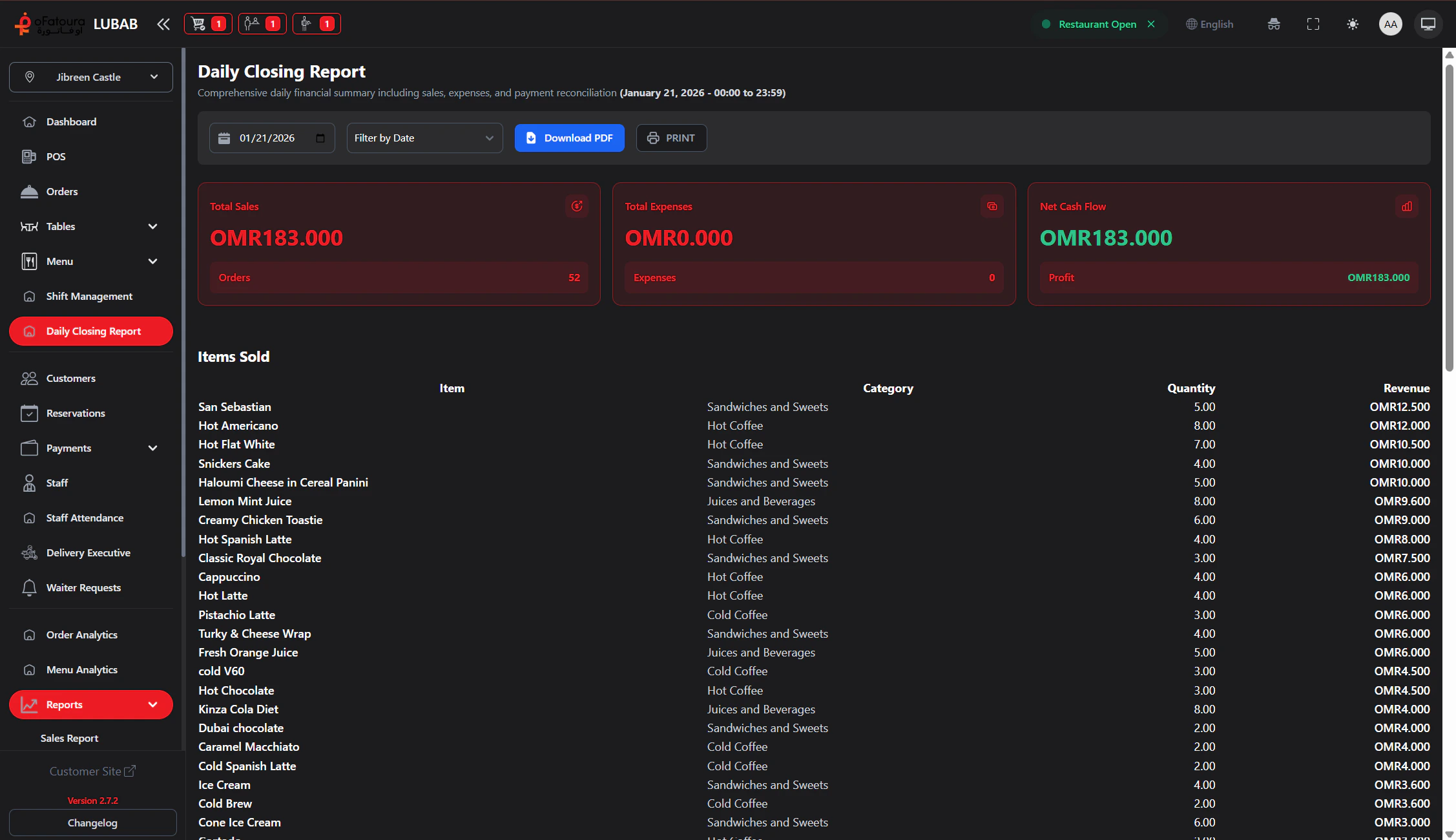
Overview
- Select a date for the daily report
- Filter by shift (if shifts are used)
- View total sales summary
- View payment breakdown by method
- View expenses
- Export the report as PDF
- Print the report
Prerequisites
- The Report module must be enabled.
- You need permission to view the Daily Report (Show Daily Report).
- Shifts should be closed for the day you are reporting on.
Step-by-Step Actions
1. Open Daily Closing Report

- Click Daily Closing Report in the left sidebar.
- The Daily Closing Report page opens.
2. Select the date
- Use the date picker.
- Choose the day you want to report on (usually yesterday or today).
- The report updates for that date.
3. Filter by shift (if applicable)
- If your restaurant uses shifts, you may see a shift filter.
- Select a specific shift or “All” to see the full day.
- The report updates.
4. View the report summary
- The report typically shows:
- Total sales
- Sales by payment method (Cash, Card, etc.)
- Due payments
- Expenses
- Tax collected
- Net or summary figures
- Scroll to see all sections.
5. Export as PDF
- Click Export PDF or Download PDF.
- The report is generated and downloaded.
- Save it for your records or accounting.
6. Print the report
- Click Print.
- A print dialog opens or the report is sent to the printer.
- Print a copy for your records.
7. Generate print job (if available)
- Some systems let you Generate Print Job for the report.
- The report is queued for printing.
- Use this if you have a dedicated report printer.
Common Mistakes and How to Avoid Them
| Mistake | How to avoid |
|---|---|
| Wrong date | Double-check the date before exporting or printing. |
| Incomplete shift data | Close all shifts for that day first. |
| Not saving a copy | Export or print for your records. |
End Result
- You have a clear end-of-day summary.
- Sales, payments, and expenses are documented.
- You can export and print for records and accounting.