Overview
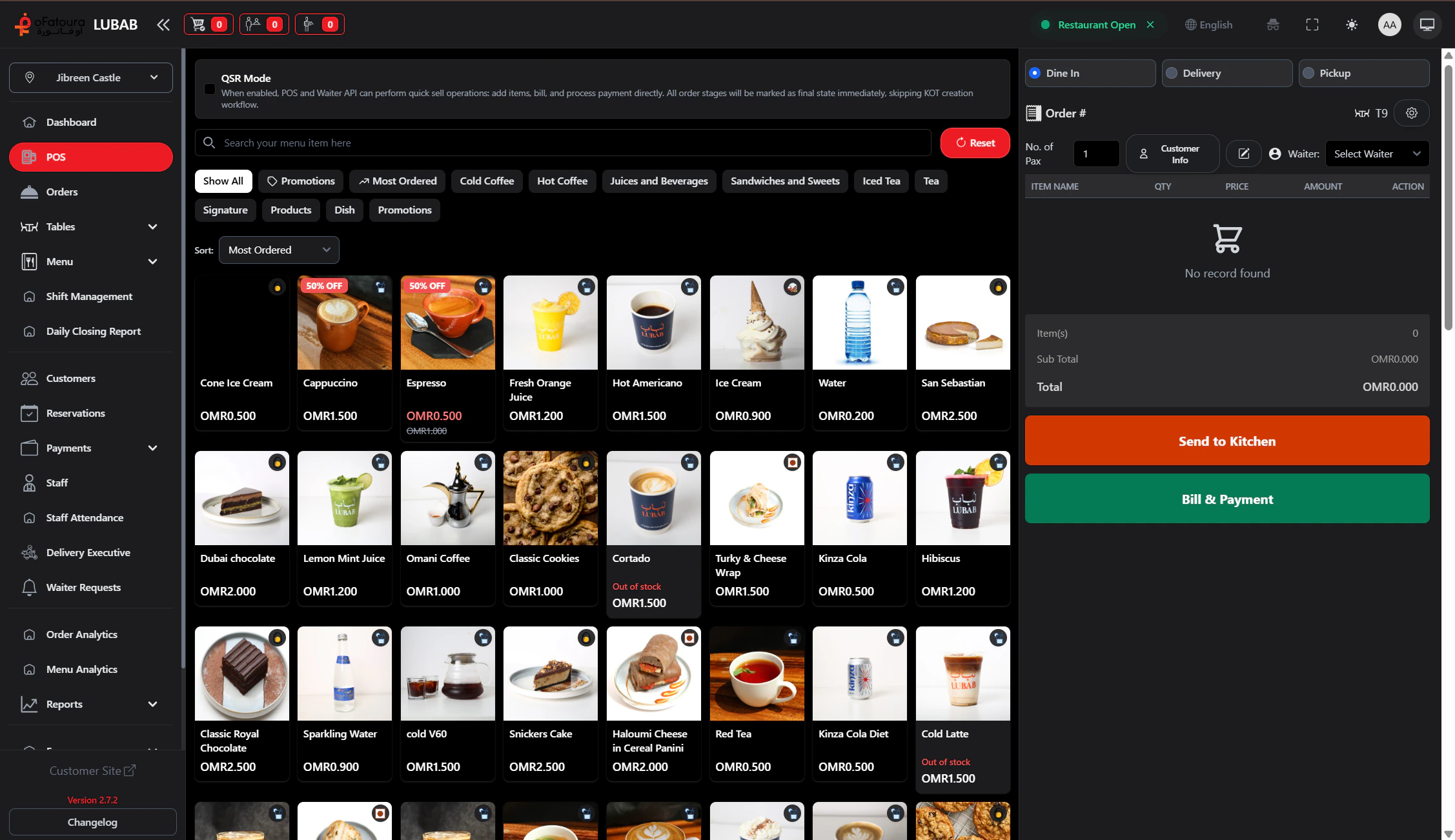
- Start new orders or open existing ones
- Select tables for dine-in
- Add menu items, sizes, modifiers, and notes
- Apply discounts and process payment
- Print receipts and Kitchen Order Tickets (KOT)
Prerequisites
- Menu and Floor & tables completed
- Permission to create orders
- Active shift — Open a shift in Shift management if POS shows “No active shift”
- Correct branch selected (multi-branch setups)
Take an order
Open POS

- Click POS in the left sidebar
- The POS screen opens with menu on the left and order area on the right
Select a table (dine-in)

- Click Select Table or the table icon
- Choose the table where the customer is sitting
- The table is assigned to the order
Add items

- Use category tabs or search to find items
- Click an item to add it
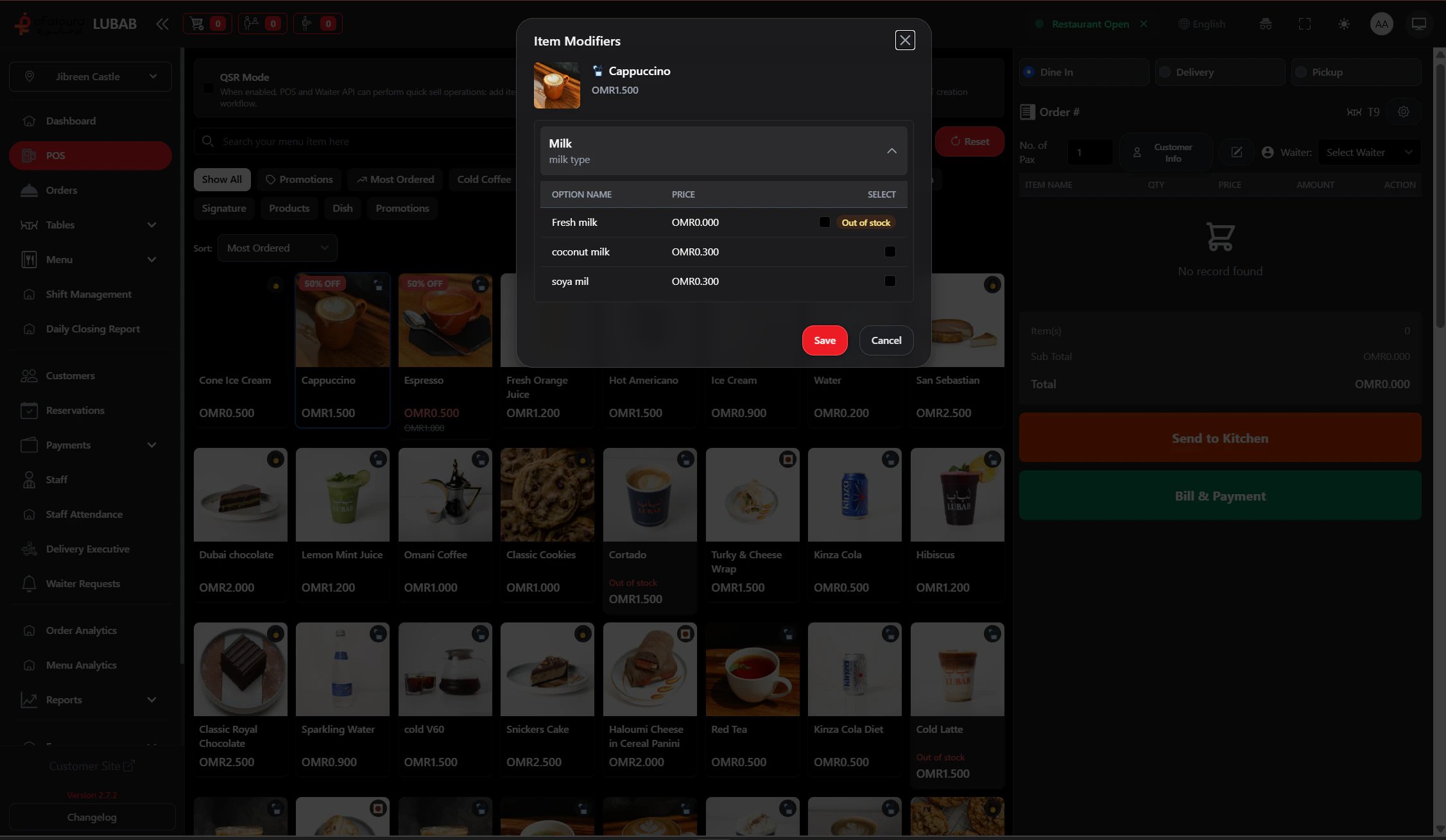
- If it has variations (e.g. size), choose in the popup
- If it has modifiers (e.g. Extra cheese), select and add
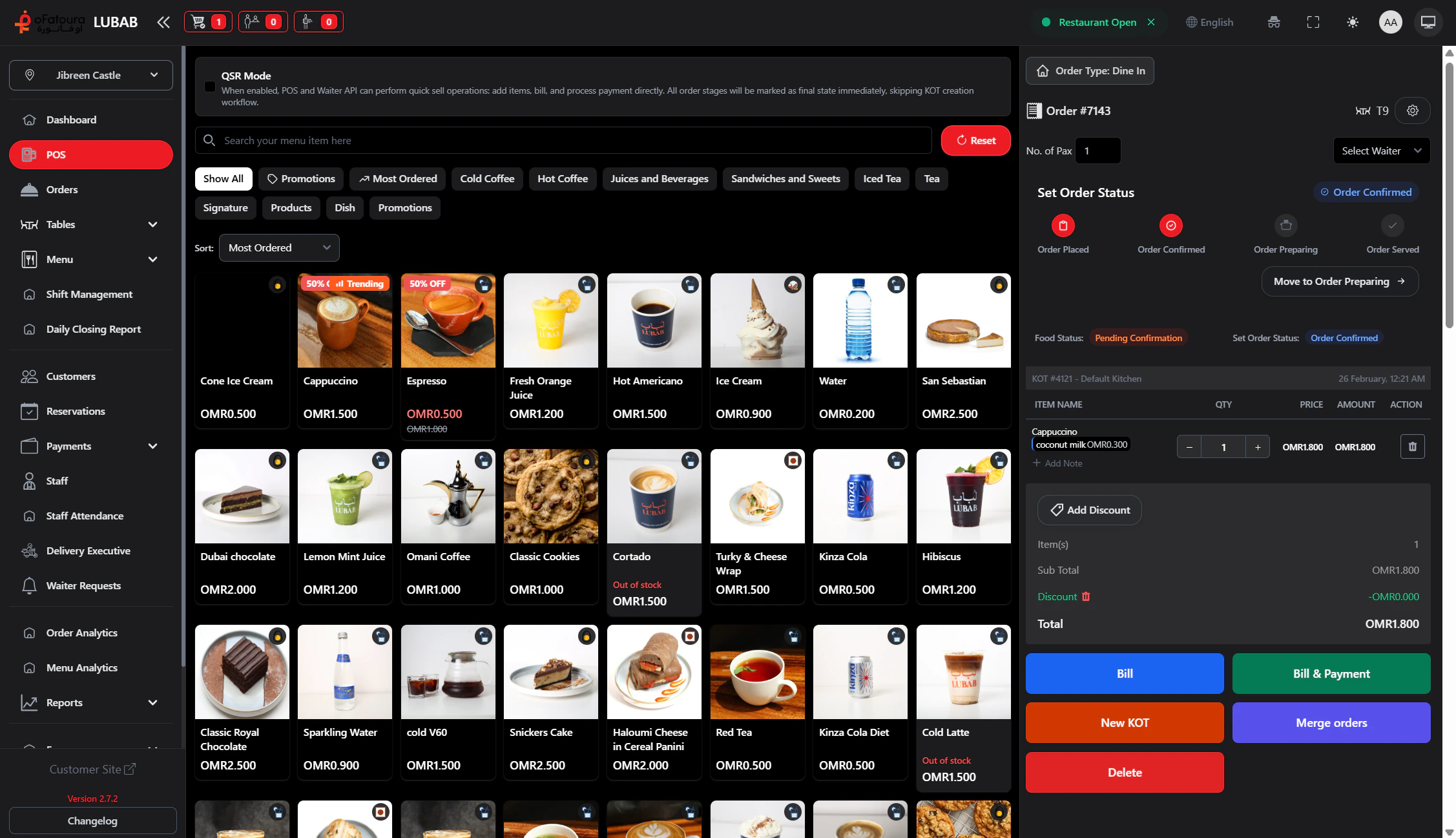
- The item appears in the order panel with quantity and price
Adjust quantity or remove
- In the order panel, use + and − for quantity
- Use Remove or trash icon to delete an item
Add notes
- Click the item or the note icon
- Enter the note (e.g. “No onions”, “Extra spicy”)
- Save — the note appears on the kitchen ticket
Add a discount
- Click Add Discount or the discount button
- Enter the value (fixed amount or percent)
- Click Save — the total updates
Send to kitchen (KOT)
- Click Send to Kitchen or KOT when items are ready
- A Kitchen Order Ticket may print automatically
- Order status updates
Process payment

- Click Pay, Checkout, or Bill
- Select the payment method (Cash, Card, etc.)
- Enter the amount if different from the total
- Click Complete or Confirm Payment
- A receipt may print automatically
If payment fails, the order stays in “Billed” status. Retry from the Orders page or check Payment settings.
Start a new order
- After payment, click New Order
- Select a table again if the table is free
Common mistakes
| Mistake | How to avoid |
|---|---|
| Forgetting table | Always assign a table for dine-in |
| Wrong modifier | Double-check before adding |
| Discount on wrong order | Ensure the correct order is open |
| Not sending to kitchen | Send items to KOT before payment |
Next steps
Orders page
View and manage all orders.