Overview
- Create purchase orders for low-stock or out-of-stock items
- Add items and quantities to a PO
- Send the PO to the supplier
- Receive items (mark as received)
- Record payment
- Export or print PO as PDF
Prerequisites
- Suppliers must exist (see Suppliers).
- Inventory Items should have preferred suppliers set (optional but helpful).
- You need permission to manage Purchase Orders (Show Purchase Order).
Step-by-Step Actions
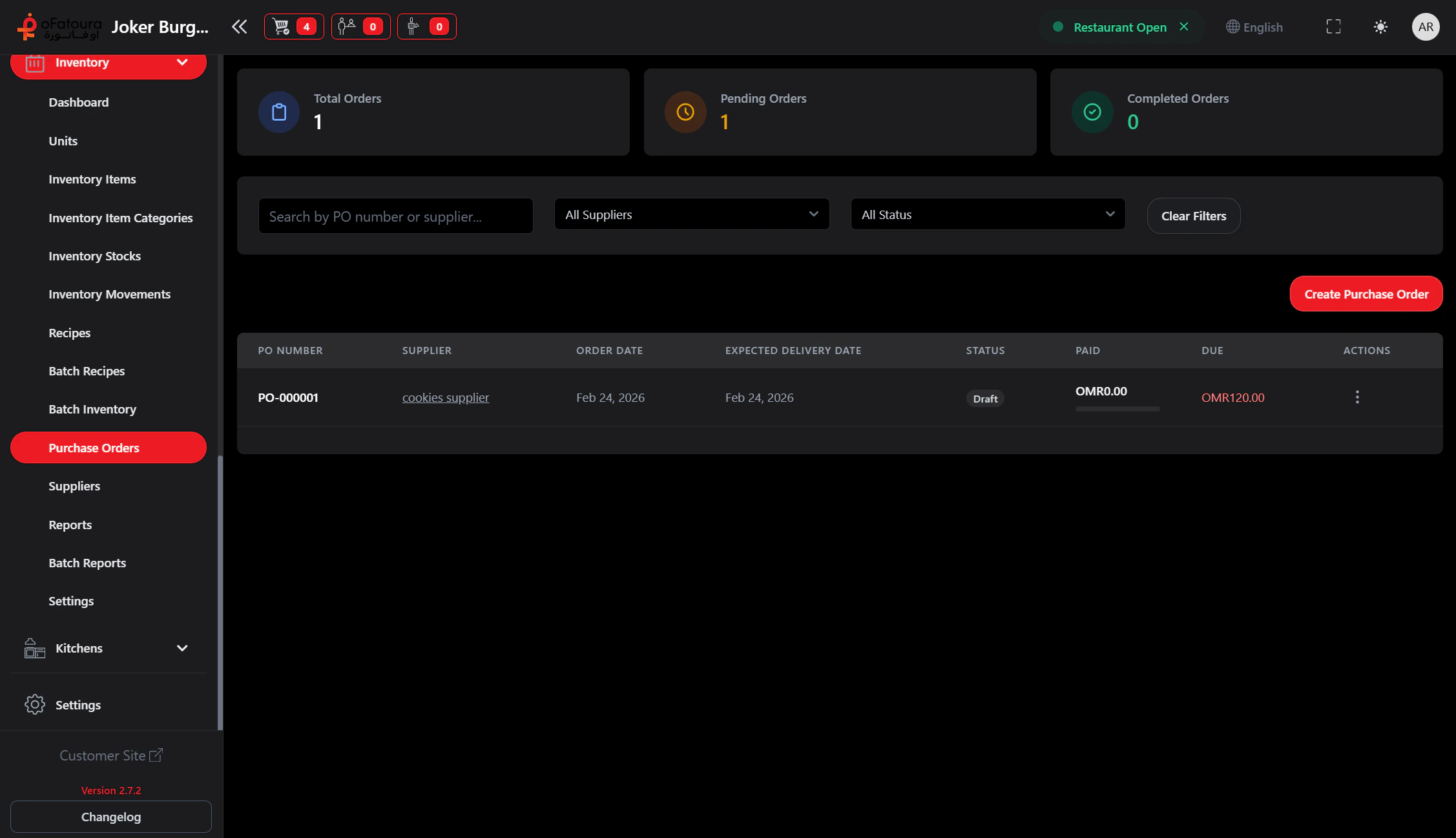
1. Open Purchase Orders

- In the left sidebar, expand Inventory.
- Click Purchase Orders.
- The Purchase Orders page opens.
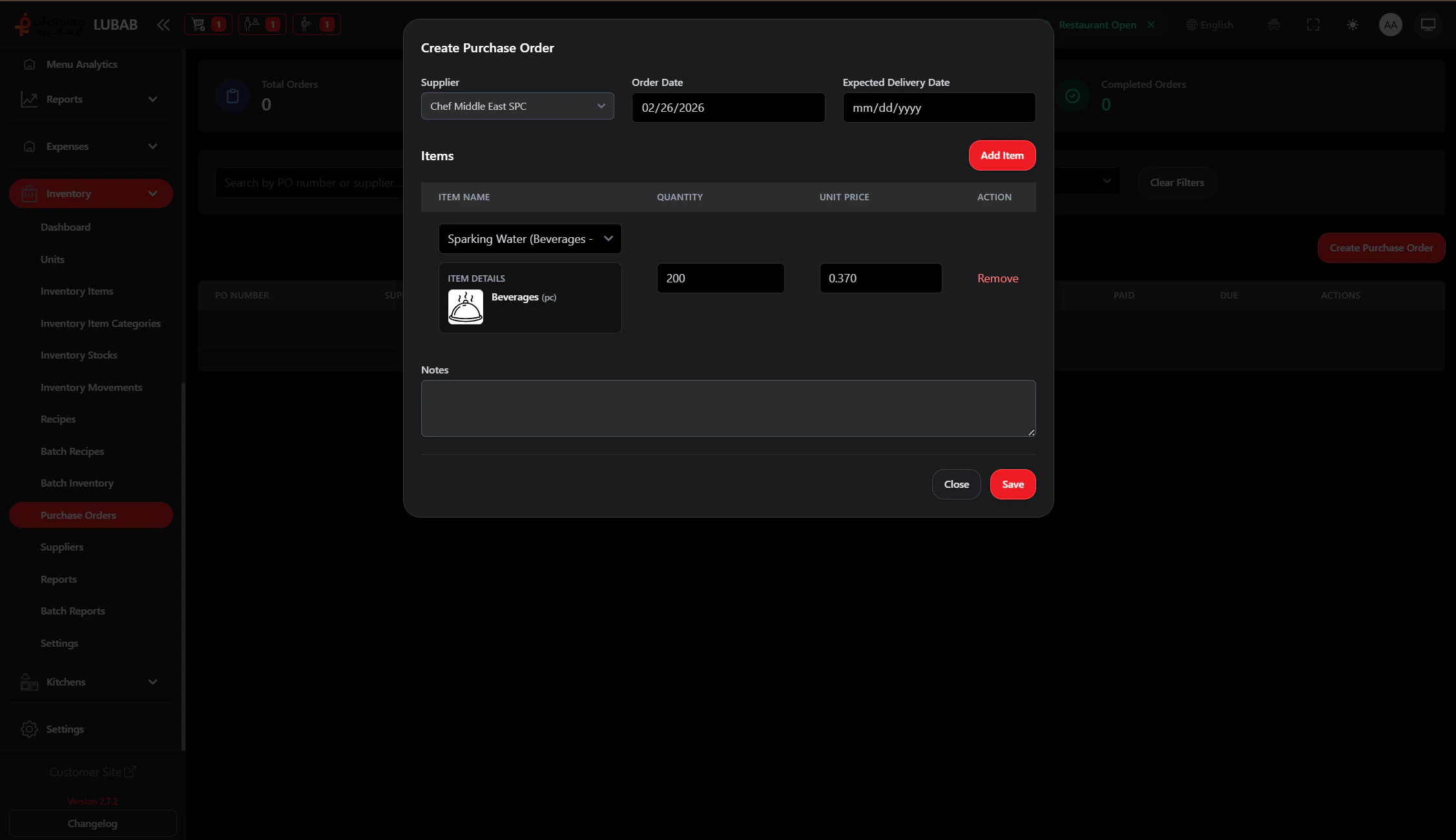
2. Create a new purchase order
- Click Add or Create Purchase Order.
- Select the Supplier.
- Add items:
- Select inventory item
- Enter quantity and unit price (if needed)
- Add delivery date or notes (optional).
- Click Save or Create.
- The PO is created (usually as Draft or Pending).
3. Send the PO to the supplier
- Open the PO.
- Click Send or Submit (if available).
- The status may change to Sent or Submitted.
- You can print or export as PDF to send to the supplier.
4. Receive items
- When the delivery arrives, open the PO.
- Click Receive or Receive Items.
- Enter received quantities (may differ from ordered).
- Confirm. Stock is updated (Stock In movement is created).
- The PO status may change to Partially Received or Received.
5. Record payment
- Open the PO.
- Find Add Payment or Record Payment.
- Enter amount and payment method.
- Save. The PO is marked as paid (if fully paid).
6. Export or print PO
- Open the PO.
- Click Export PDF or Print.
- Use the file to send to the supplier or for records.
Common Mistakes and How to Avoid Them
| Mistake | How to avoid |
|---|---|
| Wrong supplier | Double-check the supplier before creating the PO. |
| Wrong quantities | Verify quantities when receiving. |
| Forgetting to receive | Always receive items so stock is updated. |
End Result
- Purchase orders are created and sent.
- Received items update stock automatically.
- Payments are recorded for accounting.