

The Dashboard is the main screen when you log in. It gives a quick view of your restaurant’s activity.Documentation Index
Fetch the complete documentation index at: https://docs.ofatoura.com/llms.txt
Use this file to discover all available pages before exploring further.
Overview
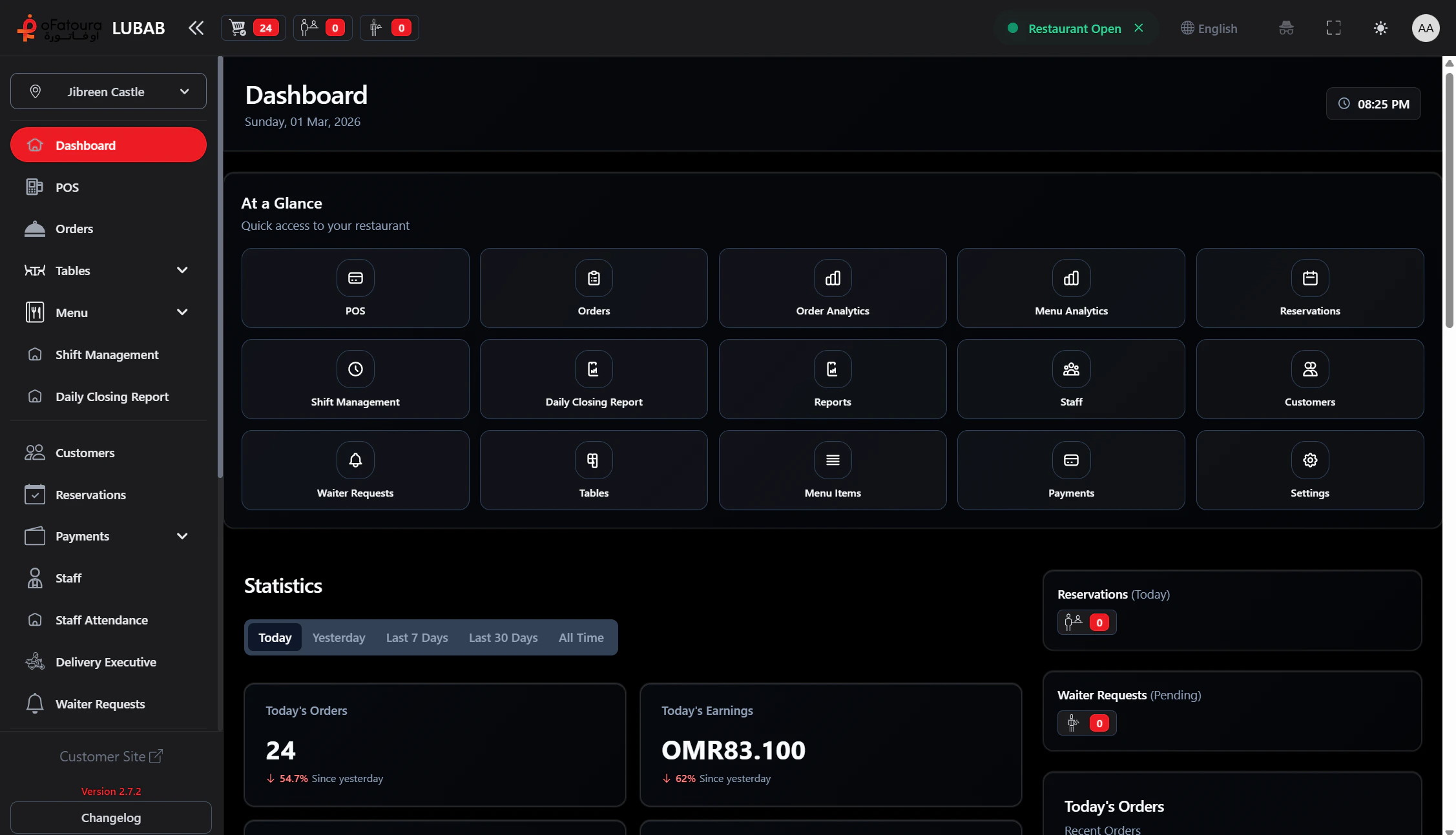
- Today’s orders, earnings, and customer count
- Charts and summaries for the selected period
- Quick links to POS, Orders, Reservations, and more
- Filters by time (today, yesterday, last 7 days, etc.)
Prerequisites
- Logged in
- Related modules enabled and permissions granted (some items may be hidden otherwise)
Use the dashboard
Open the dashboard
- Click Dashboard in the left sidebar (usually the first item)
- The dashboard loads with today’s stats and charts
Change the time period
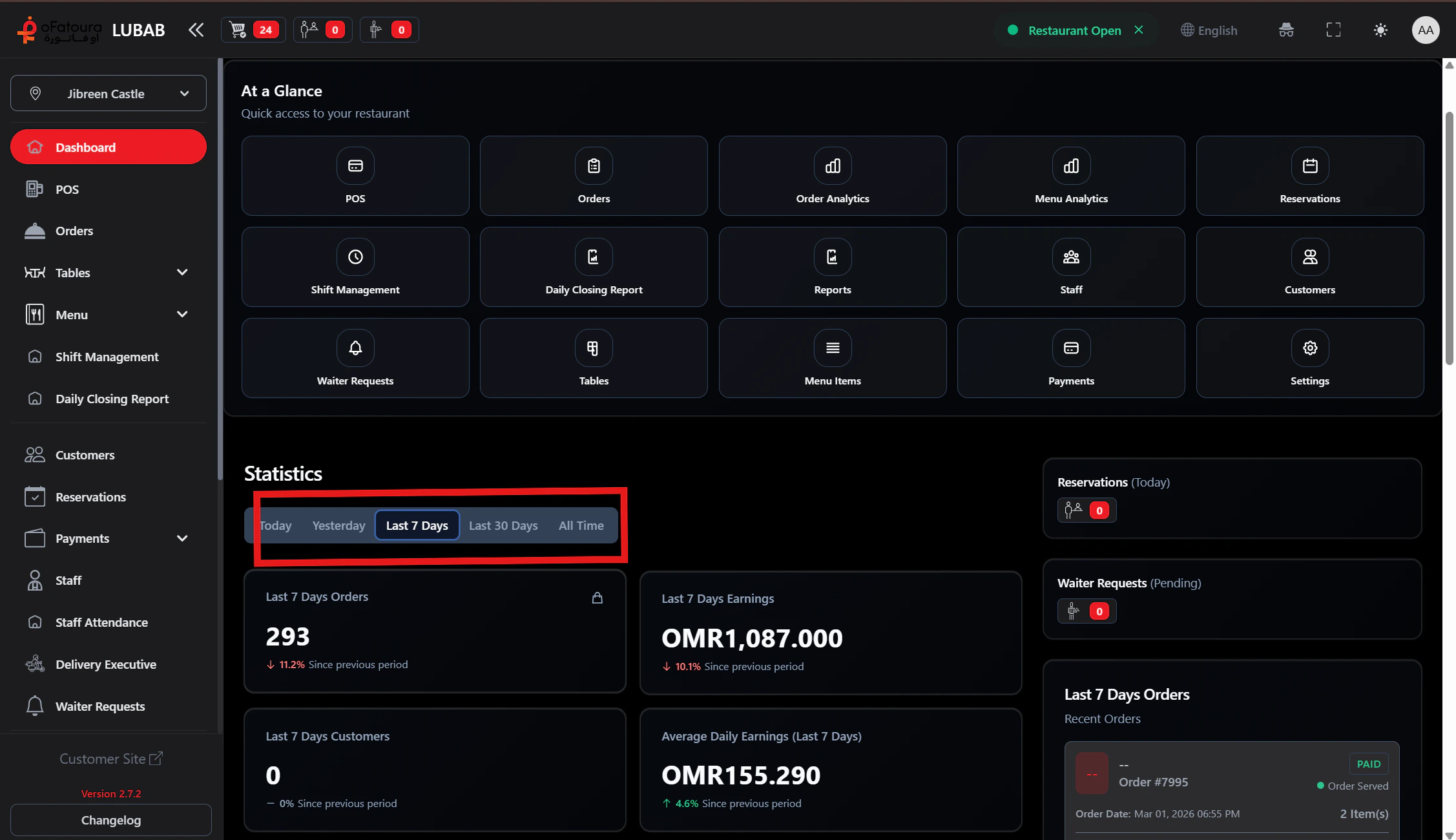
- Use the filter buttons (e.g. Today, Yesterday, Last 7 Days, Last 30 Days, All Time)
- Click the period you want
- Stats and charts update automatically
Main stats
| Stat | Meaning |
|---|---|
| Order count | Number of orders in the selected period |
| Today’s earnings | Total revenue |
| Customer count | Number of customers (if Customer module is enabled) |
| Average daily earning | Average revenue per day |
Quick links (At a Glance)
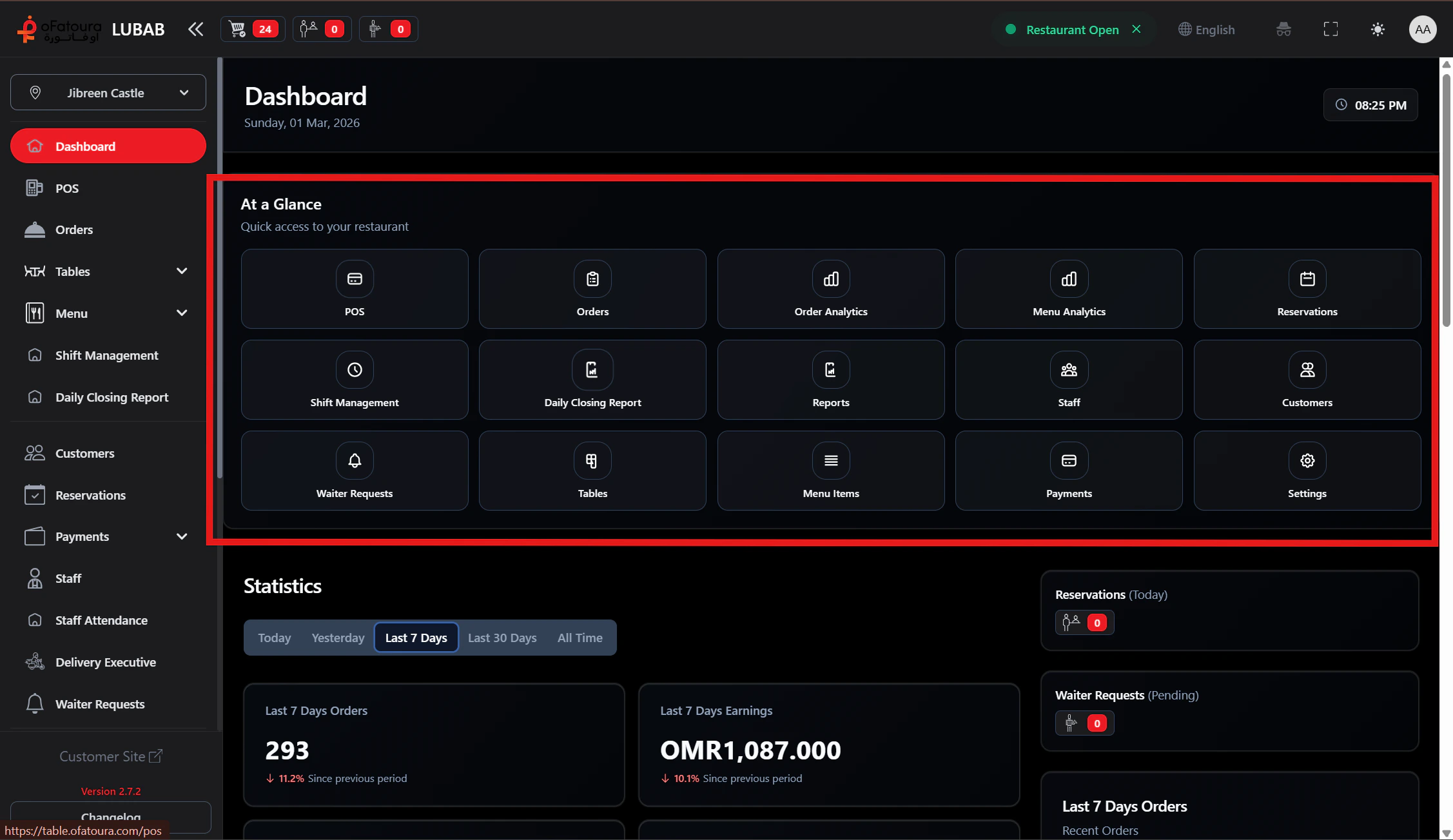
- Below the header, find the At a Glance section with cards
- Each card is a shortcut to a main area (POS, Orders, Reports, etc.)
- Click a card to go to that section
Sidebar widgets
On the right you may see:- Today’s reservations (if enabled)
- Pending waiter requests (if enabled)
- Today’s order list
Common mistakes
| Mistake | How to avoid |
|---|---|
| Wrong time period | Check which period is selected before reading numbers |
| Missing quick links | At a Glance shows only links you have permission to use |
| Expecting all modules | Stats and links depend on your modules and permissions |
Next steps
Menu setup
Add categories, items, and menus.