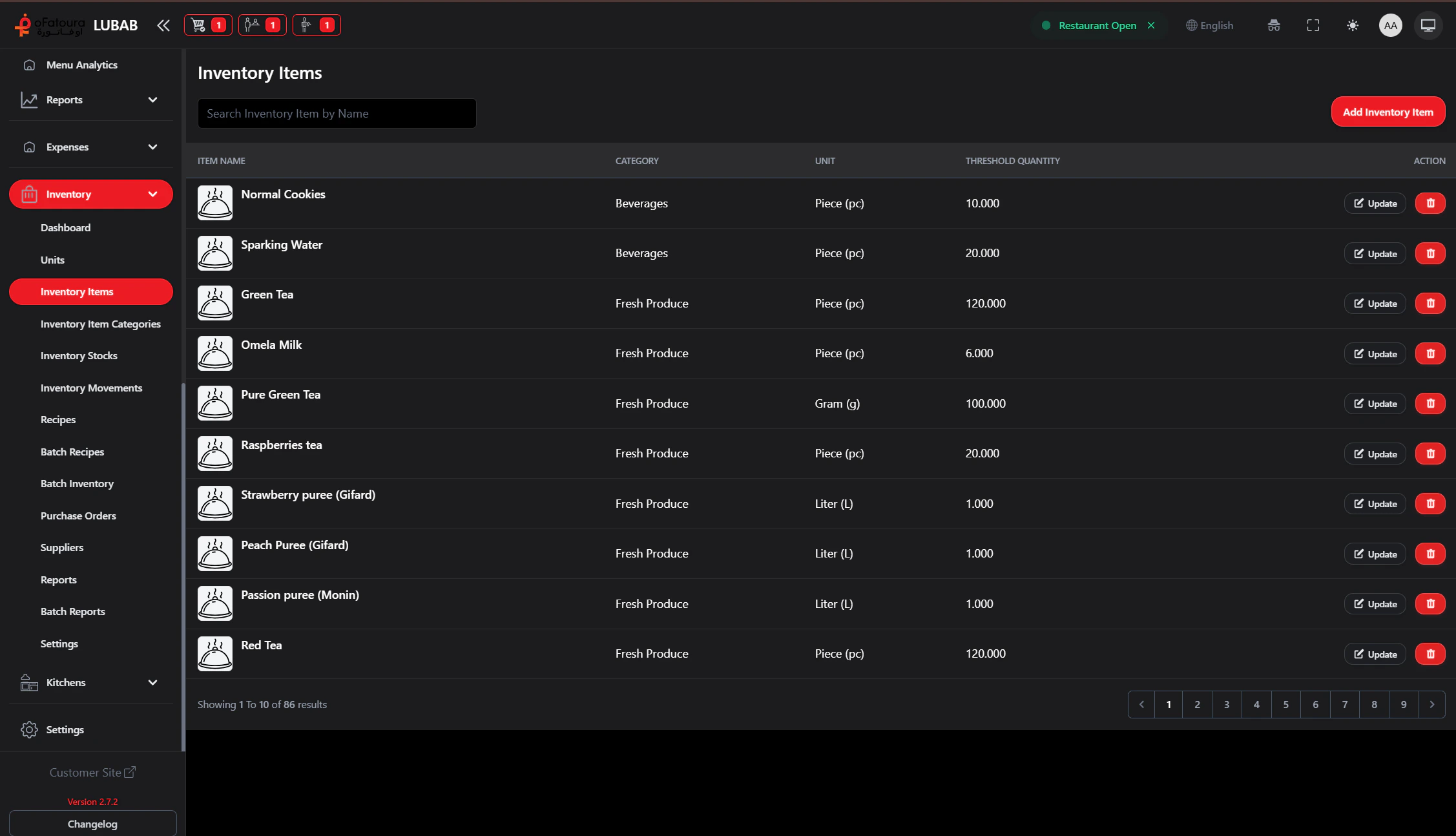
Inventory Items are the actual ingredients you stock (e.g., Tomatoes, Cheese, Flour). Each item has a name, unit, category, and optional reorder threshold.

Overview

  • Add ingredients with name, unit, and category
  • Set a threshold (minimum quantity) for low-stock alerts
  • Set auto reorder quantity and preferred supplier (for purchase orders)
  • Upload a photo to help staff identify the item

Prerequisites

  • Units and Inventory Item Categories must exist.
  • You need permission to manage Inventory Items.

Step-by-Step Actions

1. Open Inventory Items

Inventory items
  1. In the left sidebar, expand Inventory.
  2. Click Inventory Items.
  3. The Inventory Items page opens.

2. Add a new inventory item

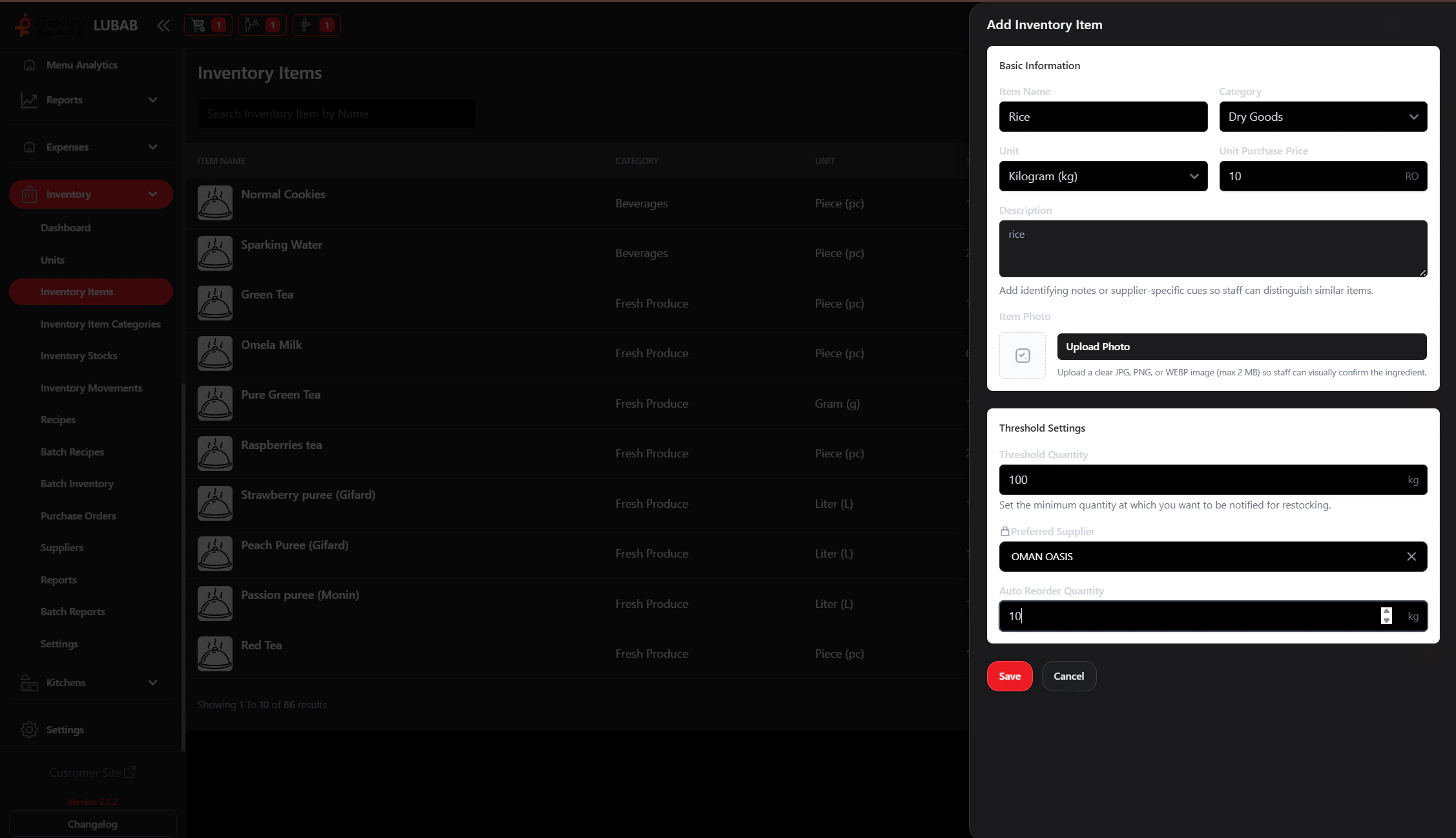
  1. Click Add Inventory Item or Add.
  2. Fill in:
    • Name – e.g., Tomatoes, Olive Oil
    • Category – select from your categories
    • Unit – select (kg, liters, pieces, etc.)
    • Threshold quantity – when to get a low-stock alert
    • Description (optional) – notes for staff
    • Preferred supplier (optional) – for purchase orders
    • Auto reorder quantity (optional) – suggested order amount
  3. Upload a photo if useful (helps staff identify the item).
  4. Click Save or Add.

3. Edit an inventory item

  1. Find the item in the list.
  2. Click Edit.
  3. Change any detail.
  4. Click Save.

4. Delete an inventory item

  1. Find the item.
  2. Click Delete.
  3. Confirm.
  4. Note: Items used in recipes or with stock may need to be handled first.

Common Mistakes and How to Avoid Them

MistakeHow to avoid
Wrong unitDouble-check the unit (e.g., kg vs g) so stock and recipes are correct.
Threshold too high or lowSet a realistic threshold based on how much you use.
Missing preferred supplierAdd a supplier if you want to create purchase orders easily.

End Result

  • All ingredients are added as inventory items.
  • Thresholds and suppliers are set for alerts and ordering.
  • Items are ready for use in recipes and stock.