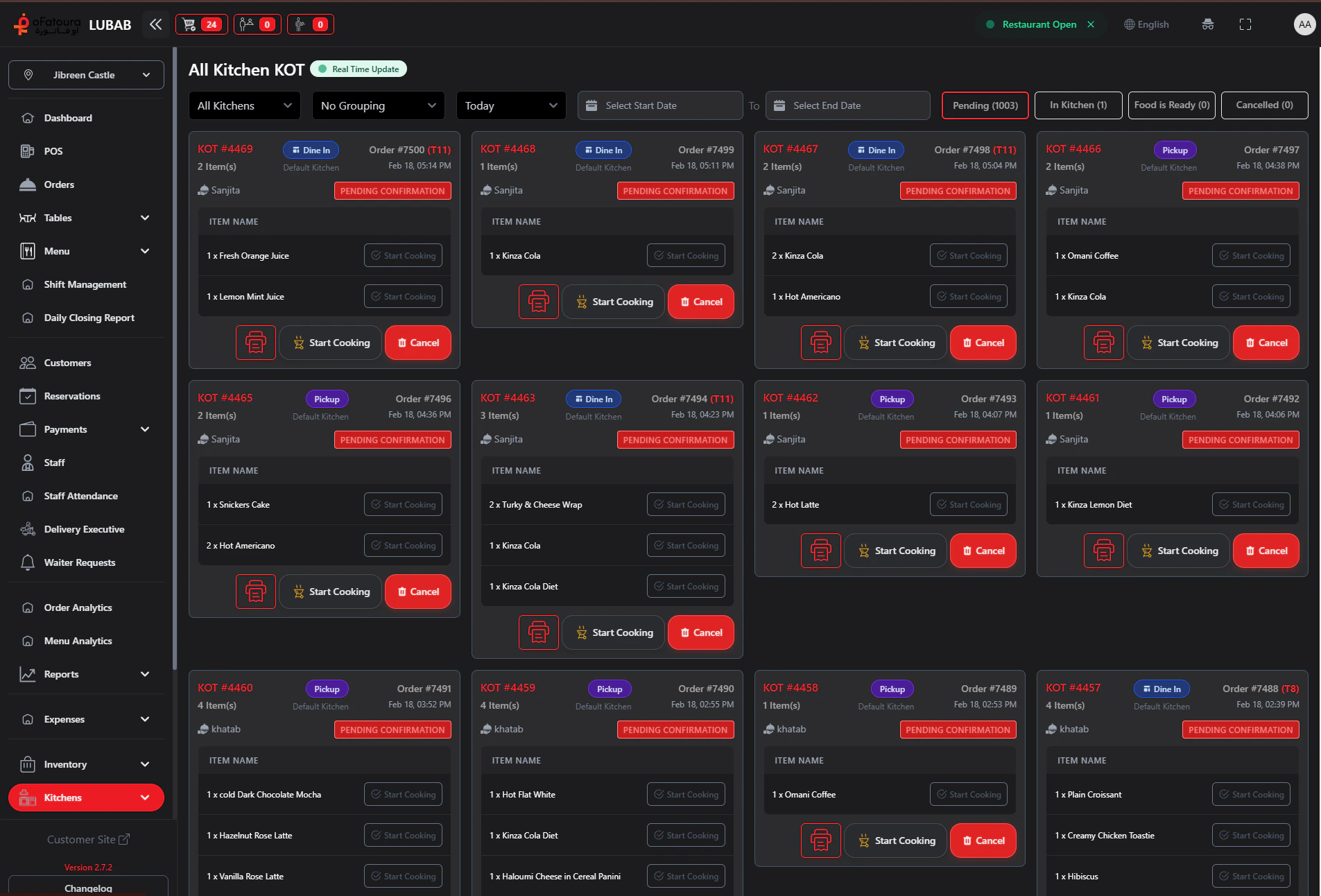
KOT (Kitchen Order Ticket) is the ticket sent to the kitchen when items need to be prepared. The KOT page lets you view and manage KOTs, and print them if needed.

Overview

  • View all Kitchen Order Tickets
  • Print KOTs manually if automatic printing failed
  • See which items have been sent to the kitchen
  • Cancel or manage KOTs when needed

Prerequisites

  • Printers may be configured in Settings for automatic KOT printing.
  • You need permission to manage KOTs (usually under Orders).
  • The KOT page may appear under Orders > KOT in the sidebar (depending on your setup).

Step-by-Step Actions

1. Open the KOT page

KOT workflow
  1. In the left sidebar, expand Orders (or Orders/KOT).
  2. Click KOT.
  3. The KOT page opens with a list of KOTs.

2. Understand KOT status

  • Each KOT represents items sent to the kitchen for an order.
  • Status may show: Pending, Sent, In Progress, Done, or Canceled.
  • KOTs are usually created when you click Send to Kitchen in POS.

3. Print a KOT manually

  1. Find the KOT in the list.
  2. Click Print or the print icon.
  3. Select the kitchen printer if asked.
  4. The KOT prints.

4. View KOT details

  1. Click a KOT row or View.
  2. See the table number, items, quantities, notes, and time.
  3. Use this to confirm what was sent to the kitchen.

5. Add items to an existing order (new KOT)

  1. From the Orders page, open the order.
  2. Add new items in POS.
  3. Click Send to Kitchen again.
  4. A new KOT is created for the new items.
  5. The kitchen receives the new ticket.

6. Cancel a KOT

  1. If canceling is supported, find the KOT.
  2. Click Cancel.
  3. Select a reason if asked.
  4. Confirm. The KOT is marked as canceled.
Troubleshooting: If KOTs don’t print, check printer IP and Printer Settings. Use manual print from the KOT page if automatic printing fails. For multi-kitchen setups, items are split by kitchen assignment—verify each kitchen receives the correct items. Only users with “Print KOT” (or similar) permission can reprint tickets.

Common Mistakes and How to Avoid Them

MistakeHow to avoid
Forgetting to send to kitchenAlways click Send to Kitchen in POS so the kitchen gets the order.
Printing to wrong printerCheck printer settings in Settings if KOTs go to the wrong place.
Duplicate KOTsEach “Send to Kitchen” creates a KOT; avoid sending the same items twice.

End Result

  • You understand how KOTs are created and used.
  • You can view and print KOTs when needed.
  • The kitchen receives orders in a clear, printable format.
Related: If you use multiple kitchens, see Kitchen for Kitchen Places and per-kitchen KOT views.